
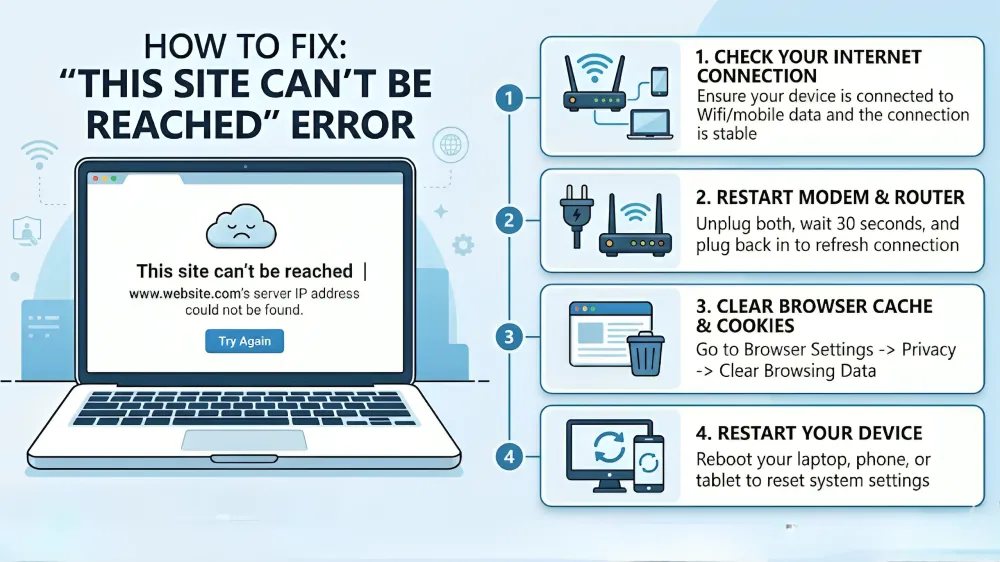
When you try to open a website and suddenly see the message ” This site can’t be reached, it interrupts your workflow and creates confusion. You want a webpage to open in a second, with the browser displaying an error with very limited clarity. Most users find themselves thinking that the issue lies on the side of the site itself, but in reality, what is often considered to be the source of the issue arises on the side of the network or the device settings.
In this article, you will learn what makes this a problem, how it relates to other errors like webpage not available, and how tools like a vpn extension on Chrome can sometimes fix this problem. Simultaneously, you will be taught systematic ways of searching for and solving the problem stepwise. Furthermore, every part describes the process in simple, understandable, and practical manner to ensure that you are able to apply the solutions without technical confusion.
Main Causes Behind “This Site Can’t Be Reached” Error
The main reasons this site can’t be reached usually relate to DNS failures, unstable internet connections, or incorrect system configurations. When the browser displays a simple message, the real reason usually lies within more network layers. Hence, knowing these underlying causes would enable you to resolve the problem in less time and in a better manner.
Meanwhile, there are a number of factors that can go wrong together to cause the error. As an example, a low connection rate and outdated DNS information can block the connection altogether. Consequently, the browser will not load the page, but will even show webpage not available instead of the expected response.
Common Causes Behind the Error
Several technical issues can lead to this problem. However, most cases fall into predictable patterns:
- DNS resolution failure
- Internet connectivity interruptions
- Incorrect firewall or antivirus settings
- Browser cache conflicts
- Server timeout or downtime
Each of these factors affects how your system communicates with the website. Consequently, even a small misconfiguration can break the connection entirely.
How DNS and Network Settings Impact Access
DNS is like a translator between your web browser and the internet. Whenever it can not find the correct name of a domain, your web browser cannot find the site. Thus, the connection attempt is terminated on the spot.
In addition, connectivity is also affected by network setups. In case your system is configured with an outdated or erroneous configuration, it can have problems reaching some of the servers, there are people who use vpn extension for Chrome to be able to circumvent mandates and get access once again.
Overview of Root Causes and Effects
| Issue Type | Effect on Connection | Resulting Message |
| DNS Error | Cannot locate server | this site can’t be reached |
| Weak Internet | Interrupted connection | webpage not available |
| Firewall Block | Access restricted | this site can’t be reached |
| Cache Conflict | Incorrect page loading | webpage not available |
| Server Downtime | No response from website | this site can’t be reached |
These factors highlight that the issue does not always originate from your device. Therefore, checking multiple aspects becomes necessary.
How to Resolve “This Site Can’t Be Reached” Error in 5 Steps
Once you understand the causes, you can follow a structured process to fix the issue. Instead of trying random solutions, a step-by-step method ensures better results. As opposed to seeking random solutions, an incremental approach will deliver improved outcomes. Every step goes towards a particular cause, which is used to pinpoint the particular issue. In addition, these troubleshooting measures do not entail high-level technical skills. They are easy to apply and can be restored to their access without professional help.
Step 1: Restart Your Internet Connection for Stability
A simple restart often resolves connectivity issues. In a scenario where your router runs nonstop, it can have temporary glitches that can impair performance. In this way, the device initiates a fresh set of connections by rebooting the device, and removes the smaller errors.
To do this step, switch your router off, unplug it and wait a minute. Next, reconnect the power and wait till the network has stabilized. Then, make another attempt to access the site. In most cases, this step gets rid of the problem at the moment.
Step 2: Disable Firewall or Antivirus Temporarily
In some cases, security tools flag valid websites. Despite securing your system, they can also act as restrictions to accidental access. As a result, your browser cannot load the page and shows an error.
To check this, temporarily disable your firewall or antivirus and reload the website. When the page loads, and the situation succeeds, then the security tool has been the cause of the problem. Nonetheless, it is advisable to enable protection immediately after a test.
Step 3: Clear Browser Cache to Remove Conflicts
Cached information is stored in browsers to enhance the speed of loading the information. The problem, however, lies with outdated files that may get in the way of newer requests. As a result, the browser might not even load the site properly.
To fix this, in the settings section of your browser, clear all stored images and files in the cache. Once completed, restart the browser and try again. This will usually fix any errors with the webpage not available.
Cache Behavior Comparison
| Scenario | Result |
| Old Cache Present | Loading errors occur |
| Cache Cleared | Fresh data loads correctly |
| Corrupted Files | Connection fails |
| Updated Cache | Smooth browsing experience |
This comparison shows how clearing cache improves performance and reliability.
Step 4: Flush DNS Cache for Updated Records
DNS cache is used to store IP addresses to help them be accessed faster. Nevertheless, old records might cause conflict and prevent connections. Hence, emptying the DNS cache makes your system to get new data.
On Windows, open Command Prompt and enter the command ipconfig /flushdns. On macOS, resetting DNS can be done with the help of a Terminal command. After completing this step, reconnect to the internet and check the website again. The approach can be used to avert chronic problems in the sense that it eliminates wrong records in the system.
Step 5: Change DNS Servers for Better Connectivity
DNS servers that are in default might not necessarily be effective. So, changing to the stable DNS options should raise the stability and speed. Other alternatives, such as Google DNS and Cloudflare DNS, are performing more appropriately in most instances.
To modify DNS settings, first pick up your network configuration and then input the new addresses of the server. Once the settings have been updated, restart your connection and test out the site. And in case restrictions are still imposed, you can use a vpn extension for Chrome. The tool will also alter your virtual position and can circumvent network restrictions.
Popular DNS Options
| Provider | Primary DNS | Secondary DNS |
| Google DNS | 8.8.8.8 | 8.8.4.4 |
| Cloudflare | 1.1.1.1 | 1.0.0.1 |
These options provide faster and more reliable connections compared to default settings.
Additional Fixes When the Error Persists
In some cases, the problem can persist even when some fundamental ways of solving problems have been implemented. Whenever this happens, you must find other ways in which you can discover other underlying issues. To make your browser compatible with the current websites, you can update your browser.
Another way of causing the loading is by turning off the unnecessary extensions. In addition, applying network settings can recover default settings and remove unreported errors.
If the problem still exists, check whether the website works on another device. If it fails everywhere, the issue likely comes from the server itself. Therefore, waiting for the website to recover becomes the only option.
Final Thought On “This Site Can’t Be Reached” Error
The message this site can’t be reached may appear complex, yet it usually results from simple connection issues. As soon as you know the reasons, you can employ the focused solutions and resume the connection within minutes. Furthermore, through a systematic troubleshooting process, you will cut down confusion and your browsing stability will also be enhanced.
Read Related Blogs: