
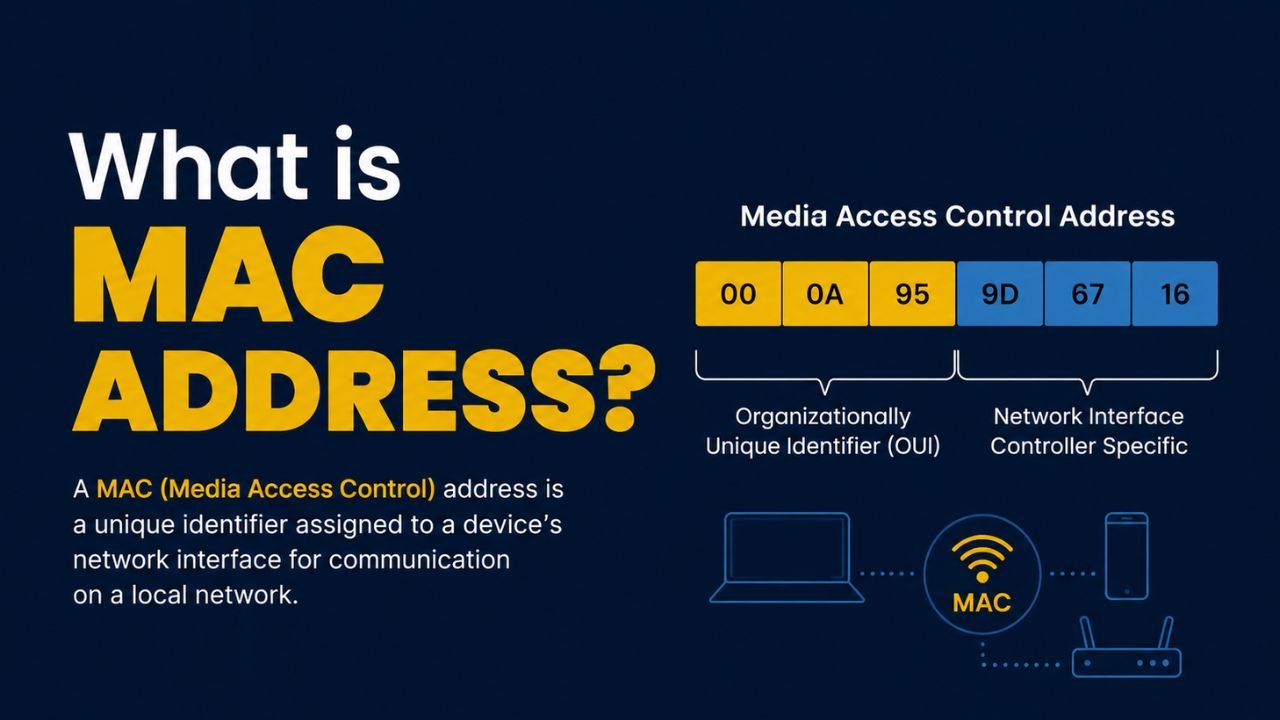
Have you ever wondered what is a MAC address and what that weird code that displays a long number before the name of your device means? The MAC address (also called Media Access Control address) is a permanent ID assigned to the network equipment on your device. One is embedded in every laptop, phone, smart TV, and games console, and it has a silent yet decisive impact on the manner in which devices interact in a network. Although this is a new word to you, you have certainly used a “gadget that depends on one, probably without thinking so.
We are going to unpack the meaning of a MAC address, why your computer needs it and how it works in this guide. We also have to step through the process of identifying your MAC address in Windows, Mac, Linux, iPhone, Android, PlayStation, Xbox and also cover the different types of MAC and how they differ from and compare to IP addresses. At the end, not only will you know this subject well enough to be able to explain it to a target, but you will also know where to find it when a setup screen requires it.
MAC Address Meaning: A Simple Definition Everyone Can Understand
A MAC address is a unique 12-character code that is imprinted indefinitely by the network aspect of your device when the equipment is produced. Imagine it as the fingerprint of your device, as no two devices should have the same one, and it remains with that particular hardware throughout its lifetime.
Technically, the MAC address has a MAC address layer that is at the data link layer on the OSI model, which is the layer that transmits data between devices on the local network. Whenever your laptop or your phone, is talking to your router, the MAC address is silently working in the background, and it is ensuring that the data is presented to the proper device and not another one.
Why Are MAC Addresses Still Important in Modern Networks?
Even though the majority of the interactions with networks are carried out by using Wi-Fi passwords and information about the connected internet, what is a MAC address happens to be one of the fundamental identifiers that a router and local networks operate with. They assist devices in identifying one another, enable network security features of such devices as MAC filtering and enable administrators to better manage the devices connected. Smartphones, laptops, smart home devices, and all other connected devices would use a MAC address to address other devices on a local network.
Step-by-Step Guide to Finding Your MAC Address on Any Device
On most devices, it will only take you less than a minute to find your MAC address, though the processes can vary based on the device you are using. Beneath, we will start each platform in turn, so that you may find your own swiftly, whatever device is in front of you.
Finding the MAC Address on Windows
The fastest way on a Windows computer is through the Command Prompt. First, open the search bar, type “cmd,” and press Enter to launch Command Prompt. Next, type ipconfig /all and hit Enter, since this command displays a long list of network details. Then, scroll down until you see the physical address that appears under your Wi-Fi or Ethernet device and that is your MAC address.
If you’d rather skip the command line, you can also find it through Settings. Simply go to Settings, then Network & Internet, click on your active connection, and select “Hardware Properties.” This causes windows to show the physical address at that point without typing anything.
Finding the MAC Address on Mac
Apple is relatively simple on a Mac. To start with, you need to firstly, in the upper left corner, there is the Apple icon; you need to open System Settings and then choose Network. Then select your current connection (Wi-Fi, Ethernet) and press the button “Details” or Advanced. Lastly, go to the Hardware tab where the MAC address is listed.
Finding the MAC Address on Linux
Linux users are able to invoke this information in a few seconds in the terminal. To begin with, open a terminal window and type ip link, and press Enter. Then you will find the value named link/ether that is presented in the normal format, where the pairs are separated with colons. Alternatively, with older versions of Linux, a similar command is occasionally substituted with the ifconfig one, in which case the address is listed next to “HWaddr.”
Finding the MAC Address on iPhone
On iPhone, tap the Settings application, then go to General and then tap About. Then you can scroll down, and the Wi-Fi Address will be visible at the bottom of the screen. But remember, this number may vary with the network you are connected to since now Apple uses private Wi-Fi addressing as the default.
Finding the MAC Address on Android
Android phones store this information inside the device settings too. To find it, open Settings, then go to “About Phone,” and tap “Status,” although on some phones, this option might be labeled differently depending on the manufacturer. Eventually, you’ll spot “Wi-Fi MAC Address,” with the code displayed right beside it.
Finding the MAC Address on PlayStation
To troubleshoot a PS5, visit the home screen and choose Settings with the setting gear. Then, go to Network and to Settings, and select View Connection Status. Thus, a MAC address of your console is displayed on this screen, which is very useful in configuring port forwarding to play online games.
Finding the MAC Address on Xbox
For Xbox Series X or S consoles, open Settings from the home screen, go to General, and select “Network Settings.” Then, click “Advanced Settings,” and you’ll find both the wired and wireless MAC addresses listed separately, which is especially useful when configuring router settings for a gaming console.
Common Situations Where You Need a MAC Address
Many users will just find a MAC address when troubleshooting a network issue or when trying to configure a device. It is simpler to grasp the most frequent use cases to understand how such an identifier can be important.
| Situation | Why It Is Needed |
| Router MAC Filtering | Allow or block specific devices |
| Smart Home Setup | Register devices on a network |
| Enterprise Networks | Device identification |
| Gaming Consoles | Network configuration |
| Troubleshooting | Verify device connectivity |
Unicast, Multicast, and Broadcast: The Three Types of MAC Addresses
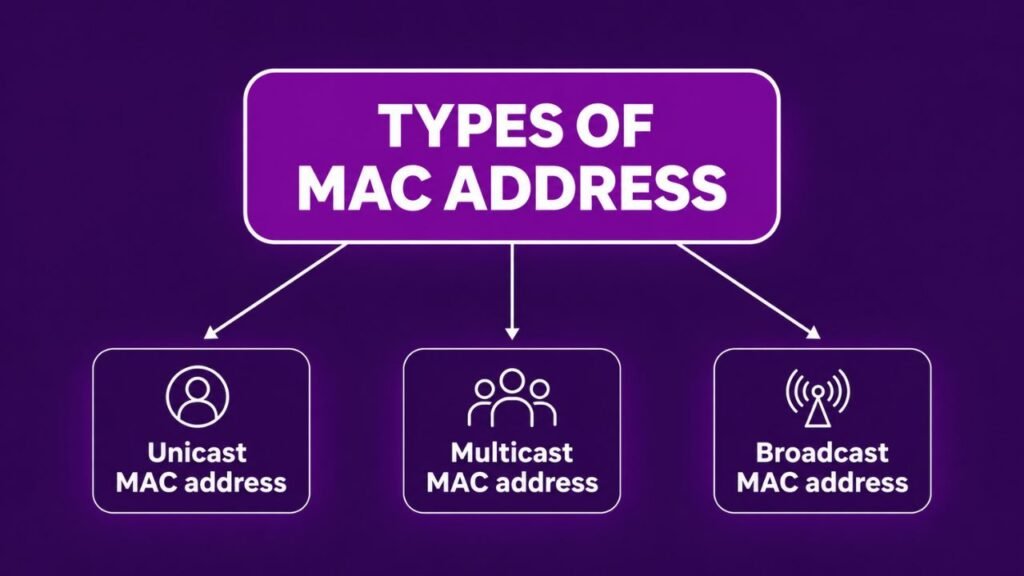
Every MAC address is not invented equally and the three types assist in understanding how data really flows across a network. The purpose of each of the types of communication is different, and so it is better to dissect them below.
- Unicast address: This type defines one single device on the network. Thus, once a frame is addressed to a unicast address, it has a single destination only.
- Multicast address: The kind addresses a particular group of devices, which have registered to receive the same information. An example is streaming services since, in many cases, on a local network, the same content is being delivered to many devices, with no need to flood the entire network with their address.
- Broadcast address: In this address, data reaches each device on the local network simultaneously. Due to this, the broadcast address will always appear as FF:FF:FF:FF:FF:FF, and devices utilize it in such tasks as finding other devices on the network.
Therefore, essentially, unicast would be talking to one device, multicast would be talking to a few individuals and broadcast would be talking to all, just like the difference between a personal message, group chat and announcement.
Can Someone Track You Using a MAC Address?
MAC address is not usually broadcast to the general internet, but is used within a local network. It is because websites are not typically able to view the MAC address of your device. But network administrators, businesses, and public Wi-Fi providers can utilize MAC addresses to determine devices on their networks. To enhance privacy, most of the current operating systems attach randomized MAC addresses during Wi-Fi network connection.
MAC Address vs IP Address: Key Differences Explained
These two terms are confused every single moment and to be completely honest, it has been an easy error to make considering that the two involve the use of addresses on a network. But so very different are their purposes, and to know the difference makes a great deal of confusion concerning networking clear.
| Aspect | MAC Address | IP Address |
| Assigned by | Manufacturer (hardcoded) | Network/ISP (can change) |
| Scope | Local network only | Works globally on the internet |
| Permanence | Fixed (unless changed manually) | Changes often |
| OSI Layer | Data Link Layer (Layer 2) | Network Layer (Layer 3) |
| Format example | 00:1B:44:11:3A:B7 | 192.168.1.10 |
MAC Address Explained
MAC address remains strongly bound to a particular hardware and can hardly change. As it is permanently assigned to your device by its manufacturers, it recognizes your network card regardless of the network you are on. Therefore, you take your laptop off your home Wi-Fi and onto the Wi-Fi of a coffee shop, the underlying MAC address usually remains automatically the same (unless it is randomized) although all other aspects of the connection will change.
IP Address Explained
An IP address, on the other hand, changes depending on which network your device joins. Your home router allocates your laptop a particular IP address; however, once you start using the Wi-Fi at the coffee shop, you are given a totally different IP address over their network. So, although your MAC address determines your device in the specific hardware, your IP address determines the position of your device in an even bigger network, as though your name does not change, but your current location does.
Final Thoughts on MAC Addresses
Although most users never think about What is a MAC addresses, they are essential to how modern networks function. They assist routers to place names on the devices, assist in network security as well as finding data to the appropriate destination in a local network. You might be setting up a router, or debugging network connections, or whatever, but, with a better comprehension of MAC addresses, you have a broader basis to build good knowledge of how networking functions.
FAQs
Yes. MAC addresses are designed to be globally unique identifiers assigned to network interfaces by manufacturers.
Any device capable of connecting to a network, including smartphones, laptops, printers, gaming consoles, and smart TVs, typically has at least one MAC address.
Normally no. However, MAC address spoofing can intentionally duplicate an address for testing or privacy purposes.
Yes. On most devices, the Wi-Fi address displayed in settings is the MAC address assigned to the wireless network adapter.
Modern operating systems can use randomized MAC addresses for privacy, but the underlying hardware MAC address still exists.
Explore Our More Blogs: