Last Updated: 31 August 2026
Every router needs a private address that lets you reach its settings page, and 10.11.12.1 is one of the numbers used for that purpose. If your browser keeps loading a blank screen or an error message, the problem usually comes down to a wrong address, a network mismatch, or an outdated set of login details. Understanding how this address works removes most of the confusion right away.
This article breaks down how 10.11.12.1 functions within your home network, walks through the correct login process, and explains what to do when the default password stops working. Real troubleshooting steps, a comparison table, and practical security tips are included so you can fix the issue once and avoid repeating it later.
About 10.11.12.1 IP Address
This number belongs to a private IP range that never touches the open internet directly. Consequently, no outside device can reach your router through this address unless someone gains access to your local network first. Routers assign themselves this gateway address automatically during startup. Winegard routers commonly rely on it, and once the device powers on, it begins distributing local addresses to connected devices through a background process called DHCP.
Finding Your Router’s Actual Gateway Address
Before typing anything into a browser, checking your actual gateway address saves time. Many people assume every router uses the same number, then wonder why the page refuses to load.
Checking On Windows And Mac
- On Windows, open Command Prompt and type ipconfig, then look for the line labeled Default Gateway
- On a Mac, open Terminal and type route -n get default to see the current gateway
- If the result doesn’t match 10.11.12.1, search for that specific address instead
Logging Into 10.11.12.1 Admin Panel
Reaching the login screen takes only a minute once your device connects to the correct network. Typing the address directly into the browser bar works far better than searching for it through Google, since search results often lead to unrelated pages.
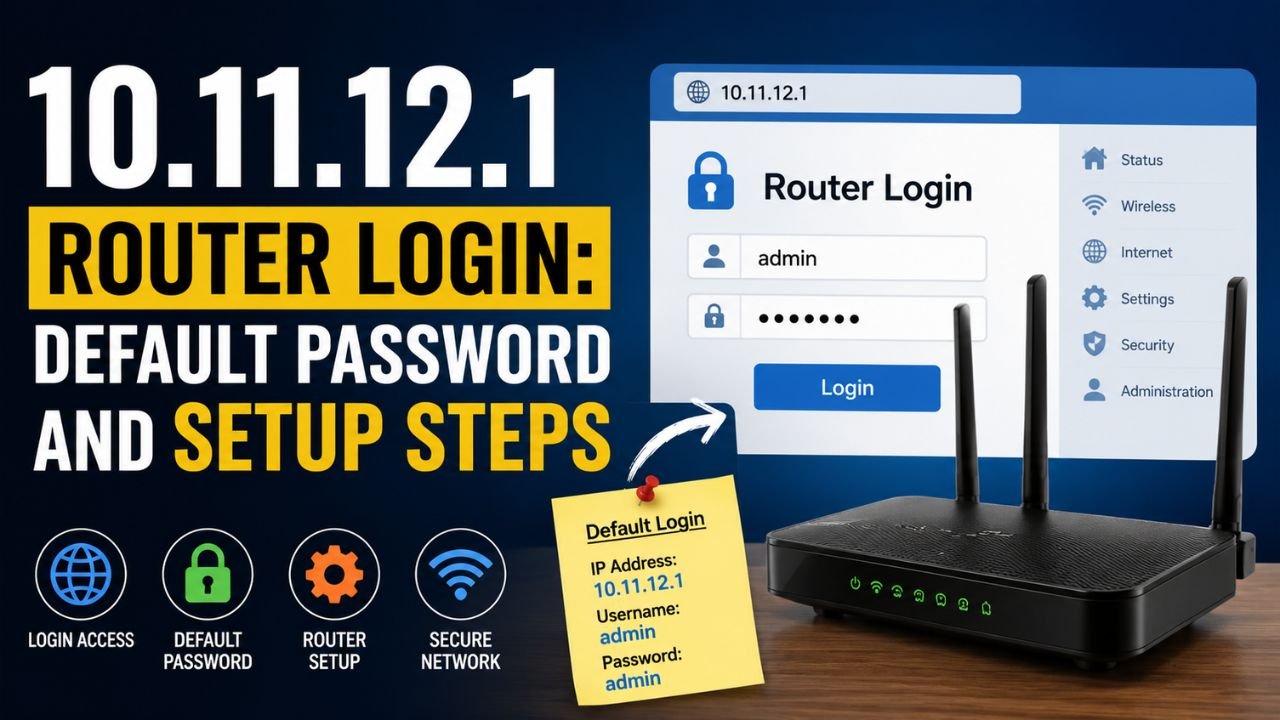
Open a browser and enter http://10.11.12.1 in the address field. Press enter and wait for the login prompt to appear. Enter the username and password printed on the router’s label, then submit the form to reach the dashboard. From there, you can adjust WiFi settings, security options, and connected devices without much difficulty.
Formatting Errors That Block Access
- Adding an extra space, such as 10.11 12.1
- Removing a dot by mistake, resulting in 10.1112.1
- Pasting the address from another source with hidden characters attached
- Typing the address into a search engine instead of the browser’s URL bar
Default Username And Password For 10.11.12.1
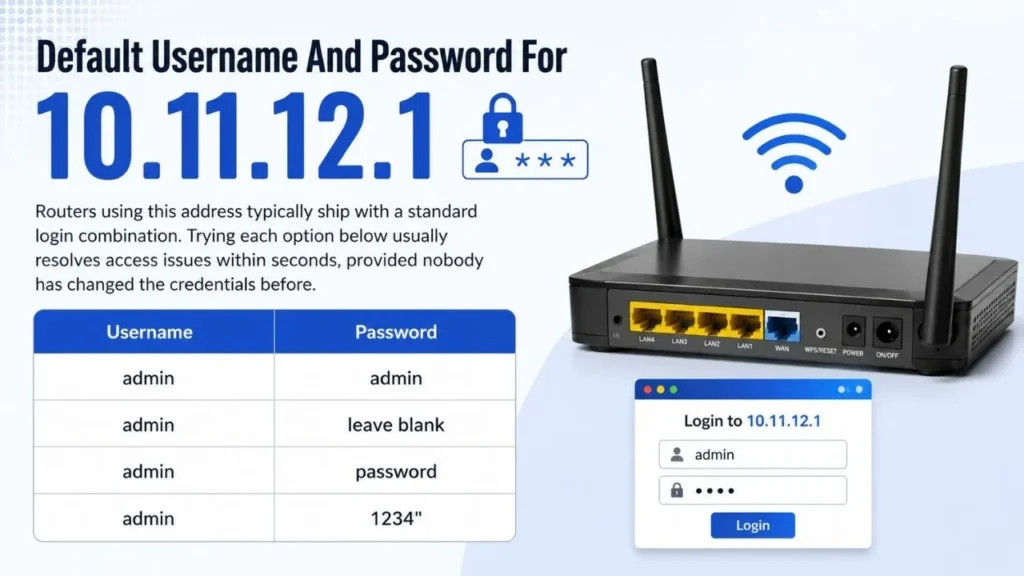
Routers using this address typically ship with a standard login combination. Trying each option below usually resolves access issues within seconds, provided nobody has changed the credentials before.
| Username | Password |
| admin | admin |
| admin | leave blank |
| admin | password |
| admin | 1234 |
These entries are case sensitive, so typing Admin instead of admin causes the attempt to fail even though it looks nearly identical. If none of these combinations work, someone likely updated the password earlier, which means a factory reset becomes the next step.
Resetting Your Router When Login Fails
A small reset button sits on the back of most routers, usually recessed to prevent accidental presses. Pressing it restores the original factory settings, though it also removes every custom change made afterward.
Hold the button down for about fifteen seconds using a paperclip or similar object. Watch the indicator lights, since they typically blink once the reset begins. Release the button and allow the router to restart fully before attempting to log in again.
Settings Removed During A Reset
- Port forwarding rules used for gaming consoles or security cameras
- Custom WiFi names and passwords
- Parental control configurations
- Any static IP assignments set up earlier
Fixing Common 10.11.12.1 Connection Errors
Connection failures happen for a handful of predictable reasons, and working through them in order usually solves the issue quickly.
Reasons The Page Won’t Load
- The wrong IP address gets entered from memory instead of copied directly
- No physical Ethernet connection exists, which some routers require during first setup
- Cached browser data conflicts with the login page, especially after accessing another router recently
- The router itself has a hardware fault that requires manufacturer support
Clearing your browser cache or opening an incognito window often resolves loading issues almost instantly. Meanwhile, confirming a firm Ethernet connection rules out one of the more common physical causes.
Securing Your Network After Login
Leaving default settings untouched creates a real gap in your network’s protection. Since default credentials for routers using 10.11.12.1 are published widely online, anyone within range of your WiFi signal could attempt the same login combination. Right after gaining access, change the admin password to something unique that avoids personal details like birthdays or names. Update the WiFi network name afterward as well, since a default SSID often reveals the router’s brand and model to anyone nearby.
A student living in a shared apartment building offers a useful example here. If her router still uses the factory SSID and password months after setup, any neighbor with basic technical knowledge could attempt the same default login and potentially reach her network. Changing both settings closes that opening immediately. Setting up a separate guest network also helps whenever visitors connect to your WiFi regularly. This keeps guest devices away from your main network, which protects smart home equipment and shared files from unnecessary exposure.
How 10.11.12.1 Compares To Other Router Addresses
Different manufacturers rely on different default gateway addresses, so seeing how 10.11.12.1 fits among common alternatives helps confirm you’re working with the right one.
| IP Address | Common Brands | Default Username | Default Password |
| 10.11.12.1 | Winegard | admin | admin |
| 192.168.1.1 | Netgear, TP-Link, Linksys | admin | admin or password |
| 192.168.0.1 | D-Link, Belkin | admin | blank or admin |
| 10.0.0.1 | Verizon, Xfinity | admin | password |
This table becomes particularly useful for anyone managing multiple routers across different rooms or properties, since mixing up addresses often causes unnecessary login attempts on the wrong device.
Common Mistakes That Block Access To 10.11.12.1
Even experienced users run into avoidable problems when handling router logins. Recognizing these patterns beforehand prevents repeated frustration.
Errors Worth Avoiding
- Searching the address through Google rather than entering it directly in the browser
- Forgetting to record a new password after changing it from default
- Performing a factory reset before trying simpler troubleshooting steps first
- Assuming every router shares the same default address without checking
- Leaving remote management active without a clear reason for doing so
How to Follow After First Login
Once inside the admin panel, a few habits noticeably improve both security and overall network performance. Taking a few extra minutes here prevents larger problems later. Change the password immediately, choosing a combination of letters, numbers, and symbols rather than a single common word. Enable WPA3 encryption if the router supports it, since it offers stronger protection than the older WPA2 standard still found on many devices.
Keep firmware updated regularly too, because manufacturers release patches that address vulnerabilities discovered after launch. Most routers now support automatic updates, so turning that feature on removes the need for manual checks. Finally, disable remote management unless a specific need exists for accessing the router while away from home, since leaving it active raises the risk of outside interference.
FAQs About 10.11.12.1
No, since it falls within a private IP range, only devices connected to your local network can access it.
A factory reset restores the original admin credentials, though it also removes any custom settings made afterward.
No, only one device can hold this address on a single network to avoid conflicts.
No, your internet connection stays active, though you will need to reconfigure the WiFi name and password afterward.
This usually means your device isn’t connected to the correct network, or the router actually uses a different gateway address.
Conclusion
Getting familiar with 10.11.12.1 makes future troubleshooting far less stressful, whether you’re configuring a new router or resolving a login issue months down the line. Once the login steps, default credentials, and reset process become familiar, handling connection problems stops feeling like a technical challenge. Spending a few minutes updating the password and network name after that first login protects your entire home setup more effectively than most people realize.
Read More: 192.168.1.3 Router Login | IPv4 Classes Explained | What Is IP Geolocation | What Is Dynamic IP?