
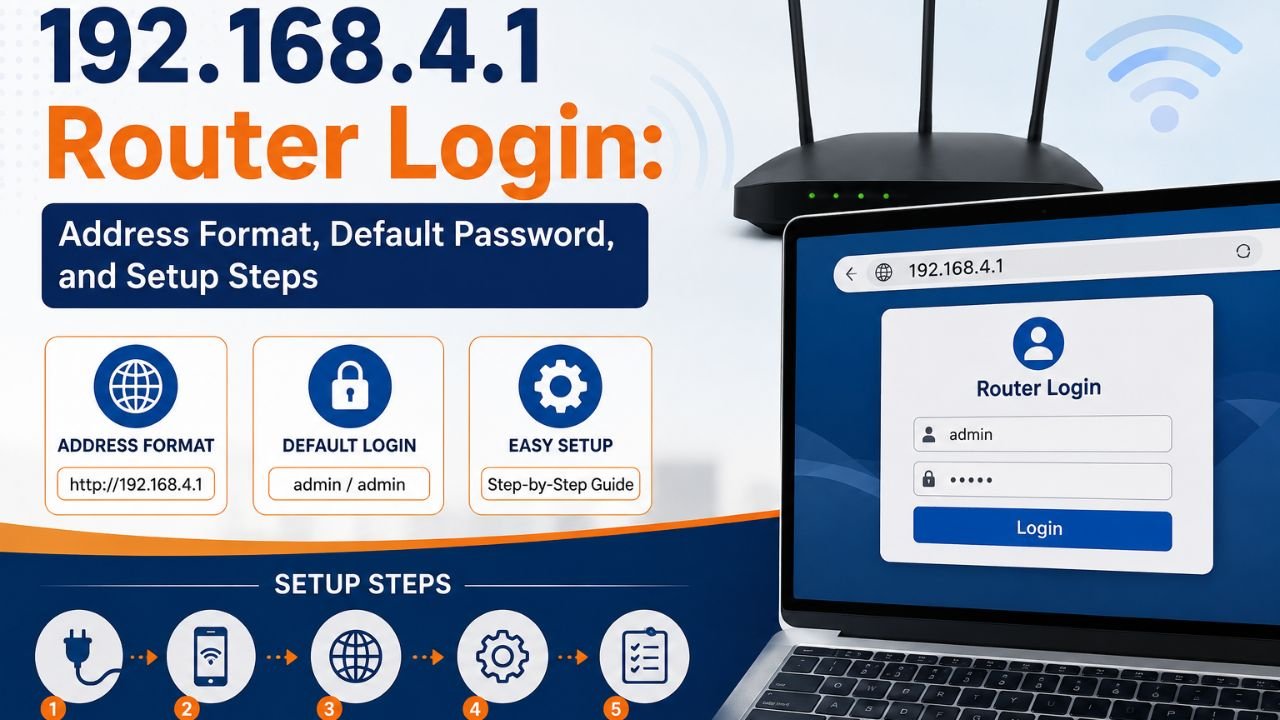
Setting up a router often starts with one confusing screen: a blank login page that asks for a username and password you never created. Many people reach this stage after typing 192.168.4.1 into their browser, hoping it will open their WiFi settings instantly. It usually does, but only when the address is entered correctly and the device connects to the right network first.
This private IP address works quietly behind most home networks, acting as a bridge between your device and the router’s internal settings. Brands such as TP-Link, D-Link, Netgear, Linksys, and Asus rely on it as a default gateway. Once you understand how this address functions, logging in becomes far less intimidating, and adjusting your network settings turns into a five-minute task rather than a frustrating guessing game.
What Exactly Is 192.168.4.1?
192.168.4.1 is a private IP address that routers use as a local gateway. Private addresses also have the ability to perform only within your local network (home or office), unlike public IP addresses that place your device identifiable to the outside internet. This is why when you enter 192.168.4.1 into your browser you are not connecting with a server in the other corner of the globe. You’re simply talking to your own router.
Some manufacturers use this address by default (TP-Link, D-Link, Netgear, Asus, and Linksys). Still, not all the devices of these brands have a default of 192.168.4.1, as some of them use a different default of 192.168.1.1 (or 192.168.0.1). Since this address can be found in a reserved private range, thousands of routers in the world can use the same number without ever conflicting with each other.
Steps to Access the 192.168.4.1 Admin Panel
Logging in isn’t complicated once you know the steps, but a few small mistakes can throw the whole process off. The first thing to do is to connect your device, be it a laptop, phone, or tablet to the same network as your router. Thereafter, open any browser and key in 192.168.4.1 in the address box (not the search box).
If everything goes smoothly, a login screen should appear within seconds. From there:
- Enter the username and password printed on your router’s label, usually found underneath or on the back of the device.
- Look for a link labeled “wireless settings” or “WiFi settings” once you’re logged in.
- Update your network name or password based on what you need.
- Save your changes and give the router a minute or two to apply them.
In other cases, not even the page loads; that definitely indicates that your router is not actually using 192.168.4.1 as a gateway. Then, by simply going through the network settings of your device, you can immediately see the right address.
Default Username and Password for 192.168.4.1
Most routers ship with simple, predictable login details, and this address follows the same pattern. Still, these details shift slightly depending on the manufacturer, so checking your specific brand saves time.
| Brand | Username | Password |
| TP-Link | admin | admin |
| D-Link | admin | (blank) |
| Netgear | admin | password |
| Linksys | admin | admin |
| Asus | admin | admin |
Such credentials are case-sensitive, and as such, admin and Admin will not yield the same result. In case these changes were already made by another user who has already departed, it is important to reset the router to have access again.
How to Reset Your Router When Login Fails?
Find the small reset button at the back or bottom of your router; most are recessed, and thus you need a pin or paperclip to get in. Press it until it flickers/ restarts; approximately 20 seconds. After a reboot of the router, the router is back to its factory settings, i.e., the original username and password will work.
Remember, a reset will remove all the configuration. All custom port forwarding rules, any saved Wifi passwords, and any parental control settings will be erased. Should you have configured a home security camera to allow remote access, e.g., then you will have to redo the entire linkage after the reset is complete.
Correct Format Rules for Typing 192.168.4.1
Minor typing errors result in a greater number of failed logins than individuals think. This address has a rigid pattern of numbers, which means that any additional one character is enough to destroy the pattern.
- Use numbers only, never letters: An address like 192.168.I.4.1 will always fail, since every segment must contain digits alone.
- Avoid spaces between numbers: Something like 192.168. 4.1 looks nearly identical but will not connect properly.
- Keep every dot in place: Removing a dot, such as 192.168 4.1, or adding an extra one breaks the address entirely.
- Maintain the correct number order: 192.168.1.4 and 192.168.4.1 lead to two completely different devices, so order matters more than it seems.
Updating WiFi Name And Password After Login
Once inside the admin panel, it is one of the first things you should change; that is, change your network name. The default name is a generic one that exposes your router brand to any network scanner, garnering a quick glimpse at the nearby networks.
Select a new SSID that is easy to remember but not personal information such as your name or apartment number. Better still, a strong password containing letters, numbers, and symbols should be used with it.
It is also beneficial when a dedicated guest network is set up in cases where guests may often request the use of WiFi. This keeps your main devices out of reach to your guests yet will still provide internet services to the guests when necessary.
Mistakes to Avoid While Using 192.168.4.1
Even experienced users run into avoidable problems here. A few mistakes show up again and again:
- Retaining all routers with 192.168.4.1 automatically and without verification.
- Editing faults typically involve putting in excess spaces or omitting punctuation.
- Changing the password but forgetting about the new password, and resetting the router.
- Leaving firmware update messages months and months behind.
- Leaving a network in which a guest is enrolled undiscreetly without password provision.
Avoiding these small errors saves a surprising amount of time and frustration down the road.
Best Practices for Securing Your Router
Once you’re logged into 192.168.4.1, take a few extra minutes to lock things down properly. Strong router security isn’t complicated, but it does require a little consistency.
- Change the default admin password the moment you gain access.
- Choose WPA3 encryption if your router supports it, or WPA2 as the minimum acceptable option.
- Set up a guest network for visitors and smart home gadgets separately from your main WiFi.
- Check for firmware updates every couple of months through the admin panel.
- Store your new login details somewhere secure instead of relying purely on memory.
Firmware updates especially tend to get overlooked. Manufacturers regularly patch security vulnerabilities, but those patches only help if you actually install them.
What’s Next for Router Login Systems
Router configuration is gradually being replaced with mobile-based apps, replacing browser-based logins to directly configure a router using a phone. And despite this change, private addresses such as 192.168.4.1 will continue to work behind the scenes, as local networks still need a gateway, despite whatever interface is used to control it.
Another trend being adopted by manufacturers is presenting randomized default passwords on each of the devices instead of using universal ones such as admin and admin. With this change, credential-based attacks will decrease in the next couple of years, where the default login exploit will be much less frequent than it is now.
Conclusion
Getting comfortable with 192.168.4.1 really comes down to understanding a handful of basics: knowing the correct address format, having the right login credentials on hand, and recognizing what to do when something doesn’t load correctly. After the first time you log in, it is what comes after that. Setting a memorable password instead of the default password, connecting a recognizable network name, and maintaining the firmware updates transform a router that was just working into actually a secure router. None of these measures will require more than a few minutes, but all of them matter greatly in the degree of protection your home network will have in the end.
FAQs
It opens your router’s admin login page for managing WiFi and security settings.
A typo, active VPN, or wrong gateway address usually causes this issue.
Admin is the most common default, though it varies by router brand.
Hold the reset button for 20 seconds to restore default login credentials.
No, many routers default to 192.168.1.1 or 192.168.0.1 instead.
No, this private address only works within your local network.
Run ipconfig on Windows or route -n get default on macOS.
Yes, a factory reset erases all previously saved configurations.
No, changing it immediately helps protect your network from unauthorized access.
Yes, since the login page only communicates locally with your router.
Read More: 192.168.0.254 Router Login | 192.168 l 254.254 Fix