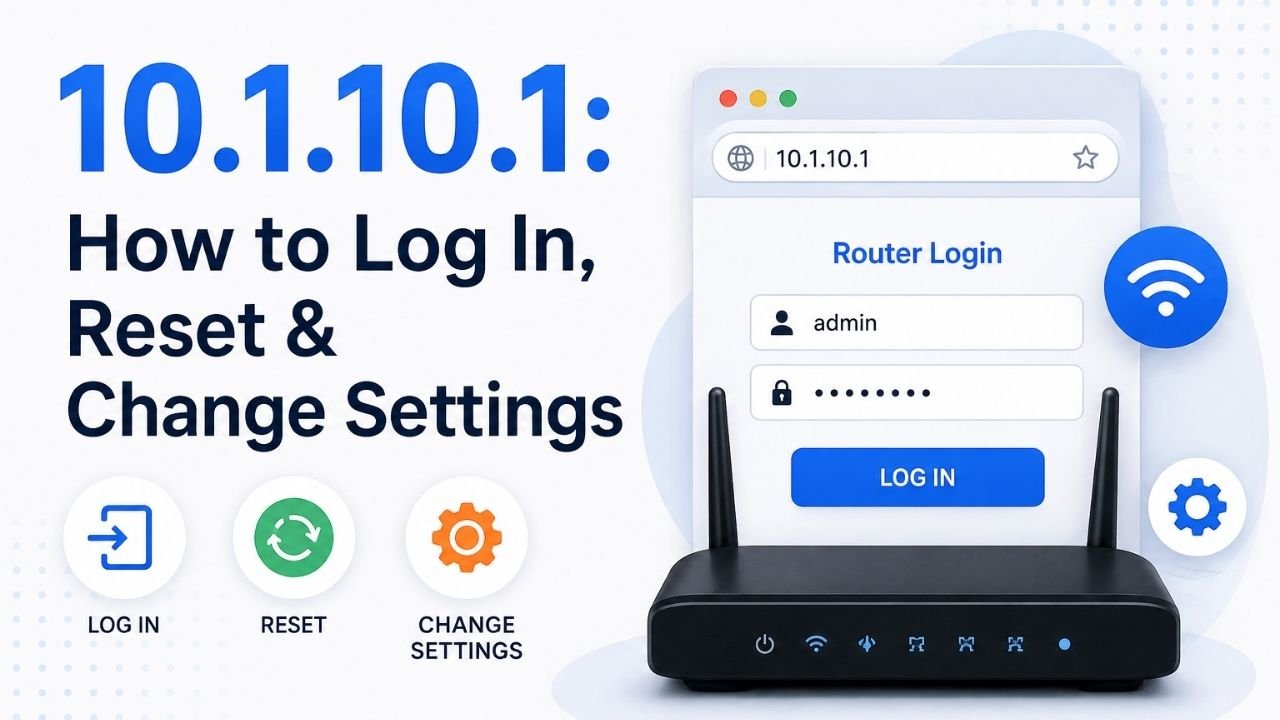
Imagine you just installed a new router for your home or small business. The internet works fine, but you want to turn on a guest network for visitors and change the default WiFi password before anyone else gets curious. To do any of that, you first need to open your router’s admin panel, and for many routers, including several Comcast Business models, that panel sits behind one address: 10.1.10.1. This guide walks you through logging in, resetting a forgotten password, and fixing common errors, so you’re not stuck guessing.
What Is 10.1.10.1?
The 10.1.10.1 address belongs to the Class A private IP range set aside by the Internet Assigned Numbers Authority. Unlike your public IP address, this one stays hidden from the open internet. Outside devices cannot reach it directly, so your router’s settings page stays shielded from external threats by default.
Many routers use this address as their default gateway. If you’re unsure whether your device uses 10.1.10.1, you can check quickly using the table below.
| Operating System | Command to Run |
| Windows | Type ipconfig at the command prompt |
| macOS | Type route -n get default in Terminal |
Once you run the command, look for the number listed next to “default gateway.” That number is your router’s actual login address, and it may differ from 10.1.10.1 depending on your device.
How to Log In to 10.1.10.1
Logging in only takes a few minutes. First, though, make sure your computer or phone is connected to the same WiFi or Ethernet network as your router.
- Open your browser. Any browser works, whether it’s Chrome, Safari, or Edge.
- Type http://10.1.10.1 into the address bar and press enter.
- Wait for the login screen to appear.
- Enter the default username and password printed on your router’s label.
- Once logged in, explore the dashboard to adjust your settings.
If the page doesn’t load after these steps, double check the address for typos, since a single wrong character stops the connection entirely.
Common Typing Mistakes to Avoid
Small errors in the address bar are the most frequent reason 10.1.10.1 fails to load. Watch for the following:
- Don’t swap zeros for the letter “O” or ones for the letter “I.”
- Don’t add spaces between numbers.
- Don’t remove or duplicate the periods between digits.
- Don’t add extra digits anywhere in the sequence.
Every part of the address should contain numbers only. As soon as a letter appears, the browser returns an error instead of the login page.
Default Username and Password for 10.1.10.1
Every router ships with a factory-set username and password. If you haven’t changed yours yet, try the combinations listed below.
| Username | Password |
| admin | admin |
| admin | (blank) |
| admin | password |
| admin | 1234 |
| admin | Admin |
These credentials are case sensitive, so type them exactly as shown. If none of them work, check the sticker on the back or bottom of your router, since manufacturers usually print login details there.
How to Reset a Forgotten 10.1.10.1 Password
Locked out entirely? A factory reset solves the problem, although it does erase your custom settings.
Steps to Reset Your Router
- Locate the small reset button on the back of the router.
- Press and hold it for about fifteen seconds.
- Release once the lights begin blinking.
- Wait for the router to fully reboot.
- Log back in using the original default credentials.
Keep in mind that resetting wipes out any custom configuration you previously set up. That includes port forwarding rules, which most routers disable by default anyway to protect connected devices from outside access.
Note: after a factory reset, you’ll need to reapply port forwarding settings manually, since the router reverts completely to its out-of-box state.
What You Can Do From the 10.1.10.1 Admin Panel
Once you’re logged in, the admin dashboard opens up a wide range of controls. Here’s a quick breakdown of what’s available.
| Setting Category | What You Can Adjust |
| Network | LAN, WAN, and WLAN configurations |
| Security | Firewall rules and access restrictions |
| DNS | Custom DNS server addresses |
| WiFi | SSID name and wireless password |
| Users | Admin access and permission levels |
Because these settings control your entire home network, it’s worth reviewing them soon after your first login rather than leaving everything on factory defaults.
Changing Your Default Password
This step matters more than most people realize. Leaving the factory password in place makes your network an easy target, since default credentials are publicly documented and widely known online.
To change it, follow these steps:
- Log in to the 10.1.10.1 dashboard.
- Navigate to the security or administration section.
- Select the option to update your admin password.
- Choose a strong, unique password instead of the default one.
- Save the changes before closing the browser tab.
A strong password protects not just your WiFi, but every device connected through it, including smart home gadgets, laptops, and phones.
How to Change the SSID on 10.1.10.1
Your SSID is simply the name of your WiFi network, and changing it is straightforward once you’re inside the admin panel.
Why Renaming Your Network Helps
- It makes your network easier to identify among neighboring signals.
- It prevents confusion when nearby households share the same provider’s default naming pattern.
- It adds a small layer of obscurity against casual snooping.
Setting Up a Guest Network
If visitors frequently connect to your WiFi, consider creating a separate guest SSID. This keeps your main network isolated, so guests never need direct access to your primary connection. It’s a small change, but it meaningfully improves your home network’s overall security posture.
Troubleshooting 10.1.10.1 Login Issues
Sometimes the login page simply won’t appear, no matter how carefully you type the address. Below are the most common causes and their fixes.
| Problem | Likely Cause | Fix |
| Page won’t load | Wrong IP address entered | Check your default gateway using ipconfig or route -n get default |
| No connection at all | Missing Ethernet cable | Connect directly to the router and retry |
| Login page loads, but credentials fail | Password was previously changed | Perform a factory reset |
| Router is unresponsive | Hardware fault | Contact the manufacturer for support |
If you’ve worked through every option above and the router still isn’t responding, the hardware itself may have failed. At that point, reaching out to your router’s manufacturer is the fastest path to a fix.
Security Best Practices for 2026
Router security matters more than ever, given how many devices now connect to home networks. Keep these practices in mind after logging into 10.1.10.1:
- Update your router’s firmware regularly.
- Replace default admin credentials immediately after setup.
- Disable remote management unless you specifically need it.
- Set up a guest network for visitors.
- Review connected devices periodically to spot anything unfamiliar.
Together, these habits significantly reduce the risk of unauthorized access to your home network.
Conclusion
Accessing your router through 10.1.10.1 doesn’t have to be complicated. Once you understand the correct steps, from entering the address properly to using the right default credentials, the process becomes quick and repeatable. Whether you’re changing your SSID, resetting a forgotten password, or exploring your admin panel’s security settings, 10.1.10.1 gives you full control over your home network. Just remember to update your default password right away, since that single step protects every device connected to your router.
Read More: 192.168 l 8.1 Router Login: Steps & Default Password
FAQs
It’s a private login address that opens your router’s admin dashboard, letting you manage WiFi settings, security, and connected devices.
Usually, it’s either a typo in the address or your router simply uses a different gateway IP. Check your default gateway to confirm.
Common combinations include admin/admin, admin/password, and admin/1234. Check your router’s label if none of these work.
Hold the reset button on the back of the router for about fifteen seconds until the lights blink, then log in with the factory defaults.
Yes, a factory reset erases all custom configurations, including port forwarding rules, and returns the router to its original state.
Yes, the SSID option inside the dashboard lets you rename your network and set up a separate guest network if needed.