

A website that suddenly stops loading can create confusion and frustration, especially when a blank screen shows a technical message. The 504 gateway time-out is one of the most widespread ones that may accompany users and typically occurs when the communication between the servers cannot be normal. It might seem difficult to resolve, yet the issue can have simple causes and solutions. With the help of this article, you are going to comprehend how this mistake functions and why it occurs. In this article, you are capable of eliminating it step by step without unreasonable technical strains.
What is a 504 Gateway Time-Out?
A 504 gateway time-out is an HTTP status code that is reflected in case a server fails to reply to another server within the required time interval. In other words, your browser requests something, yet the chain of servers is so long that it cannot serve the request in time. Consequently, the connection is lost, and the error is displayed on your screen. To see more of this, imagine sending a message via several people, but one of the individuals in the queue postpones the message. Due to that delay, the ultimate message does not reach you. In the same case, in web communication, the proxy server awaits a response, and upon failure to get the response within a pre-defined time frame, it halts the activity.
Common Reasons Behind 504 Gateway Time-Out Issues
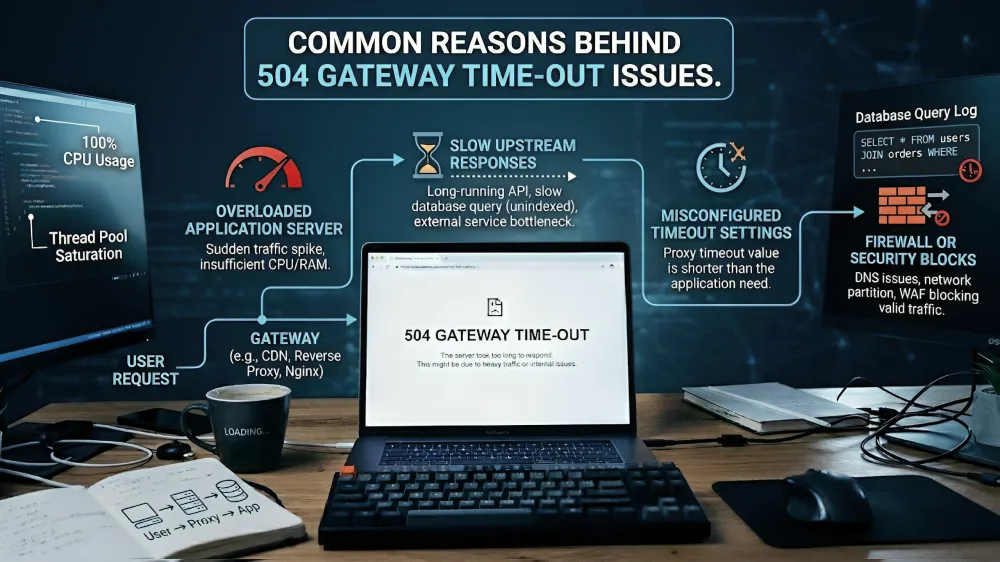
When a 504 gateway time-out occurs, it is usually one of the consequences of a number of back-end challenges that slow down the process of inter-server communication. Due to this, the determination of the exact cause will need to be made prior to a solution being adopted. In most cases, the server overload, improper configuration or unstable connection is the error shown. Therefore, all the factors influence the time of response differently; their knowledge contributes to the solution of the issue within a shorter time.
1. Proxy Server Misconfiguration Problems
A proxy server connects users to the main server. Nevertheless, when overused or set incorrectly, it cannot handle the requests effectively. This leads to a slowing down of communication and ultimately failure. Moreover, there are highly used proxy networks that have many users simultaneously. Consequently, congestion delays traffic and thereby triggers a timeout error.
2. Weak or Fluctuating Internet Connectivity
An unstable internet connection can interrupt data transfer between servers. Whenever the connection goes dead or is slow, requests are slower in reaching the destination. In addition, congestion of the network during peak time can render performance poor. Therefore, functional servers do not necessarily reply within the required time.
3. Slow and Unoptimized WordPress Database
WordPress is a database-based system that dynamically loads content. However, as the database fills with irrelevant information, it becomes exceedingly slow. Due to this delay, the server is unable to execute the request fast. Consequently, the system causes a 504 gateway time-out as a result of slow response.
4. Resource-Heavy Plugins and Scripts
Some of the plugins also consume a lot of server resources. Multiple heavy scripts will also slow down processing time and performance when they run concurrently. To illustrate, automated jobs running when traffic is heavy could flood the server. Thus, the response time will be greater, and the connection can fail.
5. DNS Resolution Delays
DNS servers map the domain names to the IP addresses. But with slow or incorrect DNS settings, the request cannot get to the right server promptly. Due to this, there are delays in communication, and the server might not reply within the stipulated time.
6. Firewall Restrictions Blocking Requests
Firewalls safeguard computers, yet stringent settings may deprive legitimate requests. In case communication within the servers is limited, then the request cannot be made. This means that a response will not be received by the gateway server resulting in a timeout error.
7. Low-Performance Hosting Environment
The quality of hosting is significant to a website’s performance. Shared hosting can be very limiting, and it is overwhelmed when a lot of traffic is involved. Consequently, server capacity is fulfilled, resulting in slowness and inability to process requests, causing issues of timeouts.
Effects of 504 Gateway Timeout on WordPress Performance
A 504 gateway time-out can harm your website in several ways. In the beginning, users have delays, which adversely impact engagement. This leads to speedy exit of visitors, raising bounce rates. Moreover, the loading speed, as well as accessibility, is one of the ranking factors used by search engines. Hence, the occurrence of mistakes might reduce your commission in SEO.
Impact Analysis:
| Factor | Result |
| User Experience | Poor navigation and frustration |
| SEO Ranking | Reduced visibility |
| Business Growth | Loss of potential customers |
| Website Trust | Decreased credibility |
Moreover, e-commerce websites have even greater problems as slow pages may interrupt transactions. Therefore, it might make businesses lose revenue and customer trust.
Practical Methods to Fix 504 Gateway Timeout Error
Facing a 504 error can feel overwhelming, especially when your site suddenly stops responding. Nonetheless, it is possible to find the problem and resolve it without the needless stress with a definite method. Here, the segment takes you through practical solutions step-by-step. Every step leads to the next, and as such, adhering to their sequence is more likely to ensure that you solve the problem as fast and as efficiently as possible.
Step 1: Reload the Page to Check Temporary Glitches
Sometimes the issue is not permanent and occurs due to a brief server overload. So the first of these actions is to refresh the page with your browser reload button or keyboard shortcut such as F5 or Cmd + R.
Upon reloading the page, you are making a new request to the server. Assuming that the delay was not permanent, the page can be loaded the second time. This most basic of actions usually corrects temporary faults without any form of more in-depth.
Step 2: Verify Your Internet Connection Stability
When there is a poor or unstable internet connection, it will disrupt communication between your device and the server. This is why you need to ensure that you check whether you have a connection before proceeding.
You may boot up your router, change your network, or even use mobile data to check the connection. Also, by accessing the site in a private viewing carton, the local problems can be eliminated. In the event that the page takes a long time to load on another network, then it is most likely your original connection to blame.
Step 3: Remove Outdated Browser Cache Files
Browsers save the data in cache so as to access websites more quickly, but such saved data is sometimes old or corrupt. Consequently, it can interfere with new requests and lead to loading problems.
In order to resolve this, clear your browser using the settings or on shortcuts such as Ctrl + Shift + Delete. After clearing the cache, reload the page. Assuming that it was an issue with old data, when this is done, the site should load correctly.
Step 4: Try Accessing the Site on Another Device
Running the site with another gadget also helps to ascertain the presence of the problem in the device or the server. As an illustration, you can go to the site using another computer, tablet, or smartphone.
In case the site functions with a different device, then there might be limitations to your main device in the form of antivirus blocks or malfunctioning extensions. But when the errors on the devices are all, then there is definitely an error on the server side.
Step 5: Use an Online Tool to Check Website Availability
In some cases, the site can be unavailable to all and not just to you. Under these circumstances, outside tools can swiftly authenticate the circumstance.
For this, online services that enable you to type in the website URL and monitor its status worldwide can be used. In case the tool indicates that the site is offline, then this is a server problem. Otherwise, it could be restricted to your network or system.
Step 6: Flush the DNS Cache to Refresh Network Data
DNS Cache is a domain-related information stored locally to accelerate browsing. Nevertheless, there is a risk of conflicting or corrupted entries, which can result in errors.
The solution to this is to delete the DNS table using system commands. On Windows, one can use the command prompt, and on Mac, one can use Terminal. After clearing out the cache and rebooting your device, be it a phone or a laptop, visit the site once more to see whether the problem has gone away.
Step 7: Review Proxy or CDN Configuration Settings
When your website communicates via a proxy server or CDN, the wrong settings can wait till servers communicate. This latency can cause timeouts to happen.
Should you review configuration settings and make sure that the time limits are reasonable? The CDN or proxy can also be temporarily disabled, which can assist in establishing whether or not it is the problem.
Step 8: Improve WordPress Database Performance
A database full of junk can make your website very slow. So it is a wise move towards fixing the problems of performance to optimize your WordPress database.
You can delete useless information like revisions of the post, expired posts, and spam messages. It can be automated with the help of tools such as database optimization plugins. A clean database enhances response time and minimizes severe delays.
Step 9: Identify and Remove Problematic Plugins
Plugins can be used to provide functionality, although some of them can be incompatible or use excessive resources. This makes them be able to slow down your site and cause errors. To determine which one is causing the problem, you are advised to turn off all the plug-ins and then turn them on one at a time. This approach assists in determining the source of the issue, which is the plugin. After identifying it, you can either erase it or substitute it with a superior one.
Step 10: Increase Server Limits for Better Performance
Execution times and limits on memory usage exist between servers. When these limits are not high, the server can not be effective in handling requests.
These limits can be increased via configuration files or hosting settings. Doubling execution time and increasing memory space, as an example, can enable the server to respond to more complicated tasks in time, without a timeout.
Step 11: Analyze Server Logs for Error Insights
Server logs are useful and give in-depth details regarding the activities behind the scenes. Hence, you may check these logs and discover the very cause of the problem.
You are to be on the lookout of error messages, blocked requests, or timeout notices. Also, it is possible to enable debug mode in WordPress, which may be more transparent. The understanding can assist you in making specific decisions rather than making guesses.
Step 12: Contact Hosting Support for Advanced Help
In case all the above steps do not resolve the situation, then you need to contact your hosting provider. Their technical team can access data at the level of its servers and diagnose complicated issues.
You must give them a lot of information about the mistake and what actions you have already taken. By having this information, they will be able to recognize recent increases in traffic, malfunctioning configurations, or limiting capabilities of servers, and correct them appropriately.
Importance of Reliable Hosting for Website Stability
A reliable hosting provider ensures better performance and reduces the chances of timeout errors. Powerful servers process traffic well and give a steady response time.
In addition, further hosting services have the capability of CDN integrations, as well as caching optimization systems. These characteristics enhance the expediency of loading and the general user experience.
Hosting Comparison:
| Feature | Basic Hosting | Advanced Hosting |
| Speed | Moderate | High |
| Support | Limited | 24/7 Expert |
| Stability | Low | Strong |
| Scalability | Restricted | Flexible |
Therefore, investing in quality hosting plays a crucial role in preventing performance issues.
Conclusion
A 504 gateway time-out might seem daunting, but once you learn why and how to fix the problem, it becomes easy to deal with. It is possible to ensure smooth browsing by setting a well-designed progression of steps and enhancing the performance of your server.
Read Related Blogs: