
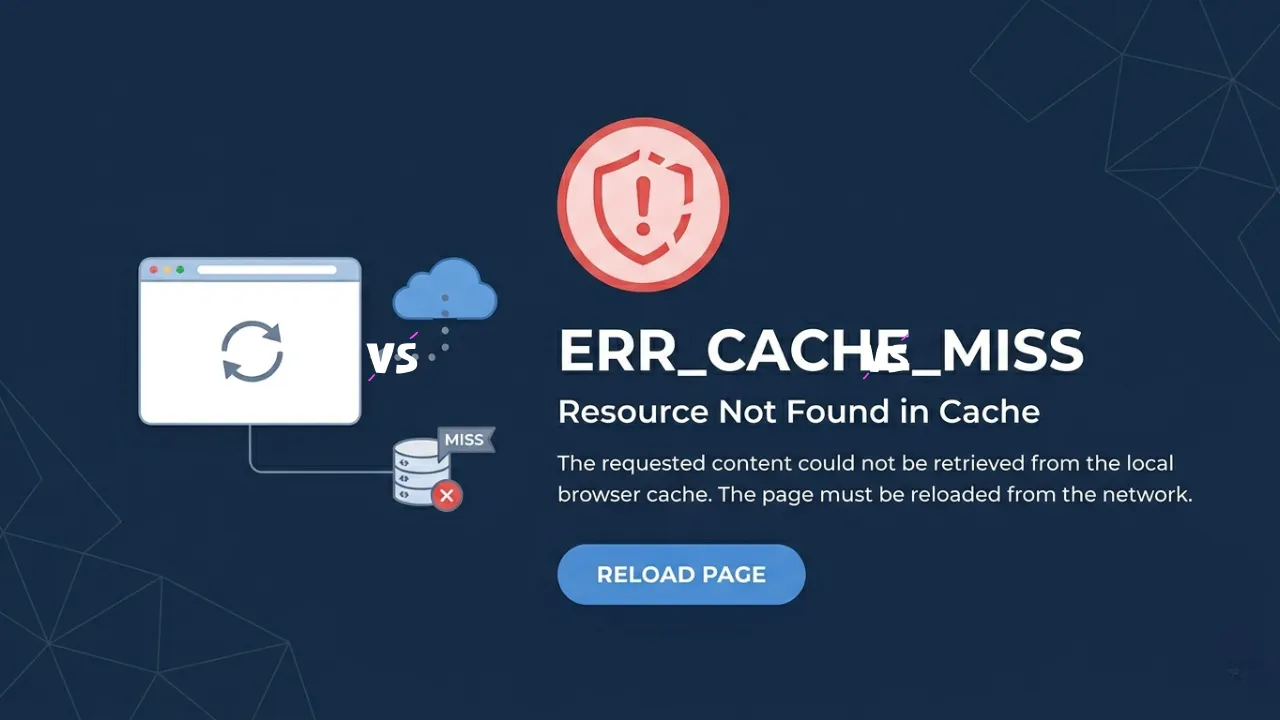
You open a website, everything looks fine, and suddenly the screen shows err_cache_miss. At this point, the page will cease loading normally, and Chrome might request you to re-enter data. This can be quite confusing to users as it is an error that does not clearly state what has gone wrong. But the problem is normally associated with the browsing patterns of how your browser stores and retrieves caches. It is diagnosed in the majority of cases when Chrome fails to access saved content or, when reloading a form, does not retrieve the complete content. Hence, knowing about the cause would be the initial step to solving it.
In this elaborate discussion, you will get to know the meaning of this mistake, how it occurs, and the way of correcting it with simple procedures. You will also learn some real-life solutions, including updating Chrome, clearing cache, and settings. By the end, you will know how to handle err_cache_miss without stress and prevent it from happening again.
What is the ERR_CACHE_MISS Error in Chrome?
The err_cache_miss error occurs when Google Chrome is unable to access stored cache files for a webpage to be loaded. Simply put, the browser was aware of the information that it had previously stored, but was not able to retrieve and utilize the information. As a result, Chrome interrupts the loading process and shows the error message. The issue is commonly encountered with forms, e.g., login pages, payment pages, or search forms.
For example, when filling in a form and clicking the close button, Chrome tries to refresh the page using the assistance of the cache. But, in case of missing or expired data, it shows the error instead. In addition, there are various technical and non-technical conditions that can provoke this issue.
Occasionally, improper loading is prevented due to corrupted cache files. Otherwise, requests are interfered with by browser extensions. Additionally, outdated Chrome versions or unstable network settings may also cause this error.
Simple Ways to Fix the ERR_CACHE_MISS Error in Chrome
When you determine the cause, then you can begin to repair the problem through some practical means. The solutions address different areas of problems, and as such, it is best to take one step at a time, and you are guaranteed success. Even though the mistake might appear technical, the answers are not very complicated, not to mention that they might need simple steps. Hence, despite the fact that you may not know the settings of browsers, you can rectify the problem with ease.
1. Reload the Page to Fix Temporary ERR_CACHE_MISS Issues
The initial thing one can always do is to refresh the page, since a temporary network glitch is likely to cause this error. Chrome is not able to access cache files properly when the connection momentarily fails. So, it displays the error message.
You can press the F5 key or the reload button. Alternatively, the page can be opened in a new tab. When the problem disappears, then it is a sure indication that the problem is a temporary one. But when the display of the page remains that of the error, then proceed to the next alternative. This action is most effective in case of minor disruptions, but not significant technical problems.
2. Update Google Chrome to Avoid Compatibility Problems
The outdated browser can cause several unanticipated errors. Consequently, updating Chrome turns into a significant measure in addressing this problem. Updates are made to enhance performance, eliminate bugs, and improve the caching mechanism. Open Chrome settings and go to the settings page. In the event that there is an update provided, then install it and restart the browser. This time, attempt to load the page.
Frequent updates will make browsing smoother and minimize the likelihood of having the same error of err_cache_miss. Moreover, new versions are more compatible with modern websites, which enhances the overall reliability.
3. Clear Cache and Browsing Data to Remove Corruption
Over time, Chrome stores a large amount of browsing data, including cached files, cookies, and history. Even though this information can be used to load pages quicker, it can get damaged. Thus, by clearing it, the errors are normally solved.
This is to be done at the settings of Chrome, where you are supposed to use the option of clearing browsing data. Then select history, cookies, and images that are cached. When you are certain, Chrome erases all its stored information and goes back to zero.
When the data is clear, reload the webpage. The error is lost in most instances as, now, the browser has loaded newer data on the server, and not the damaged files. This is one of the best techniques to correct problems related to cache.
4. Check Cache Clearing Process Using Visual Guidance
Visual instructions are adopted by some users as they feel more confident when taking the steps. To avoid errors, a video tutorial can be watched to make the process less complicated. Going through a tutorial, you can know where to click and what features to choose. This makes it possible to clear the cache without the need to complicate even beginners. The strategy also makes sure that you do not neglect any of the crucial settings along the way.
5. Disable Chrome Extensions That Interrupt Page Loading
Extensions improve browser functionality, yet they can also create conflicts. Other extensions alter page requests or prevent scripts, which can cause loading errors. Thus, their disabling aids in uncovering the issue. All extensions are to be disabled at this stage by putting the extensions menu on. Next, reload the page and see whether it works. If the mistake is removed, it has been erased by one of the extensions.
Then, turn on extensions one at a time until you locate the problem. Some of the typical bad extensions are ad blockers, VPN tools, and security extensions. After being found, it becomes possible to remove the faulty extension, which enhances the work of the browser.
6. Reset Network Settings to Fix Connectivity Errors
Network configuration is a factor in the loading of webpages. In case there is a failure in the DNS settings or connections, then Chrome will be unable to access data appropriately. Hence, network setting reset can be used to regain normal behavior.
On Windows, IP and DNS settings can be reset with the help of the command prompt. Terminal commands accomplish the same tasks on macOS. Once you have done this, reboot your system.
This will re-establish connections with the network and confirm a proper performance between your browser and the network server. Consequently, it minimizes the possibility of making repeated errors.
7. Restore Chrome Settings to Default State
If the problem continues, further issues could be resolved by resetting Chrome settings. In some cases, the wrong settings cause the browser to malfunction. So, to eliminate these issues, it is essential to reset all the default settings. You need to access advanced settings and choose the option of a reset.
Chrome validates, then disables extensions with permanent changing of preferences. Close the browser and open it again, and attempt to access the webpage. By doing this, one is able to eradicate problems that other solutions cannot stop. It also enhances the performance of the browsers by eliminating undesirable changes.
8. Disable Cache from Developer Tools for Advanced Fix
If none of the previous solutions work, you can disable cache temporarily using Chrome Developer Tools. This approach assists in the case of consistent errors in cache files. Pressing F12, open DevTools, and go to the network tab. Next, check the option of Disabling Cache and refresh the page.
With cache turned off, Chrome obtains new information on the server. As such, it avoids the corrupted files and solves the problem. This technique is most effective for developers or experienced users.
Final Thought to Fix Err_Cache_Miss
The err_cache_miss can stop your prescription, but it can easily be corrected once you know what caused it. The majority of cases can be resolved by just reloading the page, cleaning up the cache, or updating Chrome. Nonetheless, other advanced tools, such as the ability to reset network or browser options, give you an in-depth solution when necessary.
By adhering to these tricks, one will be able to fix the problem rather quickly and even go on to browsing without delays. Thus, whenever an error such as err_cache_miss occurs, you can handle it confidently and keep your browser running smoothly.
Read Related Blogs: