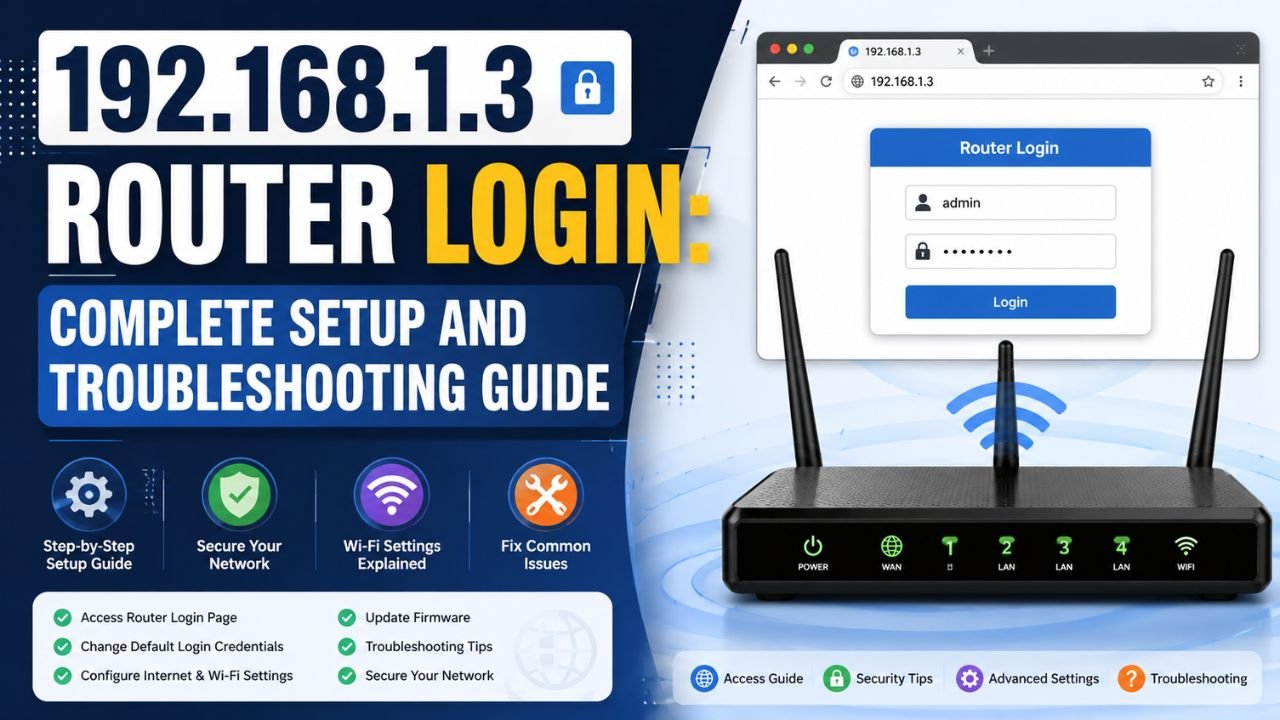
192.168.1.3 is a private IPv4 address used on local networks. It can be assigned to a computer, smartphone, printer, access point, range extender, powerline adapter, or another network device. In some network configurations, 192.168.1.3 can also be used as the management or login address of networking equipment.
However, 192.168.1.3 is not a universal router IP address. Whether it opens a router login page depends on which device is using the address and how your local network is configured.
If you are trying to access 192.168.1.3, connect your computer or phone to the relevant Wi-Fi or Ethernet network and enter http://192.168.1.3 in your browser’s address bar. If a login page does not appear, your router or networking device may be using a different IP address. Current search results similarly emphasize that 192.168.1.3 can be a device address rather than the router gateway.
What Is 192.168.1.3?
192.168.1.3 is an IPv4 private IP address. It belongs to the private 192.168.0.0/16 address block reserved for use inside local networks under RFC 1918. Private IP addresses are not directly routable across the public Internet and can be reused independently by millions of different home, office, and enterprise networks.
A common home network might use the 192.168.1.0/24 subnet. In such a network, addresses could look like this:
| Network component | Example IP address |
| Network address | 192.168.1.0 |
| Router/default gateway | 192.168.1.1 |
| Computer | 192.168.1.2 |
| Other device | 192.168.1.3 |
| Printer | 192.168.1.4 |
| Usable host addresses | 192.168.1.1–192.168.1.254 |
| Broadcast address | 192.168.1.255 |
This is only an example. 192.168.1.3 does not inherently mean “third device” or “router.” A DHCP server can assign addresses according to its own configuration, and administrators can also configure static IP addresses.
Is 192.168.1.3 a Router IP?
It can be, but it does not have to be.
This is one of the most important points to understand about 192.168.1.3.
Many home networks use 192.168.1.1 as the router’s default gateway, while addresses such as 192.168.1.2, 192.168.1.3 and 192.168.1.4 may be assigned to client devices. One current SERP result specifically notes that 192.168.1.3 is usually a client address in typical home networks, although it can be used as the management address of secondary networking equipment.
For example:
Internet
|
|
Router
192.168.1.1
|
+——————-+——————-+
| | |
192.168.1.2 192.168.1.3 192.168.1.4
Laptop Smartphone Printer
In another network, the configuration could be:
Main Router
192.168.1.1
|
|
Access Point
192.168.1.3
In the second example, entering 192.168.1.3 into a browser could potentially open the access point’s management interface.
Therefore, the IP address alone does not tell you what device is using it.
How to Log In to 192.168.1.3
If your router, access point, extender, or another networking device is actually configured to use 192.168.1.3 as its management address, you can try accessing it through a web browser.
Step 1: Connect to the local network
Connect your computer or smartphone to the same Wi-Fi network as the device using 192.168.1.3.
You can also use an Ethernet cable if the device supports a wired connection.
Step 2: Open a web browser
Open Chrome, Microsoft Edge, Firefox, Safari, or another browser.
Step 3: Enter the IP address
Type the following into the browser’s address bar:
http://192.168.1.3
Do not type the address into Google or another search engine.
Step 4: Wait for the login page
If a device at 192.168.1.3 provides a web-based management interface, you should see a login page.
Step 5: Enter your credentials
Enter the username and password associated with the specific device.
If the page does not load, do not automatically assume that the router is faulty. The address may belong to another device, or your router may use a different gateway.
What Is the 192.168.1.3 Username and Password?
There is no universal username and password for 192.168.1.3.
This is because 192.168.1.3 is an IP address, not a particular router brand or model. The login credentials depend on the device using that address.
Some networking devices use credentials such as admin with a manufacturer-specific password, while others use different combinations or require credentials to be created during initial setup.
Some websites list generic combinations such as:
- admin/admin
- admin/password
- admin / 1234
- admin / [blank]
However, these should not be treated as universal credentials. The current SERP includes device-specific examples, including a ZyXEL PLA5236 associated with 192.168.1.3 and a blank username with 1234 as the password.
The safest approach is to check:
- The label on the device.
- The manufacturer’s setup guide.
- The device manual.
- The credentials you created during installation.
- The manufacturer’s official support documentation.
Never assume that a password found for one device will work on every device using 192.168.1.3.
Why Can’t I Access 192.168.1.3?
There are several reasons why 192.168.1.3 may not open in your browser.
1. 192.168.1.3 Is Not Your Router
This is one of the most likely explanations.
Your router may actually use 192.168.1.1, while 192.168.1.3 belongs to your laptop, phone, printer, smart TV, or another device.
If that happens, entering 192.168.1.3 will not necessarily produce a router login page.
2. You Are Connected to the Wrong Network
Private IP addresses work within local networks.
If you are connected to mobile data, a different Wi-Fi network, a guest network, or another LAN, you may not be able to reach the device at 192.168.1.3.
Connect to the network associated with the device before trying again.
3. Your Router Uses a Different IP Address
Never assume that 192.168.1.3 is your gateway.
Your router could use another private address, such as:
- 192.168.1.1
- 192.168.1.254
- 192.168.0.1
- Another address configured by your network administrator
The correct way to identify your router is to check the default gateway.
4. The IP Address Has Changed
If the device receives its IP address through DHCP, its address can change.
For example, a device that previously used 192.168.1.3 might later receive 192.168.1.8.
This is why checking your router’s connected-device or DHCP-client list can be useful.
5. The Device Does Not Have a Web Interface
Not every device with an IP address has an administrative webpage.
A printer, phone, computer, smart appliance, or other network device may use 192.168.1.3 without responding to HTTP requests from a browser.
6. You Typed the Address Incorrectly
Make sure you enter:
192.168.1.3
The address contains only numbers and periods.
Common mistakes include:
- 192.168.I.3
- 192.168.l.3
- 192.168.1..3
- 192.168 1.3
- 192.168.1.3.
- 192.168.13
The character 1 is sometimes accidentally replaced with the letter I or lowercase l. Similar typing errors are also highlighted by current pages targeting this query.
How to Find Your Router’s IP Address
If 192.168.1.3 does not work, the best next step is to find your actual router IP.
Find the router IP on Windows
- Press Windows + R.
- Type cmd.
- Press Enter.
- Type:
ipconfig
- Press Enter.
- Find the network adapter you are currently using.
- Look for Default Gateway.
The address beside Default Gateway is normally the IP address your computer uses to reach the router.
For example:
Default Gateway . . . . . : 192.168.1.1
In this example, your router’s gateway is 192.168.1.1 rather than 192.168.1.3.
Find the router IP on macOS
Open Terminal and inspect the default route. A commonly used command is:
netstat -nr | grep default
The address associated with the default route is your gateway.
Find the router IP on Android or iPhone
Open your connected Wi-Fi network’s details and look for a field labelled Router, Gateway, or a similar term. The exact menu name can vary by device and operating-system version.
The important point is to identify the gateway associated with the network you are actually using.
How to Find Which Device Is Using 192.168.1.3
If you see 192.168.1.3 in your network but do not know what it represents, check your router’s list of connected devices.
Depending on your router, the relevant page might be called:
- Connected Devices
- Device List
- DHCP Clients
- Attached Devices
- LAN Clients
- Network Map
- Client List
Look for an entry similar to:
| IP address | Device name | MAC address |
| 192.168.1.3 | Example-Device | XX:XX:XX:XX:XX:XX |
The device name and MAC address can help you identify whether 192.168.1.3 belongs to a computer, phone, printer, access point, extender, or another device.
This is often more useful than simply trying to open the address in a browser.
Is 192.168.1.3 a Private IP Address?
Yes. 192.168.1.3 is a private IPv4 address.
It falls within the 192.168.0.0/16 private address block. This block is reserved for private networks rather than being assigned as a unique public address to an individual or organization.
Private IP addresses are commonly used in:
- Home networks
- Office networks
- Schools
- Corporate LANs
- Wi-Fi networks
- IoT networks
- Virtual networks
Your devices can communicate with one another using private addresses, while a router typically uses Network Address Translation (NAT) to allow multiple private devices to share a public Internet connection.
Can 192.168.1.3 Be Accessed From the Internet?
Generally, 192.168.1.3 is not directly accessible from the public Internet because it is a private address.
For example, two completely unrelated homes could both have a device using 192.168.1.3:
Home A → 192.168.1.3
Home B → 192.168.1.3
There is no conflict because the two devices exist on separate private networks.
This also means that knowing someone’s private IP address, such as 192.168.1.3, does not by itself reveal their public Internet address or physical location.
Can 192.168.1.3 Be Traced?
A private IP address such as 192.168.1.3 generally cannot be used to determine someone’s precise public location.
The address is not globally unique. It can be reused across countless independent networks.
For example:
- Your laptop could be 192.168.1.3.
- Someone else’s printer could be 192.168.1.3.
- An office access point could be 192.168.1.3.
The public IP address assigned by an Internet service provider is different from the private IP address used inside the local network.
192.168.1.3 vs 192.168.1.1
These addresses belong to the same private IPv4 range, but they can have very different roles.
| Feature | 192.168.1.3 | 192.168.1.1 |
| Private IPv4 address | Yes | Yes |
| Can be assigned to a client | Yes | Yes |
| Can be used as a router gateway | Yes, if configured | Yes |
| Common home-router address | Less common | Very common |
| Can host an admin page | Sometimes | Frequently |
| Universal router address | No | No |
| Publicly routable | No | No |
The key takeaway is that 192.168.1.1 is commonly used as a router gateway, but even 192.168.1.1 is not guaranteed to be your router’s address.
Always check the Default Gateway or your device documentation rather than relying on assumptions.
Is 192.168.1.3 Safe?
The IP address itself is not dangerous.
Private IP addresses are a normal part of networking and are used by routers and devices around the world.
However, the security of a device using 192.168.1.3 depends on its configuration.
If 192.168.1.3 belongs to a router, access point, extender, or other network-management device, follow basic security practices:
- Change default administrator credentials.
- Use a strong and unique password.
- Keep device firmware updated.
- Use WPA2 or WPA3 where supported.
- Disable unnecessary remote administration.
- Review connected devices regularly.
- Remove devices you do not recognize.
- Avoid exposing management interfaces directly to the Internet.
The IP address itself does not indicate that your network has been compromised.
What If You Forgot the 192.168.1.3 Password?
First, check whether you can recover or change the credentials through the device’s normal management process.
Check:
- The device label.
- The manufacturer’s manual.
- The official support documentation.
- Your saved password manager entries.
- The credentials created during setup.
If the device provides no recovery method, a factory reset may be necessary.
Be careful before resetting
A factory reset can erase your existing configuration, including:
- Wi-Fi name
- Wi-Fi password
- Administrator password
- DHCP settings
- Port-forwarding rules
- Custom DNS settings
- Access-control rules
- Other network configurations
Therefore, do not factory-reset a device simply because 192.168.1.3 does not open.
First confirm that 192.168.1.3 is actually the correct address for that device.
What Can You Configure After Logging In?
If 192.168.1.3 belongs to a router or another network-management device with a web interface, the available settings depend on the manufacturer and model.
Depending on the device, you may be able to manage:
- Wi-Fi network name
- Wi-Fi password
- Administrator password
- DHCP settings
- LAN configuration
- Guest Wi-Fi
- Connected devices
- Firmware updates
- Firewall settings
- DNS settings
- Port forwarding
- Access controls
- Parental controls
Only change settings you understand. Incorrect network configuration can disconnect devices or prevent Internet access.
Final Thoughts
192.168.1.3 is a private IPv4 address, not automatically a router address. It can be assigned to almost any device on a local network, including computers, phones, printers, access points, extenders and other networking equipment.
If you are specifically trying to access a router through 192.168.1.3, first verify that it is actually your router’s management address. Connect to the correct network, enter http://192.168.1.3 in your browser, and use the credentials associated with the device.
If the page does not load, check your Default Gateway rather than repeatedly trying different passwords. In many networks, 192.168.1.3 is simply a client address and the router uses another private IP, often 192.168.1.1.
The most important thing to remember is simple: an IP address identifies a network endpoint, not necessarily a router. Understanding which device actually owns 192.168.1.3 is the key to diagnosing login and connectivity problems.
- Read More: 192.168.1001.1 | 10.1.10.1 | 192.168 l 8.1 | 192.168.100.1
Frequently Asked Questions
192.168.1.3 is a private IPv4 address used inside local networks. It can identify a computer, phone, printer, router, access point, extender, powerline adapter, or another network device.
It can be used as a router or networking device IP, but it is not a universal router address. In many home networks, 192.168.1.3 is simply assigned to a client device.
Connect to the relevant local network, open a web browser, and enter http://192.168.1.3 in the address bar. A login page will appear only if a device at that address provides a web-management interface.
There is no universal username and password for 192.168.1.3. The credentials depend on the device using the IP address.
Your router may use another IP address, 192.168.1.3 may belong to another device, your device may be connected to the wrong network, or the device may not have a web-management interface.
192.168.1.3 is a private IPv4 address within the RFC 1918 192.168.0.0/16 range.
Yes, if 192.168.1.3 belongs to a device on your local network and provides a web-management interface. You do not necessarily need an active Internet connection to communicate with another device on the LAN.
Check your device’s Default Gateway. On Windows, open Command Prompt and run ipconfig. The address shown next to Default Gateway is normally the router or gateway address.
No. They are different IP addresses, although both can belong to the same private 192.168.1.x network. 192.168.1.1 is commonly used as a router gateway, while 192.168.1.3 may be assigned to another device.
Not from the private address alone. Private addresses such as 192.168.1.3 are reused across many unrelated networks and are not globally unique.