
Last Updated: 31 August 2026
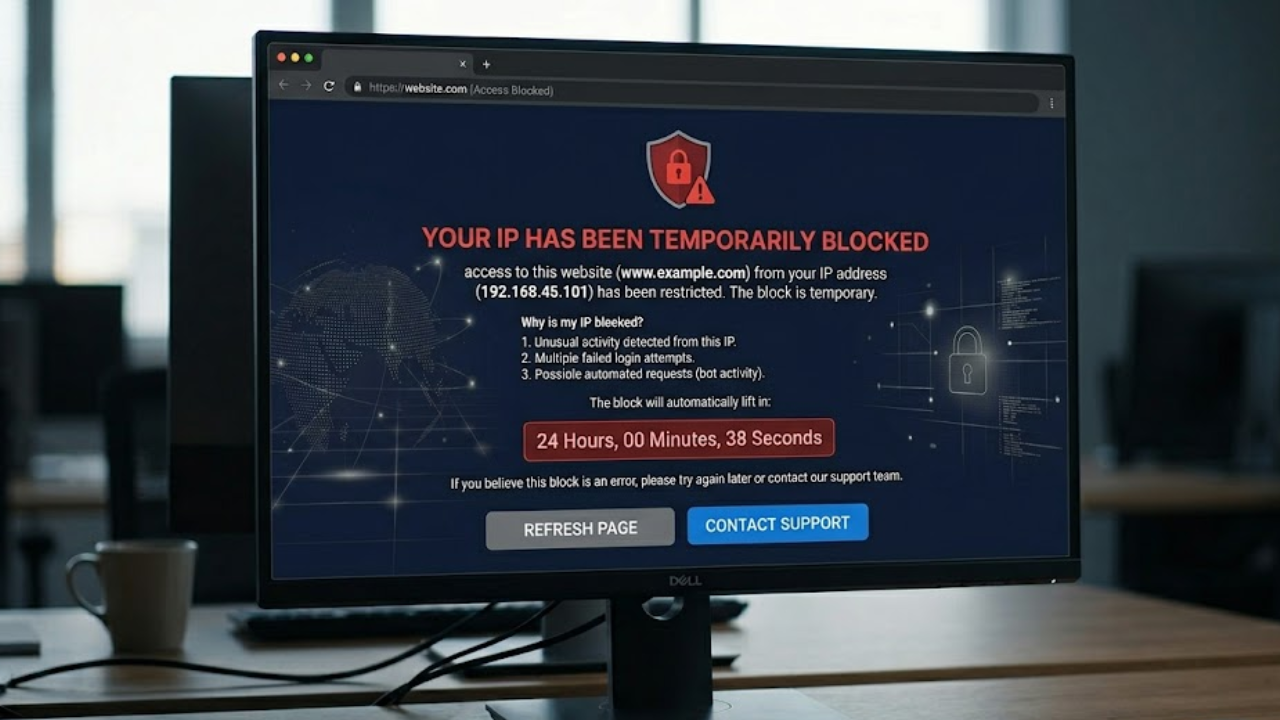
Have you ever sat down to browse your favorite website, only to find yourself completely locked out by a frustrating security screen? It happens to the best of us. You try to load a page, and suddenly a bold warning flashes across your monitor stating “your ip has been temporarily blocked”. This sudden interruption can easily stall your online work, halt your research, or break your entertainment stream in an instant. Luckily, in most cases, this online roadblock can be removed and it can certainly be repaired by following some troubleshooting procedures.
In the case that a server sends you this particular error message, it indicates that one of the security measures has sent a red flag to your connection. The following complete reference will make you know precisely why these network restrictions occur, how to easily determine the underlying cause and how to hastily regain your access to the web.
Understanding “Your IP Has Been Temporarily Blocked” Error on Your Internet Identity
The “your ip has been temporarily blocked” notification is an automated defensive response triggered by remote web servers and hosting firewalls. In other words, this message means that the website has shut its virtual doors to your particular internet connection. Each smartphone, computer and router is assigned a unique Internet Protocol address to enable it to transmit and receive data over the web. If a hosting platform detects a sudden rush of requests or erratic behavior coming from your exact digital footprint, it labels your connection as a potential hazard.
Consequently, the automated defense system revokes your access rights to protect the platform’s stability and data security. While some minor network blocks dissolve automatically within an hour, highly strict server policies can maintain the restriction for several days. Understanding how these security filters analyze your incoming web requests represents the first major milestone in taking full control of your internet connectivity.
Why Is Your IP Address Blocked by Security Filters?
Websites face a constant stream of automated attacks, malicious scrapers, and spam bots that try to exploit system vulnerabilities every single day. Therefore, web developers integrate sophisticated security perimeters that continuously analyze the quality of incoming user traffic. If your home or office connection inadvertently mimics an automated script, the server firewalls execute an immediate defensive shutdown. Let us look closely at the primary underlying triggers that cause a network server to isolate your digital connection.
Security Filters Flag Unusual Automated Request Patters
Web security applications focus heavily on identifying specific behavioral patterns that resemble a live cyber attack. An example is when you refresh a web page or a web form a few times within a minute, the server that receives your request thinks that someone is either making an attempt to crash the code. Moreover, when trying to enter a wrong password dozens of times on a user portal seems precisely the type of a brute-force attempt of hacking, which a security-related feature will perceive as such. Security systems will further proactively blacklist an internet connection in case they find outgoing spam or trying phishing indicators of your local network hub.
Regional Licensing Rules Enforce Geographic Boundaries
Sometimes, your digital interruption has nothing to do with your personal behavior and depends entirely on your physical location. Content providers frequently implement geographic filtering systems to enforce strict regional distribution rights or comply with international commercial treaties. If you attempt to access an enterprise database, a streaming video, or a retail portal that lacks licensing permissions for your country, the automated firewall drops a restriction message. This precise geographical filtering allows corporate platforms to remain fully compliant with complex regional internet laws.
Shared Internet Provider Nodes Cause Collateral Bans
General network congestion across your neighborhood rarely causes a web server to blacklist your specific computer hardware. However, technical synchronization errors within your Internet Service Provider can accidentally replicate malicious traffic patterns online. For example, if your provider experiences extreme packet loss or transmits your web data through a misconfigured regional relay station, a remote server might mistake those broken data packets for a coordinated network assault. Additionally, if malware infects another customer sharing your local provider node, the website firewalls might apply a blanket penalty to the entire neighborhood network block.
Is Your IP Address Blocked? How to Check Your Network Status
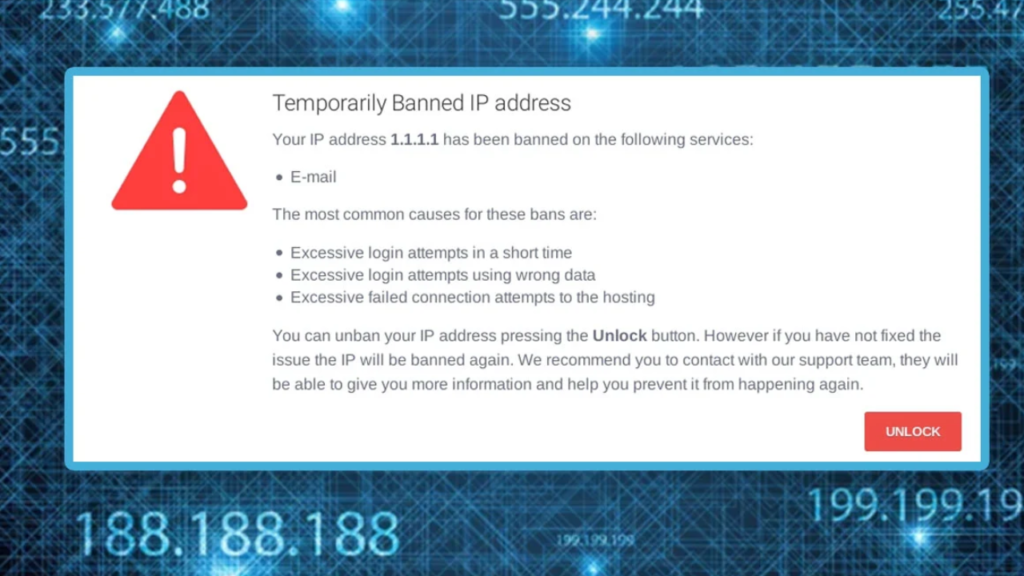
When a critical platform suddenly stops responding to your requests, you must figure out if the entire website is down or if your connection is facing a targeted ban. Isolating the true source of a digital lockout requires a few logical diagnostic tests on your local machine. Personally, this systematic evaluation process worked well for me whenever I needed to pinpoint the exact reason behind a sudden network connection failure.
Clear Browser Cache and Cookies to Reset Sessions
Stale local application files can occasionally corrupt your active web session and trigger accidental security alerts on remote corporate servers. Consequently, wiping out your web browser’s temporary storage folder forces the destination website to analyze your machine as a completely clean visitor.
- Access your web browser settings and locate the advanced privacy panel.
- Check the specific boxes for cookies, site permissions, and cached media images.
- Clear the data completely from your system and close the web browser entirely.
- Relaunch the browser application and attempt to load the target website again.
Restart Your Router to Request a New Address
The vast majority of residential internet accounts utilize dynamic configuration systems that assign a brand-new network number each time your hardware establishes a fresh link with the provider. Therefore, completely cycling the electrical power on your local modem can alter your public internet identity.
In my experience, performing a complete hardware reset remains one of the simplest and most effective ways to shake off an annoying local network restriction. Let us look at a breakdown of how this simple hardware reset manages your connection properties.
| Diagnostic Method | Technical Goal | Expected Outcome |
| Power Down Modem | Clears cached physical memory | Terminates the stale provider data lease |
| Disconnect Power Cable | Allows electrical components to drain | Signals the central station to reset the link |
| Reboot Home Hardware | Requests a fresh configuration | Obtains an unblocked network address |
Check If Your IP Address Is Blocklisted Globally
If you experience continuous connectivity problems across several completely independent web platforms, your network identification number might be trapped on a global security registry. You can check your current reputation by inputting your public address into a specialized global blocklist checking tool online. These independent platforms scan central security registries to see if automated systems have flagged your internet service provider for distributing spam or hosting malware files. If your address shows up on these registries, corporate web firewalls will decline your traffic automatically.
Run an Anti-Malware Scan on Your Local Machine
Silent malicious software can easily infect your operating system and secretly utilize your internet connection to transmit background spam or participate in distributed denial of service attacks. Naturally, this heavy outbound data traffic will cause external website firewalls to protect themselves by displaying the warning that “your ip has been temporarily blocked”. Running a comprehensive anti-malware scan ensures that hidden background applications are not actively destroying your network reputation without your knowledge.
Troubleshooting Steps to Restore Web Access
Once you confirm that your internet profile is dealing with an active restriction, you can employ several proven recovery methods to reestablish your web connection. Over the years, I noticed a massive difference in my troubleshooting success rate when I followed a structured, step-by-step approach. Let us examine the most reliable strategies available for clearing a web blocking error.
Change to a Different Network Gateway
The absolute fastest method to bypass a sudden website restriction is to change the actual route your computer uses to connect to the global web. Because the destination platform is only blocking the specific office or home connection number you are currently using, switching to an alternate data provider gives you immediate web access.
For instance, you can quickly turn off your local Wi-Fi connection and enable your smartphone’s cellular data hotspot feature instead. By linking your laptop directly to your phone’s mobile network, you shed the restricted identity entirely and browse through a clean, unbanned internet gateway.
Contact Your ISP for Technical Support
If you operate on a business internet plan with a static address that never changes during a hardware reboot, you will need direct help from your provider. You can contact their customer support line and explain that your assigned network number is currently stuck on an aggressive website firewall list. The technical support staff can manually change your account properties, refresh your network gateway, or assign an entirely different corporate subnet block to your hardware, which eliminates the external block.
Contact the Website or Service Provider Directly
When you get locked out of an essential corporate portal, a bank account, or a primary cloud application, reaching out to the platform administration team is often necessary. You can use your mobile smartphone network to locate their public help email or submit a formal support request through an online contact form. Clearly state that you are a legitimate human user trying to access your personal dashboard, and provide them with your current network identification number so they can whitelist your profile.
Best Practices to Keep Your Network Safe From getting Blocked
Safeguarding your public internet connection against future disruptions is far more efficient than trying to fix a broken connection after a restriction hits your machine. By adopting a few smart digital habits, you can browse the web freely without triggering automated network security alarms.
| Preventative Habit | Implementation Strategy | Long-Term Benefit |
| Utilize a Trusted VPN Service | Route traffic through private encrypted tunnels | Completely masks your true physical location |
| Deactivate Aggressive Extensions | Remove unverified automated page scrapers | Eliminates automated request spikes to servers |
| Secure Your Public Connections | Enable active security encryption on open Wi-Fi | Prevents neighbor traffic contamination issues |
To add further protection, you should keep your defensive software, browser applications, and operating system fully updated. This eliminates security vulnerabilities that allow malware to hijack your network traffic. Personally, this worked well for me over the long haul, as keeping my local systems clean completely stopped accidental security triggers.
Conclusion
Encountering a security screen that states “your ip has been temporarily blocked” can be a major annoyance, but it is a highly fixable issue. Learning how modern-day firewalls process the behavior of customers and providing effective countermeasures, such as deleting your browsing history, rebooting your router, or using a secure virtual private network, you can easily evade these internet walls in a short time. After a couple of days of practicing clean-browsing, I saw a difference as my connection retained a superb status on the web. Lock up your domestic computers, adhere to the terms of service governing platforms, and you will have a hassle-free, unhindered browsing experience.
FAQs
Q1. Why does a website firewall temporarily restrict an internet connection?
Websites drop a block when they detect erratic traffic patterns, massive request spikes, or consecutive invalid login attempts from a single network.
Q2. How long do temporary web restrictions stay active online?
A standard security restriction usually dissolves automatically within fifteen minutes to twenty-four hours, depending on the severity of the firewall rules.
Q3. Can a private virtual network bypass a local server lockout?
Yes, a virtual private network instantly updates your visible web identity by passing your data traffic through an independent remote data center.
Q4. Why did a system block my connection if I did nothing wrong?
You might be sharing a dynamic provider address with a compromised device, or a local background app is sending bad requests.
Q5. Does cleaning my browser data change my public network numbers?
No, wiping your browser cache only deletes temporary local session files and tracking cookies without altering your physical network gateway address.
Q6. What should I do if my home connection gets blocked repeatedly?
You should execute a comprehensive anti-malware sweep across all connected home devices and ask your service provider for an address swap.
Read More Related Blogs: