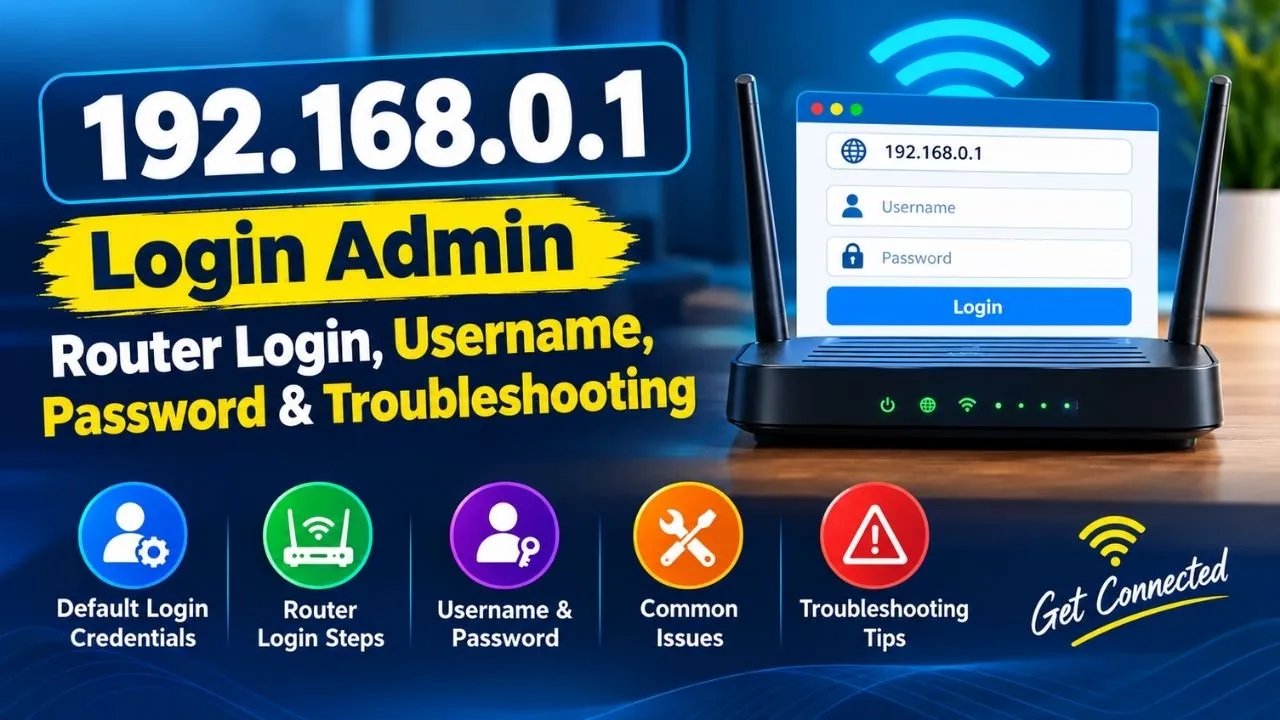
192.168.0.1 is a private IPv4 address commonly used as the default gateway by various home and office routers. If your router uses this address, entering http://192.168.0.1 in a web browser can open its administrator login page. From there, you can manage Wi-Fi settings, passwords, connected devices, security options, firmware, parental controls and other network configurations.
However, 192.168.0.1 is not a universal router login address. Different manufacturers and models can use different gateway addresses, including 192.168.1.1, 10.0.0.1 and 192.168.100.1. Therefore, if 192.168.0.1 does not open, you should check your device’s actual default gateway instead of assuming that the router is faulty.
How to Login to 192.168.0.1
Accessing the 192.168.0.1 admin panel is straightforward if your router uses this address.
Step 1: Connect to Your Router
Connect your computer, smartphone or tablet to the router’s Wi-Fi network. You can also connect a computer directly to a LAN port using an Ethernet cable.
The device must be connected to the same local network as the router. You generally do not need an active internet connection because the administration page is hosted locally by the router itself.
Step 2: Open a Web Browser
Open Chrome, Microsoft Edge, Firefox, Safari or another modern browser.
Enter the following directly into the browser’s address bar:
http://192.168.0.1
Do not type it into Google or another search engine. The address bar is the field at the top of your browser where website addresses are entered.
Step 3: Enter Your Admin Credentials
If your router uses 192.168.0.1, you should see a router login screen requesting an administrator username and password.
Enter the credentials associated with your specific router.
Do not assume that every router using 192.168.0.1 has the same username and password. Older routers may have factory credentials such as admin/admin, while other models use a blank password, a different combination or a unique password printed on the router label. Newer TP-Link models, for example, can require the administrator to create a password during initial setup.
Step 4: Open the Admin Dashboard
After successful authentication, you will reach the router’s administration interface.
Depending on the manufacturer and model, the dashboard can provide options for changing the Wi-Fi name and password, managing connected devices, configuring security, updating firmware, setting parental controls and modifying network settings.
What Is 192.168.0.1?
192.168.0.1 is a private IPv4 address. It belongs to one of the address ranges reserved for private networks and is not a publicly routable internet address.
Unlike a public IP address, the same private address can be used by many different homes, offices and organizations because each private network is separate.
For example, a router may use:
- Router: 192.168.0.1
- Laptop: 192.168.0.2
- Smartphone: 192.168.0.3
- Smart TV: 192.168.0.4
The router acts as the gateway between these local devices and the wider internet.
Importantly, 192.168.0.1 is not your public IP address and it is not your Wi-Fi password. It is simply a local network address that may be assigned to the router.
Which Routers Use 192.168.0.1?
A wide range of router manufacturers have released models that use 192.168.0.1 as a default gateway. Examples found across router references include D-Link, TP-Link, Netgear, Tenda, Linksys, Zyxel, Arris, Motorola, Huawei, TRENDnet and others. However, the exact gateway varies by model and firmware.
For this reason, it is better to check the label, manual or official documentation for your particular router rather than relying solely on a brand-level assumption.
192.168.0.1 Default Username and Password
There is no single universal username and password for 192.168.0.1.
Some older router configurations have used combinations such as:
| Username | Password |
| admin | admin |
| admin | password |
| admin | 1234 |
| admin | blank |
| user | user |
These are examples found in router documentation and reference databases, not credentials that will work on every router.
Before trying generic credentials, check:
- The sticker on the router.
- The installation card supplied with the device.
- The router’s user manual.
- Your ISP’s setup documentation.
- The manufacturer’s official app or setup process.
Your Wi-Fi password and administrator password are also not necessarily the same thing.
What to Do If 192.168.0.1 Does Not Work
If the login page does not appear, there are several possible reasons.
Check Your Connection
Make sure your device is connected to the router whose settings you want to access. Avoid using mobile data, a different Wi-Fi network or an unrelated hotspot.
Check the IP Address
Your router may use another gateway, such as:
- 192.168.1.1
- 10.0.0.1
- 192.168.100.1
The correct method is to check your device’s network information and identify the default gateway. On Windows, you can open Command Prompt and run ipconfig; the Default Gateway entry normally identifies the local router address.
Check for Typing Errors
A common mistake is entering:
192.168.0.l
instead of:
192.168.0.1
The final character must be the number 1, not the lowercase letter l.
Restart the Router
If the router is temporarily unresponsive, restart it and wait for it to reconnect. Avoid pressing the factory-reset button unless you actually intend to erase its configuration.
Try Another Browser
A cached page or browser problem can occasionally prevent the administration interface from loading correctly. Try another browser or a private/incognito window.
Forgot the 192.168.0.1 Admin Password?
If you previously changed the administrator password and cannot remember it, first check the router’s documentation or manufacturer’s recovery options.
A factory reset may restore the router to its original setup state, but it should be considered a last resort. A reset can erase the Wi-Fi name and password, ISP settings, port-forwarding rules, parental-control configurations and other custom settings.
After resetting the router, you may need to configure the internet connection again.
What Can You Change After 192.168.0.1 Login?
The available settings vary by router, but the admin panel commonly allows you to manage:
- Wi-Fi network name (SSID)
- Wi-Fi password
- Administrator password
- Connected devices
- Wireless security
- Guest networks
- DHCP settings
- DNS settings
- Parental controls
- Port forwarding
- Firewall options
- Firmware updates
- LAN configuration
- Router IP address
Some advanced options can affect your entire network, so make changes carefully and record important settings before modifying them.
How to Secure Your Router After Login
The first priority after gaining access should be securing the router.
Change the Default Admin Password
If your router still uses a factory administrator password, replace it with a strong, unique password.
Secure Your Wi-Fi
Use the strongest wireless security standard supported by your router and devices. Modern routers commonly support WPA2 or WPA3.
Update Router Firmware
Check the manufacturer’s official support page or management interface for firmware updates. Firmware updates can add features, improve compatibility and address security issues.
Review Connected Devices
Look through the router’s client or connected-device list. If an unfamiliar device appears, investigate it before assuming it is unauthorized; smart TVs, phones, printers, cameras and other devices can appear under unfamiliar names.
192.168.0.1 vs 192.168.1.1
The two addresses are often confused because both are widely used private router gateways.
There is no technical rule saying that one is universally better than the other. The manufacturer and router configuration determine which address your network uses.
If 192.168.0.1 does not open the router login page, check the default gateway rather than repeatedly attempting different passwords. Your router may simply be configured to use 192.168.1.1 or another private address.
Final Thoughts
192.168.0.1 is one of the most commonly encountered private addresses for accessing router administration settings. If your router uses it, connecting to the correct Wi-Fi or Ethernet network and entering http://192.168.0.1 in your browser can take you to the admin login page. From there, you can manage Wi-Fi, security and other network settings.
The most important point is that 192.168.0.1 does not have one universal username and password. Check your specific router’s label or manufacturer documentation, and if the address does not load, find the actual default gateway instead of assuming something is wrong with the router.
Read More: 192.168.1001.1: Router Login Fix & Correct IP | 192.168.0.1 Login: How to Access Your Router Admin Panel
Frequently Asked Questions
It can be. 192.168.0.1 is a private IP address commonly used as a router’s local gateway and administration address. It only works for your router if that device is configured to use the address.
There is no universal combination. Some older routers use credentials such as admin/admin, while others use a blank password, unique credentials or require you to create an administrator password during setup. Always check your router’s label and official documentation first.
No. You generally only need a connection between your device and the router. The administration interface is hosted on the local network, so it can often be accessed even when the internet connection itself is unavailable.
Your router may use a different default gateway, or your device may not be connected to the correct network. Check the default gateway shown in your network settings and make sure you are connected directly to the router.
No. 192.168.0.1 is a private local-network address. Your internet service provider assigns a separate public IP address for communication over the internet.
One response to “192.168.0.1 – Login Admin, Router Login, Username, Password & Troubleshooting”
[…] 192.168.100.1 is a private IPv4 address used by some routers, cable modems, and fiber network devices to provide access to their local administration or diagnostic pages. By opening http://192.168.100.1/ in a web browser while connected to the relevant network, users can access the available settings or check their internet connection status. […]