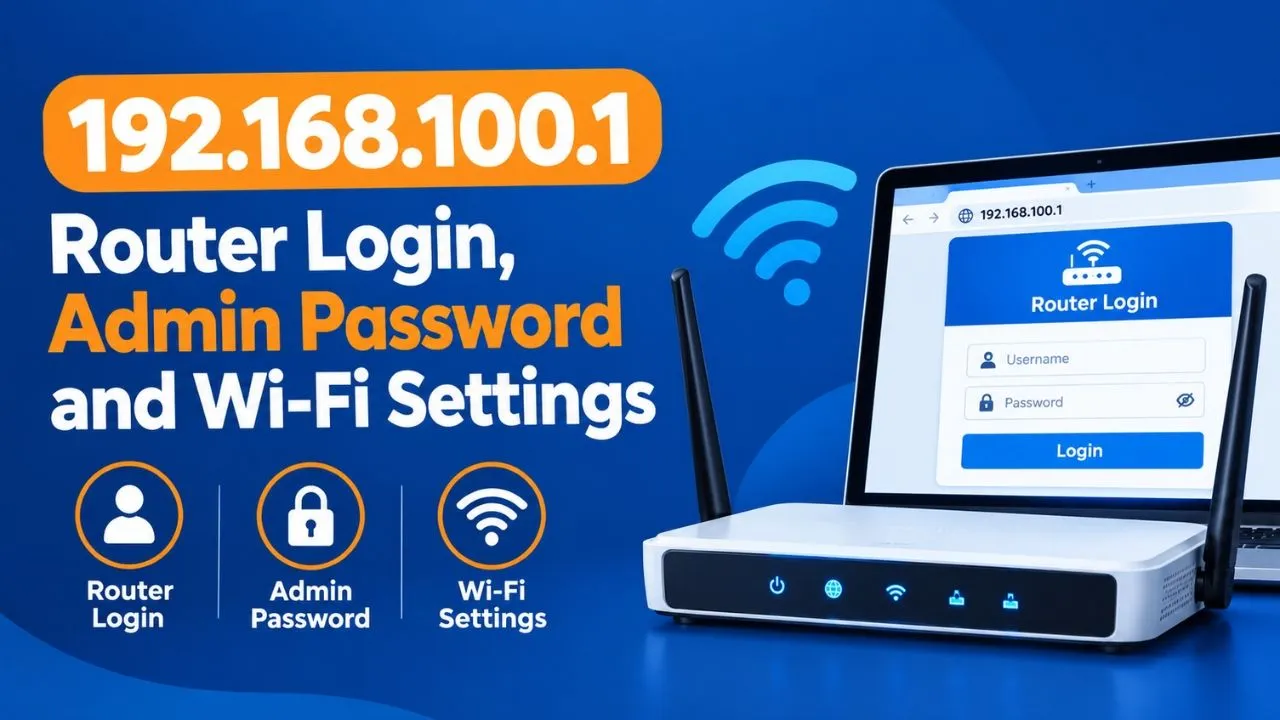
192.168.100.1 is a private IPv4 address used by some routers, cable modems, and fiber network devices to provide access to their local administration or diagnostic pages. By opening http://192.168.100.1/ in a web browser while connected to the relevant network, users can access the available settings or check their internet connection status.
Depending on the device and internet service provider (ISP), this address may allow you to change network settings, review connection information, or manage certain device features. However, not every router uses this IP address, and some modems display diagnostic information instead of a full administration panel.
This guide explains how to access 192.168.100.1, find the correct login credentials, manage available settings, and troubleshoot common access problems.
What Is 192.168.100.1?
192.168.100.1 is a private IP address that belongs to the IPv4 private address range defined for local networks. It is not a public website, and it cannot normally be accessed directly from outside the local network.
Network manufacturers and internet service providers may assign this address to a router, modem, gateway, or optical network terminal (ONT). Its exact purpose depends on the equipment and its configuration.
For example, some cable modems use 192.168.100.1 to display connection status, signal information, and diagnostic details. Other devices may provide an administrative interface through which users can manage network settings.
Unlike a public IP address, a private IP address can be reused across different home and office networks. Therefore, multiple devices around the world can use 192.168.100.1 without conflicting with one another.
How to Log In to 192.168.100.1
Accessing the 192.168.100.1 login page is straightforward if your device supports this address and you are connected to the correct network. Follow these steps to access the administration or diagnostic interface.
Step 1: Connect to Your Router or Modem
Connect your computer, laptop, or smartphone to the relevant network using Wi-Fi or an Ethernet cable. A wired connection can be helpful when troubleshooting an unstable wireless connection.
If your modem and router are separate devices, ensure that you are connected to the network associated with the device you want to access.
Step 2: Open a Web Browser
Open Google Chrome, Mozilla Firefox, Microsoft Edge, Safari, or another modern browser. You do not necessarily need an active internet connection to access a local administration page. However, your device must have a working connection to the relevant local network.
Step 3: Enter the Correct IP Address
Type the following address into the browser’s address bar:
- http://192.168.100.1/
- Press Enter to continue.
Make sure you enter the address in the address bar rather than the search box. If your browser displays search results instead of opening the device page, check where you entered the address.
Step 4: Enter Your Login Credentials
If the device displays a login screen, enter the administrator username and password.
Check the label on your router or modem, the user manual, or your ISP’s instructions for the correct credentials. Some devices display a diagnostic page without requiring a login.
Step 5: Access the Available Settings
After successful authentication, you can access the features supported by your device. Depending on the model, these may include network configuration, wireless settings, connection status, security options, or diagnostic tools.
Avoid changing unfamiliar settings because incorrect configuration can interrupt your internet connection.
What Is the Default Username and Password for 192.168.100.1?
There is no universal username and password for 192.168.100.1. Login credentials vary by manufacturer, model, firmware version, and internet service provider.
Some devices use common factory credentials, while others have a unique administrator password printed on a label.
| Username | Password | Important note |
| admin | admin | Common factory combination on some devices |
| admin | password | Used by some models |
| admin | motorola | May apply to certain Motorola devices |
| Device-specific username | Device-specific password | Check the label or ISP documentation |
These are examples, not guaranteed credentials for every device using this IP address.
If a default combination does not work, do not repeatedly guess passwords. Check the equipment label and the manufacturer’s documentation first. ISP-provided devices may use customized credentials.
What If You Forgot Your Admin Password?
If you previously changed the administrator password and cannot remember it, check whether your router or modem provides a password recovery option.
A factory reset may be necessary if no recovery method is available. However, resetting the device can erase customized settings, including Wi-Fi names, passwords, connection configurations, and other network preferences. Before resetting, consult the manufacturer’s instructions or contact your ISP.
What Can You Do After Logging In to 192.168.100.1?
The options available through 192.168.100.1 depend on whether it opens a router administration panel or a modem diagnostic page.
1. Check Internet Connection Status
Some modems provide information about their connection to the internet service provider. You may see connection status, signal readings, error counts, or other diagnostic information.
This information can help you identify whether a connection problem may be related to the modem or the incoming service line.
2. Change Wi-Fi Settings
If your device provides wireless configuration options, you may be able to change the Wi-Fi network name (SSID), update the wireless password, or configure supported wireless security settings.
Some modem diagnostic pages do not provide these controls. In that case, use your actual router’s administration address.
3. Review Connected Devices
Certain router interfaces allow you to view devices connected to your network. This can help you identify unfamiliar connections and understand which devices are using your Wi-Fi.
If you find an unknown device, verify its identity before assuming that it is unauthorized.
4. Manage Network Security
Depending on the equipment, the administration panel may offer firewall controls, guest network settings, access restrictions, or firmware updates.
Use strong, unique administrator credentials and a secure Wi-Fi password. Keep firmware updated when supported updates are available from the manufacturer or ISP.
5. Troubleshoot Connectivity Problems
Modem diagnostic pages may display connection events, signal information, and error statistics. These details can help you or your ISP investigate frequent disconnections, slow speeds, or an unstable connection.
Not all devices provide every feature listed above.
How to Fix 192.168.100.1 Not Opening
If http://192.168.100.1/ does not open, the problem may be an incorrect IP address, a network connection issue, or a device that does not use this address.
Try the following solutions.
Verify the IP Address
Check that you have entered 192.168.100.1 correctly. Common typing mistakes include replacing the number 1 with a lowercase letter l, omitting dots, or adding extra numbers.
The address must contain four numeric sections separated by periods.
Connect to the Correct Network
Make sure your computer or phone is connected to the router or modem you want to access. If necessary, temporarily disable mobile data or a VPN to ensure that your browser uses the intended local connection.
Find Your Actual Gateway Address
Your device may use a different local address, such as 192.168.1.1, 192.168.0.1, or 10.0.0.1.
On Windows, open Command Prompt, enter ipconfig, and locate the Default Gateway entry for your active network connection.
On macOS, open Terminal and run route -n get default. Check the value displayed beside gateway.
You can then enter the appropriate local address into your browser.
Restart Your Network Equipment
If the correct address still does not respond, restart your modem and router according to the manufacturer’s instructions. Allow the devices to reconnect fully before trying again.
Avoid performing a factory reset as an initial troubleshooting step.
Check Whether the Page Requires HTTPS
Most local router and modem interfaces use HTTP, although some devices may support or require HTTPS. Follow the access instructions provided by the manufacturer if the standard address does not work.
If the page remains inaccessible, contact your ISP or equipment manufacturer for model-specific assistance.
Is 192.168.100.1 a Router Address or a Modem Address?
192.168.100.1 can serve different purposes depending on the network equipment. On many cable modems, it opens a diagnostic interface used to review connection health and signal information. In other configurations, it may provide access to a router, gateway, or fiber device’s administrative interface.
A separate Wi-Fi router may use another address, even when the modem uses 192.168.100.1. If your goal is to change your Wi-Fi name or password, confirm that you have opened the router’s administration panel rather than a read-only modem status page.
Is 192.168.100.1 Safe to Use?
Yes. 192.168.100.1 is a legitimate private IPv4 address. Accessing it on your own network is a normal way to manage compatible equipment or inspect connection information. However, security depends on how the device is configured. Use a strong administrator password, avoid sharing login credentials, and do not expose management interfaces to the public internet unless there is a specific, properly secured requirement. Only access devices and networks you own or are authorized to manage.
Conclusion
192.168.100.1 is a private IP address that provides local access to certain routers, modems, and other network devices. To use it, connect to the appropriate network and enter http://192.168.100.1/ in your browser.
If the page does not open, verify the address, check your network connection, and identify the correct gateway before changing any settings. Remember that the available features and login credentials depend on your particular device.
For a secure and reliable network, use strong passwords, follow the manufacturer’s instructions, and avoid resetting or modifying unfamiliar settings without understanding their effects.
Frequently Asked Questions
192.168.100.1 is a private IP address used by some routers, modems, gateways, and fiber devices. It may open an administration interface or a diagnostic page showing internet connection information.
Connect to the relevant local network, open a web browser, and enter http://192.168.100.1/ in the address bar. Press Enter and provide the required login credentials if prompted.
There is no single default password for every device. Some use combinations such as admin/admin or admin/password, while others require a unique password printed on the device label or supplied by the ISP.
The device may use a different IP address, your computer may be connected to another network, or the modem may not provide a web interface at that address. Check your actual gateway address and confirm the device’s documentation.
Yes, if the address opens a router or gateway interface that includes wireless settings. If it opens only a modem diagnostic page, you will need to access your router’s administration panel instead.
You generally do not need working internet service to access a local administration page. However, you must be connected to the relevant local network, and the device must support that address.
Check the device label, user manual, or ISP instructions. If password recovery is unavailable, a factory reset may restore the original credentials, but it can also erase customized network settings.