
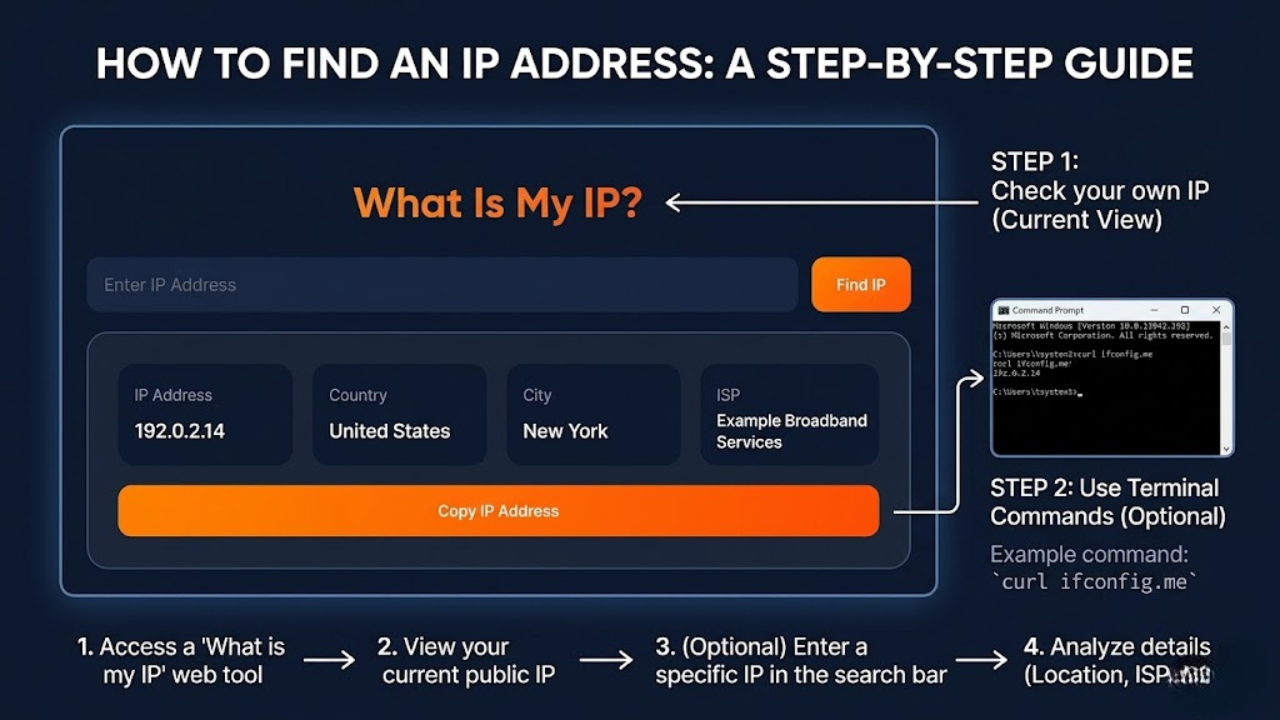
Many users ignore IP addresses until a sudden internet issue interrupts work, gaming, streaming, or video calls. Smart TV fails to connect, a printer does not appear on the network, or the VPN displays an incorrect country. This is the time when individuals normally query how to find IP address details in their devices. The positive thing is that one does not have to possess a certain level of technical skills to check an IP address. Once you understand where to look, the process becomes simple on Windows, Mac, Android, iPhone, and even routers.
I faced this problem while setting up a home office network during a client meeting. My laptop connected to Wi-Fi, but file sharing refused to work between devices. After checking the local IP settings, I realised two systems had conflicting network assignments. Restarting the router and renewing the IP fixed everything within minutes. Situations like these show why basic network knowledge saves both time and frustration.
How to Find IP Address on Any Device?
Your internet connection leaves a digital trail every time you open a website, stream a movie, or connect a smart device. Such a trail begins with an IP address. Lots of individuals only look up how to find IP address information when everything has gone wrong, but with this little information, one can resolve numerous network errors within a short period.
An IP address is a digital identity of your gadget/internet access. There are those IP addresses that remain on the internet, whereas others can only work within your computer network. When you know the difference, it is less frustrating and easier to troubleshoot.
| IP Address Type | Purpose | Example |
| Public IP | Connects your network to the internet | 103.24.56.90 |
| Local IP | Connects devices inside home Wi-Fi | 192.168.1.5 |
| IPv4 | Traditional address format | 172.16.0.1 |
| IPv6 | Newer internet standard | 2409:40f2::8 |
Check Your Public IP Address Online
Your internet connection is online as your IP address. This address is provided to your network by Internet providers and is used by the websites to locate your positioning and connection. The majority of individuals seeking how to find ip address information tend to use the public version first, as it assists in testing VPN, streaming issues and the remote access configuration. Public IP addresses can change depending on your internet provider. Mobile networks usually rotate them more frequently than broadband connections.
Find Your Public IP Through a Search Engine
The fastest method takes less than ten seconds. Search engines already receive your IP information when your browser sends a request, so they can instantly display it back to you.
Open Google, Bing, or DuckDuckGo and type:
- What is my IP address
- Check my IP
- My public IP
The result appears at the top of the search page immediately.
I often use this method while checking VPN locations because it quickly confirms whether the server location changed correctly. One evening, my VPN app showed London while Google still displayed an Indian IP address. That helped me realise the VPN had disconnected silently in the background.
Use Voice Assistants to Check Your Public IP
Hands-free Voice assistants are also able to give you quick IP information. Siri, Alexa, and Google Assistant can also identify the network connection that is active and then tell your public IP address.
You can ask:
- “What is my IP address?”
- “Tell me my public IP.”
- “Show my internet address.”
This method works well for quick checks. Still, long IP numbers sound confusing when spoken aloud, so most users prefer visual results on a screen.
Use Command-Line Tools to Find Public IP
Many advanced users prefer built-in system tools instead of browser-based IP checkers. These tools provide direct results and often help during network troubleshooting.
Find Public IP Using Windows Command Prompt
Windows users can check public IP details using Command Prompt in under a minute.
Step 1: Press Windows + R
Step 2: Then type “cmd”
Step 3: After Command Prompt opens, enter: “nslookup myip.opendns.com resolver1.opendns.com”
Step 4: Press Enter again. Windows will display the public IP beside “Address.”
| Windows Network Commands | Function |
| ipconfig | Shows local network details |
| nslookup | Finds public IP |
| ping | Tests connection quality |
I once used this exact method during a client VPN setup because browser tools kept showing outdated cached results.
Check Public IP Through Mac Terminal
Mac users can use Terminal for the same purpose. The process feels slightly technical initially, although it becomes simple after one or two attempts.
Step 1: Open Spotlight Search and launch Terminal.
Step 2: Then enter “curl ifconfig.me”
Step 3: Press Enter again. The Mac will instantly display the active public IP address.
Developers and IT professionals often prefer Terminal because it avoids browser-related issues and provides cleaner output.
Access Router Settings to See Public IP
Your router dashboard also displays the public IP address connected to your network. This method becomes useful while managing advanced settings like remote desktop access or port forwarding.
Most routers use addresses such as:
- 192.168.0.1
- 192.168.1.1
Open the address inside a browser and log in using the router credentials. Then open sections such as:
- WAN
- Internet
- Network Status
- Router Information
The public IP address appears there.
| Router Brand | Common Login Address |
| TP-Link | 192.168.0.1 |
| ASUS | 192.168.50.1 |
| D-Link | 192.168.1.1 |
| Netgear | 192.168.1.1 |
How to Find Your Local IP Address on Any Device
A local IP address works inside your private network. Routers assign these addresses to laptops, phones, printers, gaming consoles, and smart TVs connected to the same Wi-Fi. People often search how to find IP address information locally while fixing printer problems or setting up smart devices.
Check Local IP Address on Windows PC
Windows offers several ways to locate local IP details. Some users prefer visual settings, while others use command tools because they work faster.
Find Local IP Using Command Prompt
Command Prompt remains the fastest option for experienced users because it shows all network adapters together.
Open Command Prompt and type:
| ipconfig |
Press Enter.
Look for:
- IPv4 Address
- IPv6 Address
- Default Gateway
The IPv4 line usually shows your active local IP address.
View IP Address in Windows Network Settings
Windows Settings provides a cleaner interface for users who dislike command tools.
Open:
| Settings → Network & Internet → Properties |
Scroll until you see IPv4 and IPv6 information.
This method works especially well for beginners because Windows clearly labels every network section.
Use Windows Taskbar for Quick IP Access
The taskbar shortcut saves time during quick troubleshooting sessions.
Click the Wi-Fi icon near the clock. Open your active network and select Properties. Windows will display all network details on the next screen.
I regularly use this shortcut while switching between office Wi-Fi and mobile hotspot connections because it avoids opening several menus.
How to Find Local IP Address on Mac
MacBooks organize networking settings neatly, although many users never explore them deeply. You can locate local IP information through System Settings or Terminal.
Use Mac System Settings to Check IP
This remains the easiest method for most Mac users.
Open:
| Apple Menu → System Settings → Network |
Select Wi-Fi or Ethernet and open Details.
Scroll down until you see the IP Address section.
| Mac Networking Section | Main Function |
| Network | Shows active connections |
| TCP/IP | Displays IP details |
| Wi-Fi Details | Shows DNS and router info |
Find Local IP with Mac Terminal Commands
Terminal works faster for users who manage servers or advanced network connections regularly.
First, identify the active adapter:
| networksetup -listallhardwareports |
Then enter:
| ipconfig getifaddr en0 |
Replace “en0” if your device uses another adapter.
A friend working in cybersecurity showed me this method during a hotel Wi-Fi issue. The network blocked automatic configuration, so Terminal helped identify the correct adapter immediately.
Locate IP Address on Android and iPhone
Phones constantly switch between Wi-Fi and mobile networks. Because of that, mobile IP addresses often change automatically. Still, checking them remains simple once you know where to look.
Check IP Address on iPhone Settings
Apple stores IP information inside Wi-Fi settings.
Open:
| Settings → Wi-Fi |
Tap the information icon beside the connected network.
Scroll until you see:
- IPv4 Address
- IPv6 Address
- Router Address
This section also helps during AirDrop setup or smart home installation.
Find IP Address on Android Wi-Fi Settings
Android menus vary slightly depending on the manufacturer, although the process remains similar.
For Samsung Galaxy devices:
- Open Settings.
- Tap Connections.
- Select Wi-Fi.
- Tap the gear icon beside the connected network.
- Scroll to IP Address.
| Android Brand | IP Location |
| Samsung | Connections → Wi-Fi |
| Xiaomi | Wi-Fi Settings |
| Google Pixel | Network & Internet |
| OnePlus | Wi-Fi & Network |
Find Your Router IP Address Easily
Your router also uses its own local IP address. You need this information whenever you want to change Wi-Fi passwords, update firmware, or manage parental controls. Most users access router settings only during internet problems, yet knowing the router IP saves time during emergencies.
Check Router IP Through Ethernet Connection
Ethernet users can quickly locate router information through command tools.
On Windows, enter:
| ipconfig |
Look for “Default Gateway.”
On Mac, enter:
| route -n get default |
The “Gateway” value represents the router IP address.
Find Router IP on Wi-Fi Devices
Wi-Fi users can also locate router details through network settings.
Open your active Wi-Fi network information and look for:
- Router
- Gateway
- Default Gateway
That number represents the router address.
One evening, my internet suddenly stopped just before an online client meeting. I checked the router dashboard using the gateway address and discovered that the DNS settings had reset automatically after a firmware update.
Public vs Private IP Address Differences Explained
Many users confuse public and local IP addresses because they both may be found on the same machine. Nevertheless, their use has absolutely different purposes. Public IP addresses are used when connecting your network to the internet and local IP addresses when connecting devices within your private network.
My Public IP Address
A public IP address is similar to the online identity of your internet connection since it is used to assist the sites, applications, and online services in identifying the source of requests. This is automatically given to you by your internet provider and each time you are on the internet, most of the devices are on the same Wi-Fi and share the address. I observed this when I was testing a VPN during a cricket live stream, as the streaming service that I selected immediately started displaying a different country since my public IP address had changed.
The public IP addresses may expose you to your approximate city, internet carrier, and general location, why the shopping sites or ad makers occasionally show you offers or advertisements based on your location. Though this information does not reveal your specific home address, it provides websites with sufficient information to monitor your browsing patterns and customize online experiences.
My Local or Private IP Address
My local or private IP address assists the devices in communicating with each other within the same network without opening their systems to the internet. Automatically, your router provides all the laptops, smart phones, smart TVs, printers and gaming consoles that use your Wi-Fi with their own addresses. A observed how convenient local IP addresses were in the process of configuring a home printer wirelessly since the printer failed to connect unless both devices showed up within the shared network range.
Public IP addresses are used to reconnect your network to websites and other online services, whereas local IP addresses are used to communicate between internal devices with each other. Dynamic IP addresses are modified after some period of time, opposed to the static IP addresses that are set in stone to perform a certain job such as hosting a server or office systems. These differences are valuable to know in order to troubleshoot problems about the connection of the internet and devices in everyday life.
Which IP Address Offers Better Security?
Local IP addresses remain safer because outsiders cannot directly access them online. Public IP addresses stay visible to websites and internet services. That does not automatically make public IPs dangerous. Still, hackers sometimes scan exposed IP ranges for weak networks and unsecured routers. Because of that, many users now use VPN services for better privacy.
Protect Your Privacy and Hide Your IP Address
Browsing the internet discloses fundamental location and network information to the websites, applications, and online services using your public IP address. Due to it, online privacy of many users has become more considered, particularly when using a Wi-Fi network in a public place, at home, while telecommuting, or while video streaming. I personally started checking my network privacy settings after noticing that shopping websites showed different prices based on my browsing location.
VPN Services for Better Online Privacy
VPN services replace your real public IP address with another virtual location. This prevents the activity of browsing and decreases location tracing by web pages and advertisors. VPN tools have increasingly become an everyday usage tool to many remote workers and travelers due to the fact that they enhance privacy on hotel, and airport networks.
Public Wi-Fi Risks and Safer Browsing Habits
Free Wi-Fi connections in cafes, airports, and malls, are not always highly encrypted. Due to that fact, cybercriminals occasionally spy on the said networks to steal browsing history or log inferences. Mobile hotspots, encrypted connections, and secure passwords can be instrumental in making online security in the travelling industry much safer.
Router Security and Firmware Updates
Routers act as the main gateway between devices and the internet, so outdated firmware creates unnecessary security risks. Many people ignore router updates for years, although manufacturers regularly release important security fixes. I once noticed random connection drops at home, and updating the router firmware solved the issue immediately.
Tracking Prevention Through Smart Network Practices
Simple network habits improve privacy more than people expect. Using a different password on default routers, turning off unknown devices, and updating the systems connected are some of the ways that ensure that a home network is safer. Minor details can save big-time security problems down the line.
| Privacy Method | Main Benefit |
| VPN | Hides public IP |
| Firewall | Blocks suspicious traffic |
| Router Updates | Improves security |
| Antivirus | Detects malware |
Strong privacy habits make internet usage safer and more reliable. After becoming familiar with the visibility of public IP addresses in the internet, users tend to take more precautions in network security and network browsing habits.
Common Reasons People Search for an IP Address
Most users do not search for how to find IP address information out of curiosity alone. Usually, a real problem triggers the search.
Some common reasons include:
- Fixing Wi-Fi connection problems
- Connecting wireless printers
- Troubleshooting gaming servers
- Testing VPN connections
- Managing router settings
- Configuring smart home devices
A small business owner I know solved a payment machine issue by checking router IP conflicts himself. He avoided losing customers because he understood basic network settings.
Conclusion
Learning how to find IP address information becomes useful faster than most people expect. Whether you want to fix internet problems, manage routers, use a VPN, or improve online privacy, knowing where to check your IP saves time and frustration. Once you understand the difference between public and local IP addresses, network troubleshooting feels much simpler and far less confusing.
Read More Blogs: