Last updated: August 21, 2026
Trying to open your router’s settings page and landing on an error instead? You’re not alone. Many people search for 192.168.1001.1 when they actually mean their router’s local gateway address, and a simple typo is usually the reason the page won’t load. This guide explains what this address really is, why it fails to open sometimes, and exactly how to log in, reset, and secure your router the right way.
What Is 192.168.1001.1?
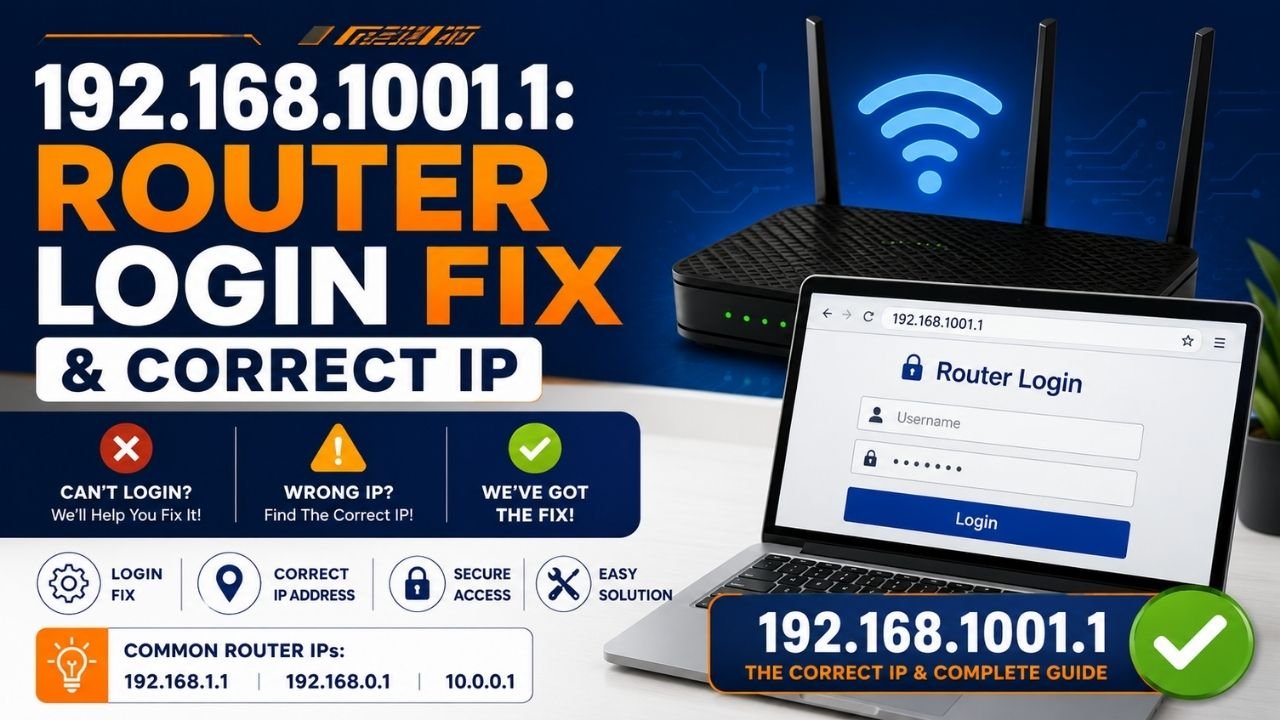
192.168.1001.1 is not a valid IPv4 address. A proper IP address always has four number groups called octets, each separated by a single dot, and each octet must fall between 0 and 255. Because “1001” is not a real octet, typing this exact string into your browser will almost always return a “site can’t be reached” message.
Most users who type this term are actually trying to reach a private gateway address used by modems and routers, such as 192.168.1.1 or 192.168.100.1. These addresses belong to the RFC 1918 private IP range, meaning they only work inside your home or office network and cannot be accessed from outside it.
| Term Typed | What It Usually Means | Valid Address? |
| 192.168.1001.1 | Typo for a private gateway IP | No |
| 192.168.100.1 | Common Motorola, Zyxel, Arris, Netgear gateway | Yes |
| 192.168.1.1 | Common TP-Link, D-Link, Netgear gateway | Yes |
| 192.168.0.1 | Common Huawei, older router gateway | Yes |
Why 192.168.1001.1 Won’t Open in Your Browser
Before assuming your router is broken, check for these common formatting mistakes. Even one extra digit stops the page from loading correctly.
- Extra digits in an octet: “1001” should likely be “100” or “1.”
- Missing separators: Removing a dot, like writing 1921681001, breaks the address completely.
- Typos in the protocol: Writing “htlp://” instead of “http://” sends your browser nowhere.
- Wrong network connection: You must be connected to your own router’s WiFi or LAN, not a neighbor’s network or mobile data.
- Extra characters or spaces: Adding a slash or space anywhere in the string, such as 192.168.100.1/, can also cause a failed connection.
Because of these frequent typing errors, checking your actual gateway address first saves time and frustration.
How to Find Your Router’s Real IP Address
Instead of guessing, you can pull your exact gateway address directly from your device in under a minute.
On Windows
- Open Command Prompt.
- Type ipconfig and press Enter.
- Look for “Default Gateway” under your active network adapter.
On Mac
- Open Terminal.
- Type route -n get default and press Enter.
- The gateway line shows your router’s IP.
Once you confirm the correct address, replace 192.168.1001.1 with that number in your browser’s address bar.
How to Log In to Your Router’s Admin Page
Once you have the correct gateway IP, logging in follows a simple, repeatable process across most brands.
- Open your browser: Chrome, Firefox, Safari, or Edge all work fine.
- Enter the correct IP address: Type it exactly, with no extra spaces or symbols.
- Wait for the login screen: Most routers load a branded portal automatically.
- Enter your username and password: Check the sticker on the back or bottom of the router if you don’t remember it.
- Access the dashboard: From here, you can adjust WiFi, security, and network settings.
If the login page never appears, double check your cable connections and confirm you’re on the correct network before trying again.
Default Username and Password Options
Router manufacturers usually ship devices with simple, factory-set login credentials. Since these vary by brand, try the combinations below if the sticker on your device is missing or worn off.
| Username | Password |
| admin | admin |
| admin | password |
| admin | 1234 |
| Admin | Admin |
These logins are case sensitive, so typing “Admin” instead of “admin” can cause a failed attempt even when everything else is correct.
Read More: 192.168.100.1 Router Login: Access Admin Panel Easily
What to Do If the Password Doesn’t Work
If none of the default combinations work, someone likely changed the login previously, whether that was you, a technician, or a prior household member. In that case, a factory reset restores the original settings.
How to Factory Reset Your Router
- Locate the small reset button, usually on the back panel.
- Press and hold it for 10 to 15 seconds, though timing can vary by model.
- Release once the lights blink or flash rapidly.
- Wait for the router to fully reboot.
- Log in again using the original factory credentials.
Keep in mind that a factory reset erases custom settings, including port forwarding rules for cameras or smart devices. Backing up your configuration beforehand, if your router supports it, saves you from redoing everything from scratch later.
Changing Your Router’s Default Password
The very first thing you should do after logging in successfully is update your password. Leaving factory defaults active is one of the easiest ways for outside users to access your home network without permission.
A strong replacement password should include:
- At least 12 characters
- A mix of uppercase and lowercase letters
- Numbers and symbols
- No obvious personal details, like birthdays or names
How to Change Your WiFi Network Name (SSID)
Your SSID is simply the name that appears when you or your neighbors scan for available WiFi networks. Changing it makes your connection easier to identify and slightly harder to target.
- Log in to the admin dashboard.
- Navigate to the Wireless or WLAN settings tab.
- Locate the SSID field.
- Enter a new, unique network name.
- Save changes and reconnect your devices.
If multiple people use your home network regularly, setting up a separate guest network is also worth doing. This keeps visitors off your main network and limits the spread of malware between devices.
Troubleshooting Common Login Issues
Even after fixing the typo in 192.168.1001.1, a few other issues might block access. Walk through these checks one at a time.
| Issue | Likely Cause | Fix |
| Page won’t load | Wrong IP typed | Recheck gateway address |
| “Site can’t be reached” | Not connected to router network | Reconnect to correct WiFi or LAN |
| Login rejected | Changed credentials | Try known password, then reset if needed |
| No response at all | Faulty router or cable | Check hardware, contact manufacturer |
If you’ve tried everything above and still can’t reach the dashboard, the router hardware itself might be at fault, and contacting the manufacturer’s support line is the next reasonable step.
Security Tips After Logging In
Once inside your router’s settings, take a few extra minutes to lock things down properly.
- Update firmware if a newer version is available.
- Disable remote management unless you specifically need it.
- Turn on WPA3 or WPA2 encryption for your wireless network.
- Review connected devices and remove anything unfamiliar.
- Set a schedule to change your password every few months.
These small steps go a long way toward keeping your home network private and stable throughout 2026.
Conclusion
Typing 192.168.1001.1 into your browser will not open a router dashboard because it isn’t a real IP address. However, the fix is simple once you understand the mix-up. Confirm your actual gateway address, correct any typos, and you’ll reach your router’s login screen without further trouble. From there, updating your default password, renaming your SSID, and reviewing basic security settings keeps your home network safe well beyond today. Whether you searched for 192.168.1001.1 by accident or copied it from an unreliable source, following this guide gets you logged in correctly and protected going forward.
Frequently Asked Questions
No. A valid IPv4 address never has more than three digits in any octet, so 192.168.1001.1 will not connect to any device.
Check your device’s default gateway using ipconfig on Windows or route -n get default on Mac, then enter that exact address instead.
This usually happens due to typos, wrong network connections, or entering the address with extra characters or missing dots.
Admin and admin remain the most widely used default combination, though password, 1234, and Admin also appear frequently across brands.
Hold the reset button on the back of the device for about 10 to 15 seconds until the lights blink, then log in using factory default credentials.
Yes. A reset erases custom configurations, including your SSID, password, and any port forwarding rules you previously set up.
Yes. Doing so right after your first login significantly reduces the risk of unauthorized access to your home network.
Most modern routers support a guest SSID option in the wireless settings, which keeps visitors separate from your main connected devices.