
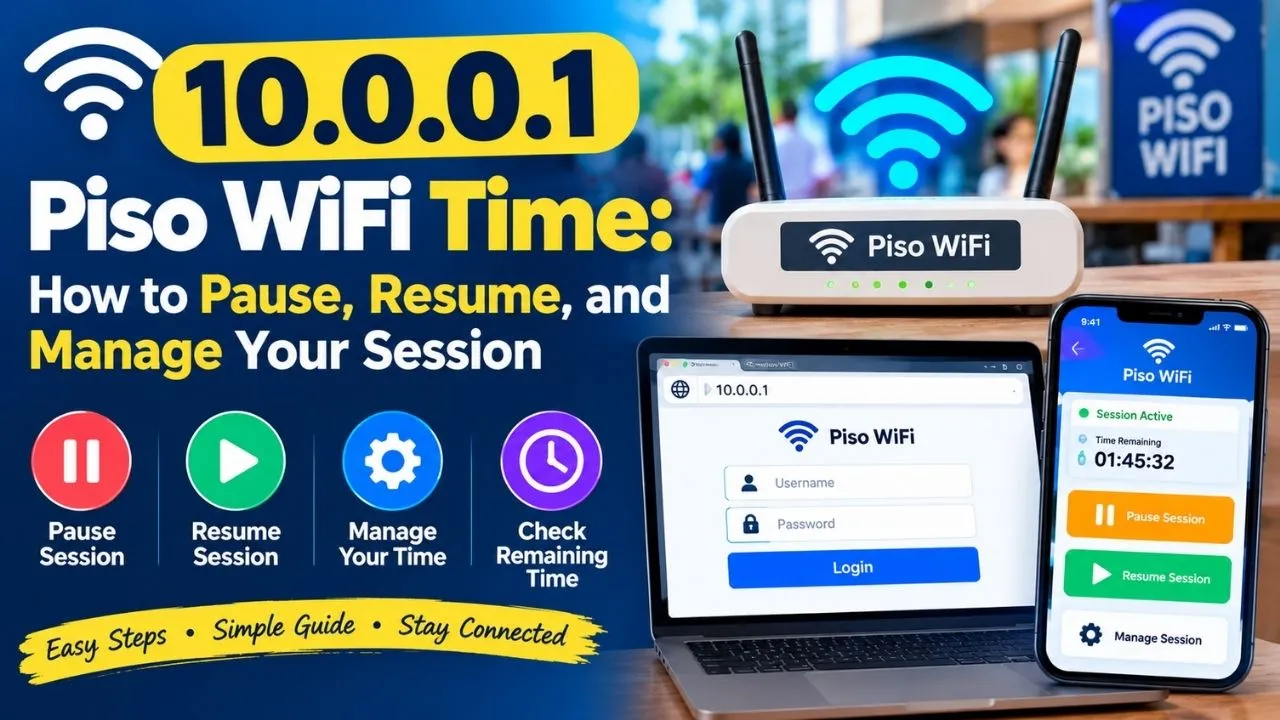
Last Updated: September 11, 2026
If you are searching for 10.0.0.0.1 piso wifi time, 10.0.0.0.1 piso wifi, or 10.0.0.0.1 pause time, there is an important detail to understand first: 10.0.0.0.1 is not a valid IPv4 address. The address commonly associated with Piso WiFi is 10.0.0.1, which is used as the local gateway or portal address on many Piso WiFi systems.
The Piso WiFi system uses a prepaid timer that starts after a user pays through the vending machine or supported payment method. On systems where Pause Time is enabled, users can temporarily stop the countdown and resume their remaining time later.
This guide explains how 10.0.0.0.1 Piso WiFi time works, the correct login address, how to pause and resume a session, how administrators can enable the feature, and what to do if the portal does not open.
What Is 10.0.0.0.1 Piso WiFi Time?
The phrase 10.0.0.0.1 Piso WiFi time is commonly used in searches by people looking for the Piso WiFi session timer and pause feature. However, the extra zero makes the address incorrect.
The correct address to try is:
Piso WiFi machines commonly use this local address to provide access to their captive portal. Depending on the machine and firmware, the portal can allow users to start a session, view remaining time, enter vouchers and, when enabled, pause or resume their internet session.
The 10.0.0.0.1 version has five numerical sections, whereas a standard IPv4 address has four sections. Therefore, if you type 10.0.0.0.1 into a browser and it does not work, try 10.0.0.1 instead.
Correct Piso WiFi addresses
| Purpose | Address |
| Piso WiFi user portal | http://10.0.0.1 |
| Piso WiFi admin panel | http://10.0.0.1/admin |
| Common incorrect address | 10.0.0.0.1 |
The exact address can vary between machines and firmware, so if 10.0.0.1 does not respond, check the network’s gateway information or the router documentation.
What Is 10.0.0.0.1 Pause Time?
10.0.0.0.1 pause time, more accurately referred to as 10.0.0.1 Piso WiFi Pause Time, is a feature that allows a user to temporarily stop their prepaid internet timer.
For example, suppose you purchase 60 minutes of Piso WiFi access but need to leave after using 20 minutes. If Pause Time is enabled, you can pause the session with approximately 40 minutes remaining. When you return, you can resume the session and continue using the remaining time.
When the session is paused, internet access is normally suspended and the countdown stops. TP-Link’s Piso WiFi guide describes Pause Time as a session-control feature designed to prevent remaining prepaid minutes from being consumed while the user is not actively browsing.
Example
Suppose:
- You purchase: 60 minutes
- Time already used: 20 minutes
- Remaining time: 40 minutes
- You press Pause
- You return later and press Resume
Your available balance should continue from the remaining session time, subject to the machine’s pause rules.
However, the exact behaviour can vary according to the Piso WiFi platform and settings configured by the operator.
How to Use 10.0.0.1 Piso WiFi Time
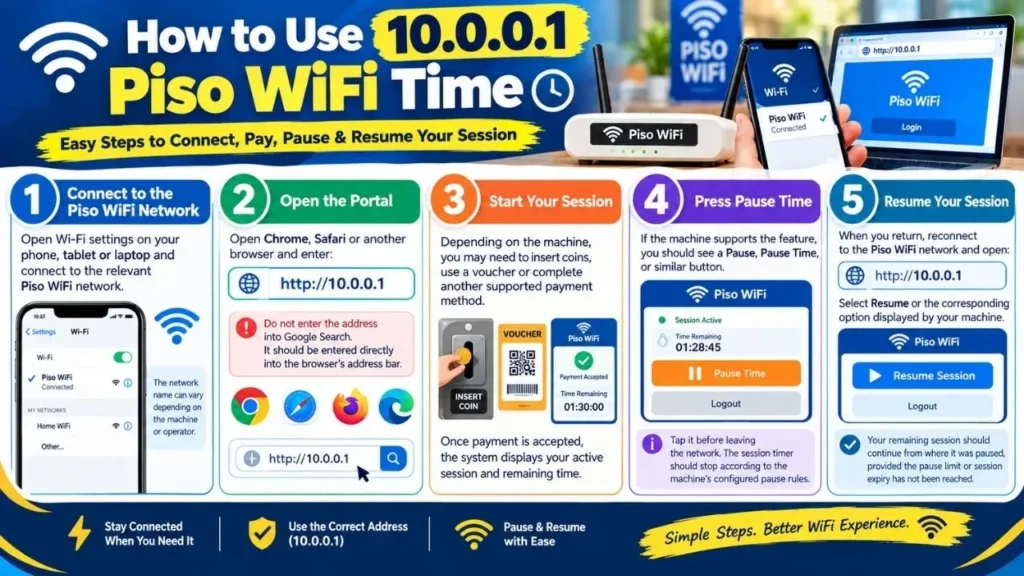
Using the Piso WiFi timer is relatively straightforward.
Step 1: Connect to the Piso WiFi network
Open Wi-Fi settings on your phone, tablet or laptop and connect to the relevant Piso WiFi network.
The network name can vary depending on the machine or operator.
Step 2: Open the portal
Open Chrome, Safari or another browser and enter:
Do not enter the address into Google Search. It should be entered directly into the browser’s address bar.
Step 3: Start your session
Depending on the machine, you may need to insert coins, use a voucher or complete another supported payment method.
Once payment is accepted, the system displays your active session and remaining time.
Step 4: Press Pause Time
If the machine supports the feature, you should see a Pause, Pause Time, or similar button.
Tap it before leaving the network.
The session timer should stop according to the machine’s configured pause rules.
Step 5: Resume your session
When you return, reconnect to the Piso WiFi network and open:
Select Resume or the corresponding option displayed by your machine.
Your remaining session should continue from where it was paused, provided the pause limit or session expiry has not been reached.
How to Access 10.0.0.0.1/admin
Another frequently searched keyword is 10.0.0.0.1/admin.
Again, the commonly correct address is:
This is generally intended for the Piso WiFi operator or administrator, rather than ordinary customers. The admin panel can provide access to settings such as session rates, vouchers, bandwidth controls and Pause Time configuration.
To access it:
- Connect to the Piso WiFi network you manage.
- Open a web browser.
- Enter http://10.0.0.1/admin.
- Enter your administrator credentials.
- Open the relevant portal or session settings.
- Look for Pause Time, Pause/Resume, or Session Controls.
The precise menu names depend on the firmware installed on the machine. TP-Link’s current guidance notes that LPB and other Piso WiFi implementations can have different menu structures.
Do not attempt to access an administrator panel on a machine you do not own or operate.
How to Enable Piso WiFi Pause Time
If you operate a Piso WiFi machine and customers cannot see a Pause button, the feature may be disabled.
The general process is:
- Connect to the machine’s network.
- Open http://10.0.0.1/admin.
- Sign in using the administrator account.
- Open Portal Settings, Session Settings or a similarly named section.
- Find Pause Time or Pause/Resume.
- Enable the option.
- Configure any available pause-duration or session limits.
- Save the settings.
- Test the feature using a customer session.
On some systems, the settings can be separated according to payment method, such as coin and voucher sessions. Menu names can also change between firmware versions.
Why is Pause Time useful for operators?
Pause Time can improve the customer experience because users do not necessarily lose paid minutes when they temporarily stop browsing.
It can also help reduce unnecessary network usage because a paused session is not actively consuming internet access.
10.0.0.0.1 Piso WiFi Time Not Working? Try These Fixes
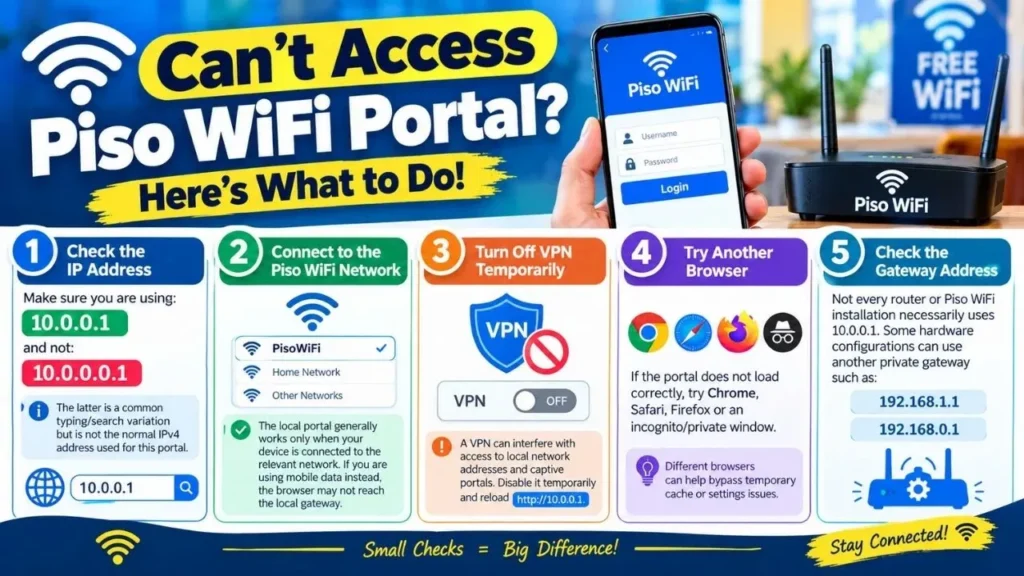
Sometimes users type the correct address but still cannot access the Piso WiFi portal.
1. Check the IP address
First, make sure you are using:
10.0.0.1
and not:
10.0.0.0.1
The latter is a common typing/search variation but is not the normal IPv4 address used for this portal.
2. Connect to the Piso WiFi network
The local portal generally works only when your device is connected to the relevant network. If you are using mobile data instead, the browser may not reach the local gateway.
3. Turn off VPN temporarily
A VPN can interfere with access to local network addresses and captive portals. Disable it temporarily and reload http://10.0.0.1.
4. Try another browser
If the portal does not load correctly, try Chrome, Safari, Firefox or an incognito/private window.
5. Check the gateway address
Not every router or Piso WiFi installation necessarily uses 10.0.0.1. Some hardware configurations can use another private gateway such as 192.168.1.1 or 192.168.0.1.
On Windows, you can run ipconfig and look for Default Gateway. On mobile devices, the router/gateway information can generally be found in the connected Wi-Fi network details.
Does Disconnecting Wi-Fi Pause Piso WiFi Time?
Not necessarily.
Simply disconnecting your phone from the Wi-Fi network is not the same as pressing the Pause button. Depending on the machine’s configuration, your timer may continue running even when your device is temporarily disconnected.
Therefore, if you want to preserve your remaining prepaid minutes, use the actual Pause Time option when it is available.
Can You Resume Piso WiFi Time on Another Phone?
Usually, you should return to the same device that started the session.
Some Piso WiFi systems associate sessions with device information, such as a MAC address. Consequently, moving a session to another phone or laptop may not work. TP-Link also recommends using the same device when resuming a paused session.
Does Pause Time Give You Extra Internet Minutes?
No.
Pause Time does not add free minutes to your account. It simply prevents the remaining prepaid time from being consumed while the session is paused.
For example, if you have 15 minutes remaining, pausing does not turn those 15 minutes into 30 minutes. You still have the same paid balance when you resume, subject to the operator’s pause and expiry rules.
Important Safety Tips for Piso WiFi Users
When using a public or shared Piso WiFi network, avoid entering highly sensitive information whenever possible.
You should also be careful with websites claiming to provide a special 10.0.0.0.1 Piso WiFi app or asking you to download unknown software. In many cases, the Piso WiFi experience is simply a browser-based captive portal rather than a conventional mobile application.
For operators, changing the default administrator password is particularly important. Anyone with access to the admin panel could potentially modify network, pricing or session settings.
Final Verdict
The search term 10.0.0.0.1 Piso WiFi time primarily refers to the Piso WiFi prepaid timer and its Pause Time feature, but the IP address itself is commonly mistyped. The address users should generally try is 10.0.0.1, while the administrator portal is commonly available at 10.0.0.1/admin.
If Pause Time is enabled, you can stop your session temporarily and resume your remaining prepaid minutes later. If the Pause button is missing, the machine’s administrator may have disabled the feature or configured different session rules. Because Piso WiFi implementations vary by hardware and firmware, always follow the settings and instructions provided by the specific operator or system.
Read More Our IP Number Guide Blogs: 20.0.0.1 Login | 10.0.01 | 192.168.1.100 Router | 10.11.12.1 Router Admin | 192.168.1001.1
Frequently Asked Questions
The commonly used address is 10.0.0.1, not 10.0.0.0.1. Enter http://10.0.0.1 directly into your browser.
It is a commonly searched version of the Piso WiFi administrator address. The correct address is generally http://10.0.0.1/admin.
Connect to the Piso WiFi network, open http://10.0.0.1, start your session and tap Pause Time if the machine’s administrator has enabled the feature.
The administrator may have disabled Pause Time, the machine may not support the feature, or your browser session may have an issue. Contact the operator if the option remains unavailable.
Not necessarily. Disconnecting from the network is different from using the Pause function. Use the Pause button if you want to preserve your remaining session time.
Normally, no. 10.0.0.0.1 is not the correct IPv4 format. Try 10.0.0.1 instead.