
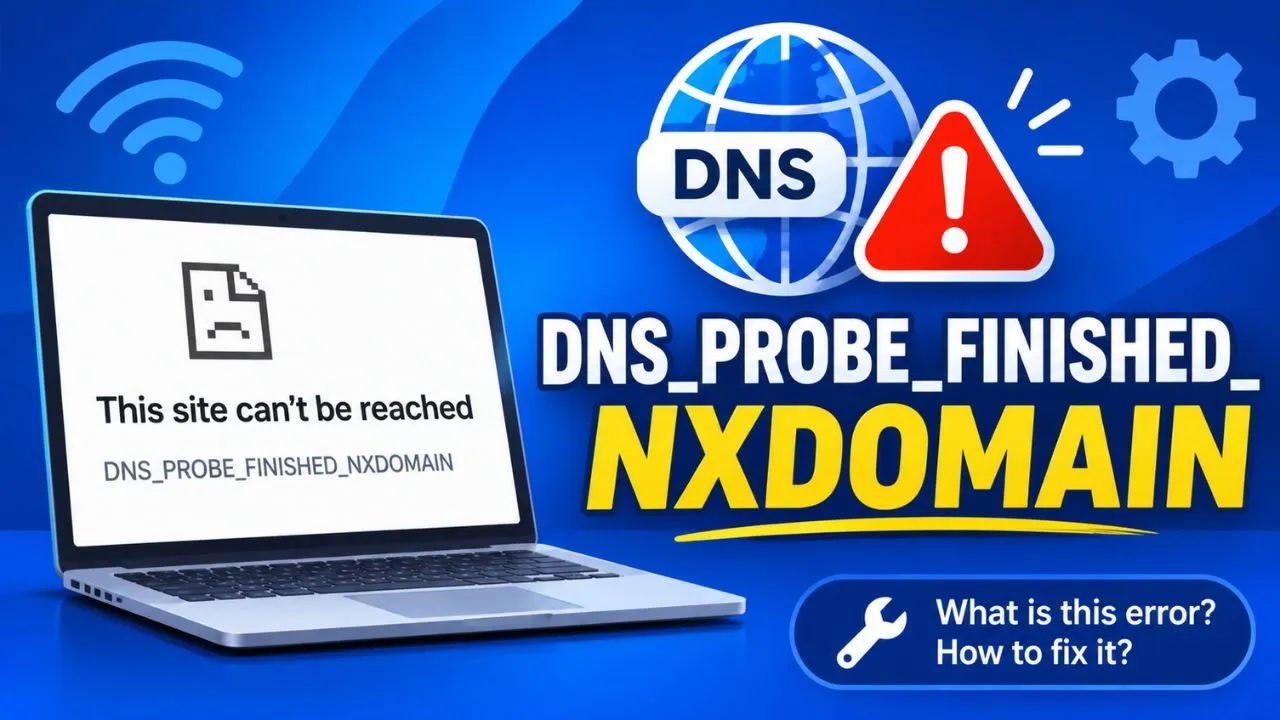
DNS_PROBE_FINISHED_NXDOMAIN is a Google Chrome error that appears when the browser cannot find the IP address associated with a domain name. In simple terms, the Domain Name System (DNS) cannot resolve the requested domain, so Chrome cannot establish a connection to the website.
The error can result from incorrect DNS settings, expired domain registrations, missing DNS records, network configuration problems, or corrupted local DNS cache. Although it may look like a browser issue, the underlying cause can originate from the user’s device, internet connection, DNS provider, or website’s domain configuration.
What Does DNS_PROBE_FINISHED_NXDOMAIN Mean?
To understand this error, it helps to know how DNS works. DNS stands for Domain Name System. It functions like the internet’s address book by translating human-readable domain names, such as google.com, into numerical IP addresses that computers and servers use to communicate.
When you enter a website address in Chrome, your browser requests its corresponding IP address through a DNS resolver. The resolver checks its cache or queries other DNS servers to find the required information.
If the resolver returns an NXDOMAIN response, it means the requested domain name does not exist according to the DNS information it received. Chrome then displays the DNS_PROBE_FINISHED_NXDOMAIN error instead of loading the website.
The error can appear in other Chromium-based browsers, including Microsoft Edge, although the wording may differ between browsers.
What Causes the DNS_PROBE_FINISHED_NXDOMAIN Error?
Several issues can prevent a browser from resolving a domain name. The most common causes include:
1. Incorrect Domain Name
A simple typing mistake can trigger this error. If you enter an incorrect domain name or use the wrong domain extension, the DNS resolver may be unable to find the requested hostname.
2. Expired or Unregistered Domain
If a domain registration expires or the domain is not registered, its DNS resolution may stop working. This can make the website inaccessible to visitors until the registration or domain configuration is corrected.
3. Missing or Incorrect DNS Records
DNS records connect domain names and subdomains to the appropriate servers. Missing or incorrectly configured records, particularly for the root domain or www subdomain, can prevent visitors from accessing a website.
4. Incorrect Nameserver Configuration
Nameservers identify the DNS servers responsible for managing a domain’s DNS records. If a domain points to incorrect nameservers, or the nameservers are unavailable, DNS queries may return unsuccessful results.
5. Corrupted or Outdated DNS Cache
Your operating system and browser store previously resolved domain information to speed up browsing. Sometimes, outdated or negative DNS responses remain cached even after the domain configuration has been corrected.
6. VPN, Firewall, or Antivirus Interference
Some VPN applications, firewalls, antivirus programs, and DNS-filtering tools intercept DNS requests. Incorrect configurations or filtering rules can prevent specific domain names from resolving.
7. Internet Service Provider (ISP) DNS Issues
Your internet service provider generally supplies DNS servers automatically. If these servers have outdated information, incorrect configurations, or temporary resolution problems, you may encounter this error.
These causes are also reflected in the troubleshooting documentation published by Cloudflare, IONOS, Plesk, and Liquid Web.
How to Fix the DNS_PROBE_FINISHED_NXDOMAIN Error
The best way to resolve this error is to start with simple checks and gradually move towards more technical troubleshooting. Try the following solutions one at a time.
1. Check the Domain Name
First, verify that you have entered the correct website address.
- Check for spelling mistakes in the domain name.
- Make sure the domain extension (.com, .org, .net, etc.) is correct.
- Remove unnecessary characters or spaces from the URL.
- Try opening the website using its main domain instead of a subdomain.
If the domain still does not load, try accessing another website. This helps determine whether the problem affects one particular domain or your internet connection more broadly.
2. Restart Your Browser and Internet Router
Temporary browser or network configuration issues can sometimes interfere with DNS resolution.
Close Chrome completely and reopen it. If that does not work, restart your computer and Wi-Fi router.
You can also disconnect your device from the internet and reconnect it after a few seconds. This forces a fresh network connection and may resolve temporary configuration problems.
3. Clear the DNS Cache in Google Chrome
Google Chrome maintains its own DNS cache, separate from the operating system’s DNS cache. Clearing it can remove outdated hostname information.
Follow these steps:
- Open Google Chrome.
- Enter chrome://net-internals/#dns in the address bar.
- Press Enter.
- Click the Clear host cache button.
- Close and reopen Chrome.
- Try accessing the website again.
This forces Chrome to perform fresh DNS lookups instead of relying on previously stored results.
4. Flush the DNS Cache on Windows
Windows stores DNS information locally to reduce the time required to resolve domain names. Flushing this cache removes stored entries and allows the system to request updated DNS information.
To flush the DNS cache:
- Open the Windows Start menu.
- Search for Command Prompt.
- Right-click it and select Run as administrator.
- Enter the following command:
ipconfig /flushdns
5. Press Enter.
Windows should display a confirmation message indicating that the DNS Resolver Cache has been successfully flushed.
Restart Chrome and check whether the error has disappeared.
5. Change Your DNS Server
If your internet service provider’s DNS server is experiencing problems, switching to a reliable public DNS provider may help.
Two commonly used public DNS services are:
| DNS Provider | Preferred DNS | Alternate DNS |
| Google Public DNS | 8.8.8.8 | 8.8.4.4 |
| Cloudflare DNS | 1.1.1.1 | 1.0.0.1 |
To change DNS settings on Windows:
- Open Control Panel.
- Navigate to Network and Internet.
- Select Network and Sharing Center.
- Click Change adapter settings.
- Right-click your active Wi-Fi or Ethernet connection and select Properties.
- Select Internet Protocol Version 4 (TCP/IPv4).
- Click Properties.
- Select Use the following DNS server addresses.
- Enter your preferred and alternate DNS addresses.
- Click OK to save the changes.
Restart your browser and try visiting the website again.
Changing DNS servers can help when the original resolver is providing incorrect responses or experiencing resolution problems.
6. Temporarily Disable Your VPN or Antivirus
VPN applications and security software sometimes modify DNS settings or filter domain requests.
To check whether they are causing the issue:
- Temporarily disconnect your VPN.
- Pause any DNS-filtering or web-protection feature in your security software, if appropriate.
- Reload the affected website.
- If the website works, review the application’s DNS or filtering settings.
Do not leave your antivirus or firewall disabled. Restore your protection after testing and adjust the relevant settings instead.
7. Check the Windows Hosts File
The Windows hosts file allows users and applications to associate domain names with specific IP addresses. Incorrect entries can interfere with normal DNS resolution.
To inspect it:
- Open Notepad as an administrator.
- Navigate to File → Open.
- Visit this directory:
C:\Windows\System32\drivers\etc\
Change the file filter to All Files.- Open the file named hosts.
- Look for entries associated with the affected domain.
If you find an incorrect entry, remove it only after confirming that it is not required by your system or software. Save the changes and restart your browser.
8. Release and Renew Your IP Address
If the previous solutions do not work, refreshing your computer’s network configuration may help.
Open Command Prompt as an administrator and execute these commands individually:
ipconfig /release
ipconfig /renew
The first command releases your current IP configuration, while the second requests a new configuration from the DHCP server.
After completing both commands, reopen Chrome and check the website.
How to Fix DNS_PROBE_FINISHED_NXDOMAIN as a Website Owner
If visitors are reporting this error on your website, the problem may originate from your domain registration or DNS configuration rather than their devices.
Website owners should investigate the following areas:
1. Check Domain Registration Status: Log in to your domain registrar and confirm that the domain is active and has not expired. Renew it if necessary.
2. Verify DNS Records: Check the DNS management panel for the correct A, AAAA, and CNAME records. Ensure that the root domain and active subdomains, including www, have appropriate DNS configurations.
3. Verify Nameservers: Confirm that the nameservers configured at your domain registrar match the nameservers provided by your DNS hosting provider.
4. Check DNS Propagation: If you recently changed DNS records or nameservers, allow time for the updated information to become available across DNS resolvers. The time required depends on caching and TTL settings.
5. Verify Your Hosting Configuration: Ensure that your DNS records point to the correct hosting server or origin IP address. If you use Cloudflare, review the DNS records in its dashboard.
Cloudflare specifically recommends checking the root domain, subdomains, and their corresponding DNS records when this error appears after domain activation.
You can also use the following commands to investigate DNS resolution:
nslookup example.com
nslookup example.com 1.1.1.1
Replace example.com with your actual domain name.
The first command uses your configured DNS resolver, while the second queries Cloudflare’s public DNS resolver directly. Comparing the results can help identify whether the issue is associated with your default DNS provider or the domain’s DNS configuration.
If the domain fails to resolve through multiple independent public resolvers, investigate the domain registration, authoritative nameservers, and DNS zone configuration.
How to Prevent the DNS_PROBE_FINISHED_NXDOMAIN Error
Although DNS-related problems cannot always be avoided, a few preventive measures can reduce their occurrence.
- Renew your domain on time: Enable automatic renewal to avoid unexpected domain expiration.
- Monitor DNS records: Regularly review DNS records and ensure they point to the correct servers.
- Maintain accurate nameservers: Avoid unnecessary nameserver changes and verify configurations after DNS migrations.
- Keep network software updated: Update your browser, operating system, VPN, and security applications.
- Avoid unnecessary DNS modifications: Incorrect DNS changes can affect website accessibility and other domain services.
- Monitor website availability: Use DNS monitoring and website uptime monitoring tools to identify resolution problems before they affect more visitors.
Frequently Asked Questions
1. Is DNS_PROBE_FINISHED_NXDOMAIN a virus?
No. It is not a virus or malware. It is a DNS resolution error that occurs when the DNS resolver reports that the requested domain name does not exist. However, security software or malicious DNS modifications can sometimes contribute to the problem.
2. Can DNS_PROBE_FINISHED_NXDOMAIN fix itself?
Yes. If the error results from temporary DNS caching, resolver issues, or recent DNS changes, it may disappear once updated DNS information becomes available or the temporary issue is resolved. However, an expired domain or incorrect DNS configuration requires manual correction.
3. Why does DNS_PROBE_FINISHED_NXDOMAIN appear on only one website?
This usually indicates a domain-specific issue, such as an incorrect URL, missing DNS record, expired domain, or cached DNS response. If other websites load normally, your general internet connection is probably working.
4. Does changing DNS servers fix DNS_PROBE_FINISHED_NXDOMAIN?
It can. Switching to public DNS providers such as Google Public DNS or Cloudflare DNS may resolve the issue if your existing DNS resolver is returning incorrect results. However, it will not fix an expired domain or missing authoritative DNS configuration.
5. Is DNS_PROBE_FINISHED_NXDOMAIN the same as DNS server not responding?
No. DNS_PROBE_FINISHED_NXDOMAIN means the DNS resolver returned a response indicating that the requested domain does not exist. A DNS server not responding error generally indicates that the resolver could not provide a response within the required time.
Read Also: