
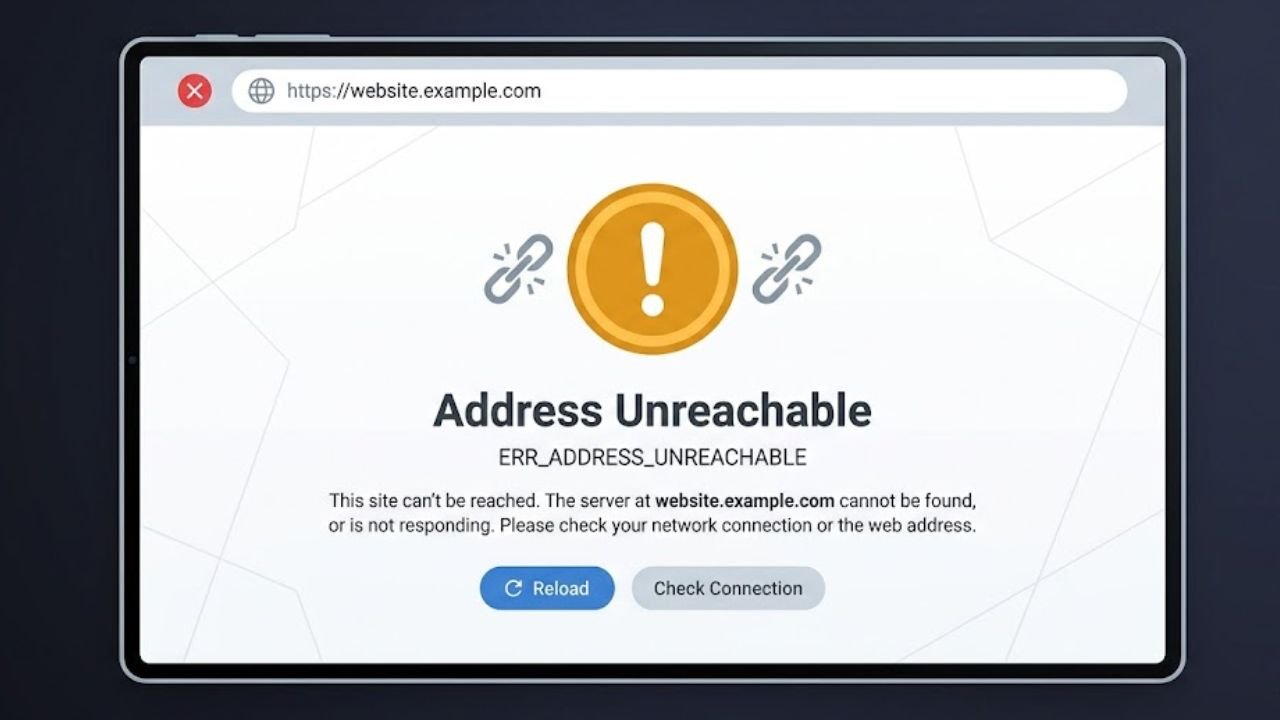
The internet usually feels smooth and instant, yet sometimes a simple page request fails without warning. You enter a Web address, hit the enter key, and you are greeted with an error message. That interruption can be very confounding; mostly when all appears to be well. It is here that the err_address_unreachable problem is found, and it may not only impact non-expert users but professionals as well.
To put this simply, the error will indicate that your browser is not able to connect to the server associated with the site. But the reason is not necessarily so blatant. In some instances, there is the issue of the network not responding, whereas at other times, the browser contains old data and prevents access. Thus, it is crucial to realize what and how one can solve it.
This article defines the meaning of the problem and even discusses how it can be remedied in practice. You can also understand how various elements in the system relate to each other as well as how simple troubleshooting can re-enable accessibility. All the methods are described in a clear way so that the process cannot make you even more confused. Moreover, the content includes structured steps, explanations, and tables where needed for clarity.
About err_address_unreachable
The err_address_unreachable error occurs when a browser cannot establish a connection with the server of a website. This is because browser cannot decode the domain name to a functional IP address or will be unable to access it because of network problems. Though the message may appear to be technical, the reason is usually a mere fault in the system.
Your system makes a request to the Domain Name System when typing in a website address. This system translates the domain into an IP address in order to enable the browser to find the server. But when this process becomes interrupted or corrupted, then the connection goes dead. As a result, the browser shows the error instead of loading the page.
Moreover, this problem can be provoked by some local factors. As an example, the connection may be interrupted due to a corrupted cache, an unstable router or a proxy set-up. To solve the problem, then, it can be classified as checking the layers, one at a time. The solution is simple and easy to implement when the very cause is determined.
Quick Overview of Causes Behind err_address_unreachable
Understanding the cause always improves the chances of solving the issue faster. This mistake can manifest itself in a similar fashion in each instance, but the cause may vary. Thus, there is a systematic review that assists in determining the origin of the issue.
| Cause Type | Explanation | Impact Level |
| DNS Cache Issue | Stores outdated or incorrect address data | High |
| Browser Cache | Saves corrupted website files | Medium |
| Extensions | Blocks or interferes with connections | High |
| Router Problem | Network fails to route traffic properly | Medium |
| Proxy Setting | Misroutes requests through wrong channels | High |
This table highlights that most issues come from the user side rather than the website itself. Therefore, applying the right method can resolve the error quickly without needing advanced technical help.
Practical Solutions to Fix err_address_unreachable Smoothly
The methods below give systematic solutions to the problem. They all address different potential causes and thus using one after the other will raise the chances of success. Additionally, they need very little technical expertise thus making them usable to everyone.
1. Restart Your Router
A router is the point that manages the connection between your device and the internet and therefore any interference to its operation would interfere with the connection. Occasionally the router goes into a transient unstable condition, blocking it to route requests appropriately. This causes the browser to be unable to access the desired site.
To overcome this, switch off the router and unplug it. Wait for around thirty seconds, and then reconnect it. This time off enables internal mechanisms to reset and write off small mistakes. After the router has begun again, reconnect your device and reopen the webpage.
This is a good trick since it will restart the complete network route. The next thing that is realized by users is that the connection becomes stable as soon as the router is restarted. Thus, it ought to always be the first step when experiencing any kind of connectivity difficulties.
2. Try Using Another Browser
Sometimes the issue lies within the browser rather than the network. The test of browsers can be done to determine the browser problem. An example is when a site fails to open in Chrome but opens in Firefox; the problem is evidently confined to Chrome.
Go into a different browser and type in the same site. When a page loads then you can work on repairing the native browser. But when the problem persists across all the browsers, then the problem is probably due to do with network or system setup.
This technique saves time as it removes the potential reasons. You are able to target the correct area as opposed to random fixes that you end up experimenting with. Thus, changing the browsers is an easy but effective diagnostic procedure.
3. Run the Windows Store Apps Troubleshooter
Windows has built-in troubleshooters that are able to detect and resolve any problem associated with applications. Testing can be used to identify problems that are impacting browser performance. Nevertheless, even though it fails to diagnose all the issues, it offers valuable information.
Go to the settings of the system and access the troubleshooting menu. Choose the Windows Store Apps troubleshooter there, and begin the scan. The system will validate any troubles and propose solutions when necessary.
This would enhance stability in the system by addressing unearthed issues. That is why, although the tool does not help to correct the error directly, it assists in verifying the potential causes and guarantees easier performance.
4. Clear the Chrome Browser Cache
Website data are stored in the Browser cache to enhance loading, but occasionally the data in the cache becomes outdated. The corrupted files remain in the cache, which makes them interfere in the new requests. This can lead to the browser not loading the websites correctly.
Open Chrome, and then go to settings and choose to delete browsing history. Select an image and files that are in cache and thereafter affirm the action. Clear the cache, and restart the browser, reloading the page.
| Step | Result |
| Clear cache | Removes outdated data |
| Restart browser | Applies fresh settings |
| Reload page | Requests updated website data |
This method often resolves the issue quickly because it forces the browser to fetch fresh data. Therefore, clearing the cache remains one of the most effective solutions for connection errors.
5. Disable Chrome Extensions
Extensions improve the functionality of a browser but may cause conflict as well. Files are also blocked by some extensions, or alterate network behavior, so that sites fail to load. Consequently, making them disabled assists in determining the origin of the issue.
Click the extensions menu and turn them all off in the meantime. Reload the webpage to check if it loads correctly. In case it does, turn on one of the extensions at a time to locate the problematic extension.
This is done to single out the precise cause. After being detected, the failing extension can be taken off or changed. Hence, the proper management of extensions guarantees a stable browsing.
6. Clear the DNS Cache and Change DNS Settings
DNS is used to convert domain names into IP addresses, meaning that any problems with this system have an impact on connectivity. A poisoned DNS cache is able to save the false address information, which results in the connection failure. Hence, it is required to clear the DNS cache.
In Chrome, access the DNS settings and empty the host cache. In case the problem persists, switch the DNS server to a trusted company.
| DNS Provider | Primary Address | Secondary Address |
| Google DNS | 8.8.8.8 | 8.8.4.4 |
| Cloudflare | 1.1.1.1 | 1.0.0.1 |
Replacing DNS servers enhances efficiency and performance. Besides, it provides proper address resolution. Thus, this technique is important in correcting connection errors.
7. Disable the Proxy Server
The proxy server will send your traffic all through the internet to a different server, which provides an element of privacy. But inappropriate settings may prevent access to websites. Therefore, breaking the proxy will give back a direct connection.
Click on network settings in your system and disable the proxy feature. Allow automatic detection to enable the system to set up the correct settings. Once these changes have been made, restart the browser and check the connection.
This step is effective since it eliminates unwarranted routing layers. Accordingly, the browser gets direct access to the server of the websites without interference.
8. Contact Your Hosting Provider
If the error appears only on your own website, then the issue may be server-related. In these situations server end fixes might not work since the issue lies on a server end. Hence, it will be required to contact your hosting service provider.
Write a comprehensive report on the mistake, including screen shots and actions that have been made. The support staff will verify server health, DNS setup, and routing. As soon as they have noticed the problem, they are able to use the necessary solution.
This measure makes it totally resolved since there is access to server-level settings by the hosting providers. Thus the professional aid is needed when other means are not effective anymore.
Conclusion on Resolving err_address_unreachable Effectively
The err_address_unreachable issue may seem complex at first, yet it usually results from simple system problems. With a systematic plan, it is easy to establish the origin and rectify it. All approaches address a certain problem, which guarantees a holistic solution.
Furthermore, by implementing those steps, one will not only rectify the mistake at hand but also enhance the overall performance of a browser. A steady connection, accurate settings, and empty cache minimize the potential mistakes. Thus, it is significant to regularly maintain your system to make it efficient.
FAQs About err_address_unreachable
Q1. What causes err_address_unreachable error?
It usually occurs due to DNS issues, cache problems, or network instability.
Q2. Can restarting the router fix this error?
Yes, restarting often resolves temporary network issues quickly.
Q3. Does clearing cache help in fixing this problem?
Yes, it removes corrupted data and allows fresh loading of websites.
Q4. Why do extensions cause connection issues?
Some extensions interfere with scripts or block network requests.
Q5. When should I contact hosting support?
You should contact them if the issue appears only on your website.
Q6. Is DNS important for resolving this error?
Yes, proper DNS settings ensure accurate website connections.
Q7. Can proxy settings block website access?
Yes, incorrect proxy configuration can prevent the browser from connecting.
Read More Blogs: