The most important point to understand about 10.0.0.0.1 is that it is not a valid IPv4 address. If you are trying to access your router’s admin panel, you probably mean 10.0.0.1, a private IP address used by certain routers and internet gateways. It allows authorized users to access network settings, change Wi-Fi passwords, manage connected devices, and troubleshoot connectivity problems.
The distinction matters because entering an incorrect address into your browser will not open your router’s login page. This guide explains what 10.0.0.0.1 means, how to log in using the correct address, which credentials to use, and what to do if the admin panel does not load.
What Is 10.0.0.0.1?
The address 10.0.0.0.1 is a common typing mistake made by people searching for a router login page. A standard IPv4 address consists of four numerical sections separated by three dots. However, 10.0.0.0.1 contains five sections, so it cannot be used as a valid IPv4 address.
The correct address many users are looking for is 10.0.0.1. It belongs to the private IPv4 address range reserved for local networks, including home Wi-Fi networks, offices, and certain internet gateway systems.
Here is a quick comparison:
| Detail | Information |
| Commonly searched address | 10.0.0.0.1 |
| Valid router IP address | 10.0.0.1 |
| Address type | Private IPv4 |
| Primary purpose | Accessing compatible router settings |
| Internet connection required | Usually not |
| Network connection required | Yes, to the relevant router |
| Common alternatives | 192.168.0.1 and 192.168.1.1 |
Keep in mind that 10.0.0.1 is not the default login address for every router. The correct address depends on your router manufacturer, internet service provider (ISP), and network configuration.
How to Log In to 10.0.0.1 Router Admin Panel
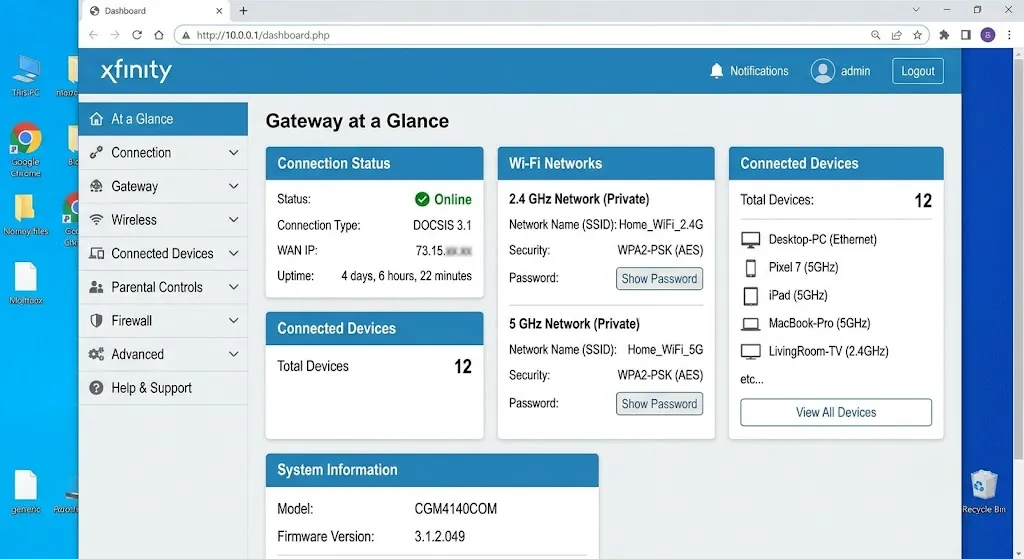
If you want to access your router settings through 10.0.0.1, follow these steps.
- Connect to your router. Connect your computer, laptop, or smartphone to the relevant Wi-Fi network. You can also use an Ethernet cable.
- Open a web browser. Launch Chrome, Firefox, Edge, Safari, or another compatible browser.
- Enter the correct IP address. Type http://10.0.0.1 directly into the browser’s address bar. Do not enter 10.0.0.0.1 or type the address into a search engine.
- Enter your administrator credentials. When the login page appears, enter the router’s administrator username and password.
- Open the settings dashboard. After successful authentication, you can access the settings supported by your router.
These steps are consistent with router login guidance from NetSpot and TP-Link, although the available login address and dashboard vary by model.
If the page does not load, do not assume your router is faulty. First confirm that 10.0.0.1 is actually the gateway address for your network.
What Is the Username and Password for 10.0.0.1?
There is no universal username and password for the 10.0.0.1 admin panel. The credentials depend on the router manufacturer, model, and ISP configuration.
Some older routers use default credentials such as admin for both the username and password. Others may use admin with a different password, require a password printed on the device label, or ask you to create an administrator password during initial setup.
If you cannot log in, try the following:
- Check the sticker on the router for the default login details.
- Consult the router’s user manual or official manufacturer’s support page.
- Check your ISP’s app or account instructions if the router was supplied by your provider.
- Confirm that you are using the administrator password rather than the ordinary Wi-Fi password.
Avoid repeatedly trying random credentials. If the password was changed previously, a factory reset may be necessary, but this can erase your customized Wi-Fi name, password, and other network settings. Only reset the device when you understand how to configure it again.
How to Find Your Router IP Address on Android and iPhone
If 10.0.0.1 is not opening on your phone, your router may be using a different default gateway address. You can find the correct router IP address directly through your Android or iPhone network settings.
Find Router IP Address on Android
Follow these steps to check your router IP address on an Android device:
- Open Settings on your Android phone.
- Go to Network & Internet or Connections, depending on your device.
- Select Wi-Fi.
- Tap the connected Wi-Fi network or its settings icon.
- Open the network details or advanced settings.
- Look for Gateway or Router to find the router’s IP address.
The displayed gateway address is usually the address you need to enter in your browser to access the router admin panel.
Find Router IP Address on iPhone
On an iPhone, you can find the router address through Wi-Fi settings:
- Open the Settings app.
- Tap Wi-Fi.
- Find the network you are currently connected to.
- Tap the information (i) icon next to the network name.
- Scroll down to the IPv4 Address section.
- Find the Router field.
The number displayed next to Router is your local router IP address. Enter it into Safari or another browser to check whether the administration page is available.
10.0.0.1 vs 192.168.0.1 vs 192.168.1.1
10.0.0.1, 192.168.0.1 and 192.168.1.1 are private IPv4 addresses that can be used as default gateways for local networks. They allow connected users to communicate with their router and, when supported, access its administration panel.
| Feature | 10.0.0.1 | 192.168.0.1 | 192.168.1.1 |
|---|---|---|---|
| Address type | Private IPv4 | Private IPv4 | Private IPv4 |
| Common purpose | Router or gateway access | Router administration | Router administration |
| Network range | 10.0.0.0/8 | 192.168.0.0/16 | 192.168.0.0/16 |
| Used by | Some routers and gateways | Many home routers | Many home routers |
| Login credentials | Device-specific | Device-specific | Device-specific |
Which Router IP Address Should You Use?
There is no universal best router IP address. You should use the default gateway assigned to your current network. If 10.0.0.1 does not work, check your device’s network settings to find the correct gateway. It might be 192.168.0.1, 192.168.1.1 or another private IP address. Remember that 10.0.0.0.1 is not a valid IPv4 address because it contains five numerical sections. Do not confuse it with the valid address 10.0.0.1.
What Can You Do After Logging In to 10.0.0.1?
Once you successfully access the correct router administration page, the available features depend on your device and its firmware. Common options include:
- Change the Wi-Fi password: Replace an old or weak wireless password with a stronger one.
- Update the network name: Change the SSID displayed when nearby devices search for Wi-Fi.
- Check connected devices: Review devices currently connected to your network.
- Manage network security: Configure supported encryption, firewall, and access-control options.
- Restart the router: Reboot the device to address certain temporary connectivity problems.
- Configure Wi-Fi settings: Adjust supported frequency bands, channels, or other wireless options.
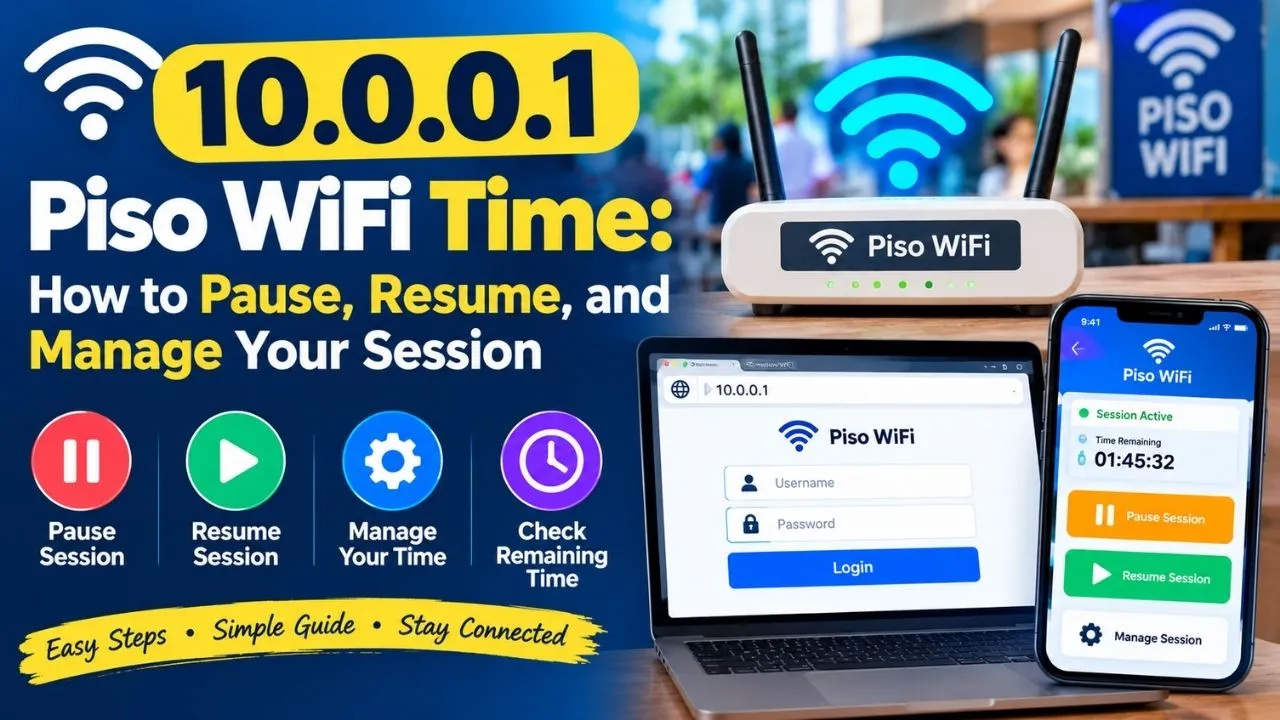
Certain specialized systems, including some Piso WiFi installations, offer additional features for managing user sessions, bandwidth limits, and access durations. These options are specific to the system and are not available on every router using 10.0.0.1.
Always save a copy of your existing settings before making significant changes. Incorrect configuration can interrupt your internet connection or prevent devices from connecting.
How to Fix 10.0.0.0.1 Login Not Working
If you searched for 10.0.0.0.1 and cannot reach the router login page, try these troubleshooting methods.
1. Use the Correct IP Address
The first step is to replace the incorrect address with http://10.0.0.1. The extra zero in 10.0.0.0.1 makes the address invalid.
2. Check Your Network Connection
Ensure your device is connected to the router you want to manage. If you are using mobile data, public Wi-Fi, or a different network, the admin page may not be accessible.
3. Find Your Router’s Actual Gateway Address
Your router might use a different IP address. On Windows, open Command Prompt and enter:
ipconfig
Find the Default Gateway entry under your active network connection. If it displays 192.168.1.1 or another address, try that address in your browser.
On a Mac, open your Wi-Fi network’s settings and look for the router address in its connection details.
4. Check the Browser Address Bar
Enter the IP address directly into the browser’s address bar rather than the Google search box. You do not need to search for the address online to open a local router page.
5. Restart the Router
If you have confirmed the correct gateway address but the page remains inaccessible, restart the router and reconnect your device. Wait for the router to finish starting before trying again.
6. Reset the Router Only as a Last Resort
If you have forgotten the administrator password and other recovery methods fail, consult the manufacturer’s reset instructions. A factory reset can restore the default configuration and remove existing network settings.
Is 10.0.0.0.1 Safe to Use?
The address 10.0.0.0.1 itself is invalid, but 10.0.0.1 is a legitimate private IP address used by some routers. Accessing your own router’s administration page is generally safe when you use the correct address and authorized credentials.
For better security, change default administrator credentials when possible, use a strong Wi-Fi password, and install firmware updates recommended by your router manufacturer. Do not share administrator credentials with untrusted people.
Remember that a private IP address is not a public website. Its availability depends on your local network and router configuration.
Conclusion
The key to understanding 10.0.0.0.1 is recognizing the difference between the mistyped address and the valid router IP address, 10.0.0.1. If you want to change your Wi-Fi password, check connected devices, or manage router settings, start by confirming your network’s actual gateway address.
Use the correct login credentials, keep your router secure, and avoid resetting the device until you have exhausted simpler troubleshooting steps. These precautions can help you access the right administration page without disrupting your network.
Frequently Asked Questions
1. What is 10.0.0.0.1 used for?
It is commonly searched by users trying to access their router settings, but it is not a valid IPv4 address. The intended address may be 10.0.0.1.
2. How do I open the 10.0.0.1 admin page?
Connect to the relevant router, open a browser, enter http://10.0.0.1 in the address bar, and sign in with the correct administrator credentials.
3. What is the default password for 10.0.0.1?
There is no single default password. Check the router label, manual, or ISP instructions to find the credentials for your specific device.
4. Why is 10.0.0.1 not opening?
Your router may use a different gateway address, your device may be connected to another network, or the router’s administration settings may restrict access.
5. Can I access 10.0.0.1 without an internet connection?
Usually, yes. You generally need to be connected to the relevant router through Wi-Fi or Ethernet, but an active internet connection is not normally required to access its local administration page.
6. Is 10.0.0.1 the same as 10.0.0.0.1?
No. 10.0.0.1 is a valid private IPv4 address, while 10.0.0.0.1 is invalid because it contains five numerical sections instead of four.
7. Can I access 10.0.0.1 without a router password?
You may be able to open the login page without entering a password, but accessing protected administration settings generally requires valid administrator credentials.
8. Why does 10.0.0.1 ask for a username and password?
The router uses administrator authentication to prevent unauthorized people from changing network settings, viewing connected devices or modifying security configurations.
9. Can two routers use 10.0.0.1?
Two separate routers can use the same private IP address when they operate on different networks. However, duplicate gateway addresses on the same network can cause IP conflicts and connectivity problems.
10. Does changing my Wi-Fi password disconnect connected devices?
Yes. Devices using the old Wi-Fi password will generally disconnect and must reconnect using the new password.
11. Can I access 10.0.0.1 from another Wi-Fi network?
Usually, no. The address is intended for local network access. Your device generally needs to be connected to the router you want to manage.
12. What should I do if I forget my router administrator password?
Check the router label, manual or ISP instructions for available recovery options. If the password was changed and cannot be recovered, a factory reset may restore the original login configuration. Remember that resetting the router can erase customized network settings.
13. Is 10.0.0.1 a public or private IP address?
10.0.0.1 is a private IPv4 address. It is reserved for private networks and is not directly accessible as a public internet address.
14. Do I need an app to access the 10.0.0.1 router login page?
No. You can usually access the router login page through a standard web browser. However, some manufacturers and internet providers also offer mobile applications for managing compatible routers.
One response to “10.0.0.0.1: Router Login, Admin Access, Password, and Troubleshooting Guide”
[…] Also: 192.168 l 254.254 | 10.0.0.0.1 | 192.168.100.1 | 192.168.0.1 | 192.168.1001.1 | […]