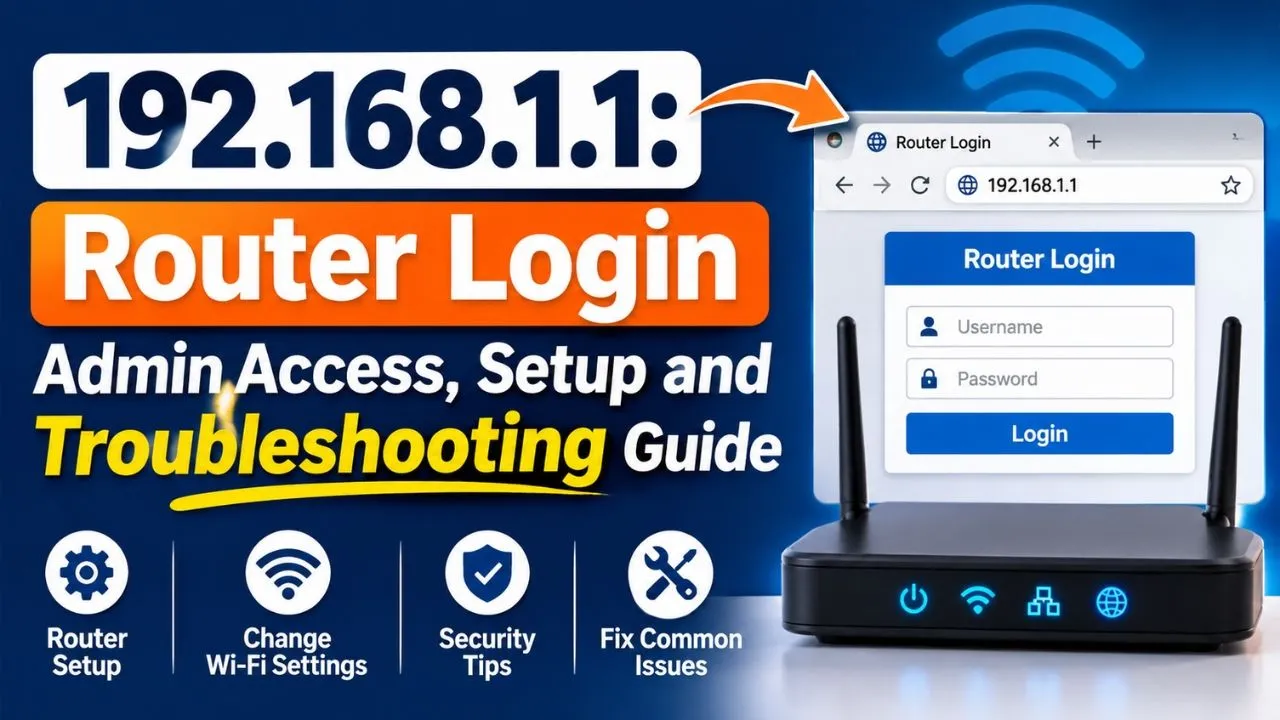
192.168.1.1 is a private IP address commonly used as the default gateway and administration address for Wi-Fi routers and broadband modems. It allows users to access their router’s administrative interface through a web browser, where they can configure Wi-Fi settings, change network passwords, manage connected devices, update security options and troubleshoot connectivity problems.
Unlike a public IP address, 192.168.1.1 is not directly accessible over the internet. It is intended for communication within a private local network. However, not every router uses this address; some manufacturers use alternatives such as 192.168.0.1 or 192.168.1.254.
This guide explains what 192.168.1.1 means, how to access the router login page, how to resolve common login problems and how to secure your router after signing in.
What Is 192.168.1.1?
192.168.1.1 is an IPv4 private IP address that routers use to identify themselves within a local network. It belongs to the private IP address range 192.168.0.0 to 192.168.255.255, reserved for private networks under RFC 1918.
When a router uses 192.168.1.1 as its local address, it can act as the network’s default gateway. This means devices connected to the router send traffic intended for other networks through this address.
For example, a home network may have the following IP configuration:
| Network device | Example IP address |
| Wi-Fi router | 192.168.1.1 |
| Laptop | 192.168.1.2 |
| Smartphone | 192.168.1.3 |
| Smart TV | 192.168.1.4 |
| Printer | 192.168.1.5 |
These addresses are examples. Actual addresses depend on the router’s DHCP configuration.
The router also uses Network Address Translation (NAT) to allow multiple devices with private IP addresses to share an internet connection through a public IP address.
Is 192.168.1.1 a public or private IP address?
It is a private IP address. It cannot be accessed directly from the public internet like a publicly assigned website address. You generally need to connect to the router’s own Wi-Fi network or use an Ethernet cable to reach its administration interface.
It is important to understand that 192.168.1.1 is not a website. It is a local network address that may open a router’s login page when entered into a browser connected to the appropriate network.
How to Log In to 192.168.1.1
You can access the router administration panel through a web browser on a computer, laptop or smartphone. Before proceeding, make sure your device is connected to the router whose settings you want to change.
Follow these steps to access the 192.168.1.1 login page:
- Connect to your router: Connect your computer or smartphone to the router’s Wi-Fi network. Alternatively, use an Ethernet cable to connect your computer to one of its LAN ports.
- Open a web browser: Launch Google Chrome, Mozilla Firefox, Microsoft Edge or Safari.
- Enter the IP address: Type http://192.168.1.1 directly into the browser’s address bar. Avoid entering it into a search engine’s search box.
- Open the login page: Press Enter and wait for the router’s administration or authentication page to appear.
- Enter your credentials: Provide the router’s administrator username and password.
- Access the dashboard: Click Login or Sign In to open the administration panel.
Once logged in, you can access the settings supported by your router’s firmware. These may include wireless configuration, network security, parental controls, connected-device management and internet settings.
Important: If the login page does not open, do not assume that your router is faulty. Your router may use a different default gateway address. Check its label or network settings before trying other addresses.
192.168.1.1 Default Username and Password
Routers generally come with manufacturer-defined administrator credentials or require users to create a password during initial setup. The default username and password vary according to the manufacturer, model and internet service provider.
Some older routers use combinations such as admin/admin, while others use admin/password or credentials printed on the device.
Here are some commonly encountered default login combinations:
| Username | Password |
| admin | admin |
| admin | password |
| admin | 1234 |
| admin | Leave blank |
| user | user |
These are examples, not universal credentials. Do not assume that a particular combination will work with your router.
To find the correct login details:
- Check the sticker on the back or bottom of your router.
- Read the router’s user manual or installation guide.
- Check the manufacturer’s official support website.
- Contact your internet service provider if the router was supplied by them.
If you previously changed the administrator password, you must use the updated password rather than the factory default.
What Can You Do After Logging In to 192.168.1.1?
The router administration dashboard provides access to several network management features. The available options depend on the router’s manufacturer, model and firmware.
The most common functions include:
1. Change the Wi-Fi name (SSID)
You can change your wireless network’s name to make it easier to identify. Open the Wireless Settings or Wi-Fi Configuration section, enter your preferred network name and save the changes.
2. Change the Wi-Fi password
The wireless password controls who can connect to your network. You can update it through the Wi-Fi security settings. After saving the new password, reconnect your devices using the updated credentials.
3. Manage connected devices
The connected-device section displays devices currently using your network. Depending on the router, you may see their IP addresses, MAC addresses and connection status. Some routers also allow you to block selected devices.
4. Configure network security
You can review encryption and authentication settings to protect your wireless connection. Choose WPA3 when supported, or WPA2-AES when WPA3 is unavailable. Avoid outdated security protocols such as WEP.
5. Set up parental controls
Some routers offer parental controls that allow administrators to restrict internet access, create schedules or block selected websites and services.
6. Configure DNS settings
The DNS section allows you to change the servers used to translate domain names into IP addresses. Some users choose alternative DNS providers for additional filtering or different resolution performance.
7. Update router firmware
The firmware management section may allow you to install updates released by the manufacturer or ISP. Updates can address security vulnerabilities, improve compatibility and fix software problems.
How to Find Your Router’s IP Address If 192.168.1.1 Does Not Work
If you cannot access the login page using 192.168.1.1, your router may have a different default gateway. You can find the correct address through your device’s network settings.
On Windows
- Press Windows + R to open the Run window.
- Type cmd and press Enter.
- Enter the command ipconfig.
- Find the active Wi-Fi or Ethernet connection.
- Look for the Default Gateway entry.
- Copy that IP address into your browser’s address bar.
On Android
- Open your phone’s Settings.
- Select Wi-Fi or Network and Internet.
- Tap the connected Wi-Fi network.
- Open its network details.
- Look for Gateway or Router to identify the address.
On iPhone or iPad
- Open Settings and select Wi-Fi.
- Tap the information (i) icon beside your connected network.
- Find the Router field.
- Use the displayed IP address to access your router.
On macOS
- Open System Settings.
- Select Network and choose your active connection.
- Open Details and select TCP/IP.
- Find the Router entry.
The address displayed as Default Gateway or Router is generally the correct local address to try.
How to Fix 192.168.1.1 Not Working
Sometimes the router login page does not load, even when you enter the correct IP address. The problem may be related to your network connection, browser settings or router configuration.
Try these troubleshooting methods:
| Common problem | Possible solution |
| Login page does not open | Check the router’s actual gateway address. |
| Device is not connected | Connect to the router’s Wi-Fi or LAN port. |
| Browser shows a search result | Enter the IP in the address bar, not the search box. |
| Incorrect password | Check the router label or contact your ISP. |
| Blank login page | Try another browser or private browsing mode. |
| VPN prevents access | Temporarily disconnect the VPN and retry. |
| Router is unresponsive | Restart the router and reconnect. |
Other useful troubleshooting steps include:
- Check the IP address carefully: Enter 192.168.1.1, not 192.168.l.l. The second version uses lowercase letters instead of the number one.
- Use the correct connection: Make sure you are connected to the router you want to configure rather than a neighbouring network or mobile hotspot.
- Try another browser: Browser extensions, cached pages or connection settings can sometimes prevent the administration page from loading.
- Restart the router: Switch off the router, wait approximately 30 seconds and turn it on again. Allow it to restart fully before trying to log in.
- Check the access protocol: Start with http://192.168.1.1. If your router specifically supports HTTPS administration, follow its manufacturer’s instructions.
If the login page opens but rejects your password, the problem is likely related to authentication rather than the IP address. Router manufacturers also provide model-specific troubleshooting instructions.
How to Reset Your Router If You Forget the Admin Password
If you cannot remember your router’s administrator password and the usual recovery options do not work, a factory reset may restore access.
Most routers have a small Reset button on their back or underside. The general procedure is:
- Keep the router powered on.
- Locate the Reset button.
- Use a suitable pointed object to press and hold the button.
- Follow the manufacturer’s specified reset duration.
- Release the button and wait for the router to restart.
- Reconnect using the default network credentials and configure the router again.
Warning: A factory reset removes customised settings, which may include your Wi-Fi name, wireless password, internet connection configuration and parental controls. If your ISP supplied the router, check with its support team before resetting it.
How to Secure Your Router After Logging In
Accessing the router dashboard is also an opportunity to improve your home network’s security. Leaving factory settings unchanged can make it easier for unauthorised users to access the administration interface.
Consider these precautions:
- Change the default administrator password to a strong, unique password.
- Use WPA3 wireless security where available, or WPA2-AES if your router does not support WPA3.
- Create a separate, strong Wi-Fi password.
- Disable WPS if you do not need it.
- Install firmware updates from the manufacturer or ISP.
- Disable remote administration unless you have a specific reason to use it.
- Review connected devices periodically and investigate unfamiliar connections.
Remember that your router’s administrator password and Wi-Fi password serve different purposes. The administrator password protects access to router configuration, whereas the Wi-Fi password controls access to the wireless network.
Conclusion
192.168.1.1 is a commonly used private IP address that provides access to the administration interface of compatible routers. It allows users to manage Wi-Fi passwords, configure network settings, monitor connected devices and improve wireless security.
To access it, connect your device to the appropriate router, enter http://192.168.1.1 in a browser and provide the correct administrator credentials. If the page does not load, check your device’s default gateway rather than repeatedly trying the same address. Always use model-specific instructions when changing router settings or performing a factory reset.
Read Also: 192.168 l 254.254 | 10.0.0.0.1 | 192.168.100.1 | 192.168.0.1 | 192.168.1001.1 | 192.168.0.1
Frequently Asked Questions
1. What is 192.168.1.1 used for?
192.168.1.1 is a private IP address commonly used as a router’s default gateway. It allows users to access the router’s administration panel and manage Wi-Fi, security and network settings.
2. What is the default username and password for 192.168.1.1?
A common combination is admin/admin, but credentials vary by router manufacturer and model. Check the router’s label or manufacturer’s documentation for the correct login details.
3. Can I access 192.168.1.1 using my mobile phone?
Yes. You can access 192.168.1.1 through a mobile browser, provided your phone is connected to the router’s Wi-Fi network. Enter the address in the browser’s address bar.
4. Why is 192.168.1.1 not opening?
The address may be incorrect for your router, or your device may not be connected to its network. Check the Default Gateway setting, verify the address and try accessing it through another browser.
5. Is 192.168.1.1 safe to use?
Yes. It is a legitimate private IP address used for local network communication. However, you should protect the router’s administration panel with a strong password and updated security settings.
6. What is the difference between 192.168.1.1 and 192.168.0.1?
Both are private IPv4 addresses commonly used as router gateways. The difference is their network addressing configuration. Your router determines which address you need to use.
7. Can I access 192.168.1.1 without an internet connection?
Yes. You do not need an active internet connection to access the router’s local administration page. You only need to be connected to the router through Wi-Fi or Ethernet, provided its local administration service is enabled.