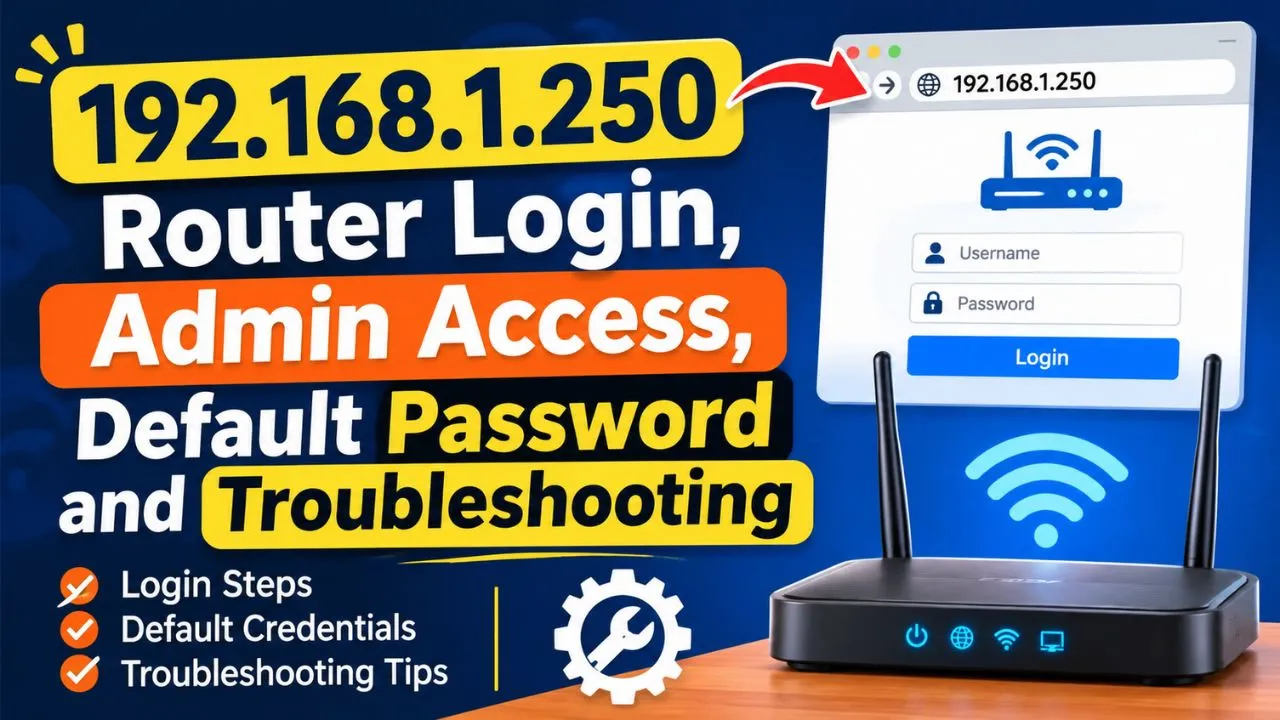
192.168.1.250 is a private IPv4 address used by certain networking devices, particularly Wi-Fi range extenders and wireless access points, to provide access to their local administration panels. Users can enter this address in a web browser to access supported devices, manage network settings, and troubleshoot connectivity problems.
The address is particularly associated with NETGEAR Wi-Fi range extenders, although some other networking manufacturers and devices may also use it. However, it is not a universal router login address. Whether it works depends on the device’s configuration and the network to which it is connected.
What Is 192.168.1.250?
192.168.1.250 is a private IP address belonging to the IPv4 address range reserved for private networks. It falls within the 192.168.0.0–192.168.255.255 address block, which is designated for internal networking under RFC 1918.
Private IP addresses allow devices such as routers, computers, smartphones, printers, and Wi-Fi extenders to communicate within a local network without requiring individual public IP addresses.
Unlike a public IP address, 192.168.1.250 is not directly accessible from the public internet. It can be accessed through a compatible local network connection.
The address may serve as the management address of a range extender, wireless access point, or another networking device. NETGEAR, for example, documents its use for accessing compatible Wi-Fi range extenders.
How to Log In to 192.168.1.250?
You can access the administration interface at 192.168.1.250 using a computer, laptop, or smartphone connected to the same local network as the device.
Follow these steps:
- Connect your computer or smartphone to the Wi-Fi network associated with your router or range extender. Alternatively, connect your computer directly using an Ethernet cable.
- Open a web browser such as Google Chrome, Microsoft Edge, Firefox, or Safari.
- Enter http://192.168.1.250 in the browser’s address bar.
- Press Enter to open the device’s login page.
- Enter the administrator username and password associated with your device.
- Select the Login option to access the administration dashboard.
Once logged in, you can view available network settings and manage supported device configurations.
Note: If you are using a NETGEAR extender and it shares the same Wi-Fi network name (SSID) as your router, NETGEAR recommends accessing it through its assigned IP address. If the extender and router have different network names, you can use mywifiext.com instead.
Default Username and Password for 192.168.1.250
The username and password required to access 192.168.1.250 depend on the manufacturer and model of your networking device.
Some devices use factory-provided credentials, while others require users to create administrator credentials during initial setup.
Common default combinations include:
| Username | Password |
| admin | password |
| admin | admin |
| admin | 1234 |
| admin | Leave blank |
These combinations are examples found in router login references, not verified universal credentials for 192.168.1.250.
If none of them works, check the manufacturer’s documentation, the product label, or the credentials created during initial configuration.
For security reasons, avoid keeping factory-default passwords after completing the initial setup.
What Can You Do After Logging In?
The administration interface provides access to different networking features depending on the device and its firmware.
Some common functions include:
1. Change Wi-Fi Name and Password
You can modify the wireless network name (SSID) and password to make your network easier to identify and protect it against unauthorized access.
2. Manage Connected Devices
Some networking devices provide a connected-device list that allows administrators to identify devices currently communicating with the network.
3. Configure Network Settings
Depending on the device, you may be able to modify IP address settings, subnet masks, DHCP configurations, and other network parameters.
4. Manage Wireless Settings
Supported devices may allow you to change wireless channels, security settings, frequency bands, and other Wi-Fi configurations.
5. Update Firmware
You can check for available firmware updates and install compatible versions to improve device performance, security, and stability.
Not every device offers all these features. The available options depend on the manufacturer’s software and hardware.
How to Find the Correct IP Address If 192.168.1.250 Does Not Work?
If entering 192.168.1.250 does not open the administration page, your device may be using a different IP address.
You can identify the correct address through your computer or router.
On Windows
- Connect your Windows computer to the relevant Wi-Fi network.
- Press Windows + R to open the Run dialog box.
- Type cmd and press Enter.
- Enter ipconfig in the Command Prompt.
- Find the active network connection.
- Look for the Default Gateway entry.
The Default Gateway usually identifies the router’s IP address. However, if you want to access a range extender, you may need to find its individual IP address through the router’s connected-device list.
Through the Router Administration Panel
- Open your router’s administration interface.
- Sign in using your administrator credentials.
- Find the Connected Devices, Attached Devices, or DHCP Client List section.
- Locate your range extender or access point.
- Check its assigned IP address.
You can use that address in your browser to access the device, provided its management interface is available.
How to Fix 192.168.1.250 Login Problems?
Several issues can prevent the administration page from opening. Try the following solutions before resetting your device.
1. Check Your Network Connection
Make sure your computer or smartphone is connected to the correct Wi-Fi network. You generally need a local connection to the network containing the device you want to manage.
2. Verify the IP Address
Check whether your device actually uses 192.168.1.250. Its address may have changed because of DHCP or manual network configuration.
3. Enter the Correct URL
Type http://192.168.1.250 directly into the browser’s address bar instead of entering it into a search engine.
Also, check that the address contains all four numerical sections separated by three dots.
4. Restart Your Networking Device
Restart the router or range extender and wait for it to reconnect. Temporary network problems can sometimes prevent access to the administration interface.
5. Try Another Browser
Clear your browser cache or try another browser to determine whether the issue is related to browser settings.
6. Check Your Device’s IP Configuration
Make sure your computer is configured to obtain an IP address automatically if your network uses DHCP. An incompatible manually configured IP address can prevent communication with the extender.
7. Perform a Factory Reset
If you cannot recover your administrator credentials, a factory reset may be necessary. However, use the manufacturer’s instructions for your specific model.
A factory reset generally removes existing configurations, including wireless settings and network credentials. You will need to configure the device again.
Is 192.168.1.250 a Private or Public IP Address?

192.168.1.250 is a private IP address. According to the Internet Assigned Numbers Authority (IANA), the entire 192.168.0.0/16 address block is reserved for private networking.
Here is how it compares with other private IPv4 ranges:
| Private IP Range | Common Usage |
| 10.0.0.0 – 10.255.255.255 | Home, business, and enterprise networks |
| 172.16.0.0 – 172.31.255.255 | Private organizational networks |
| 192.168.0.0 – 192.168.255.255 | Home and small office networks |
Multiple homes and organizations can use the same private IP addresses without creating conflicts because these addresses are not globally unique.
Your router uses Network Address Translation (NAT) to allow devices with private IP addresses to communicate with external internet services through a public IP address.
Is It Safe to Access 192.168.1.250?
Yes. Accessing your own device through its local administration address is a normal networking activity.
However, the security of the administration panel depends on your device configuration and the precautions you take.
Consider these recommendations:
- Change the default administrator password.
- Use a strong and unique password for your networking device.
- Keep your router and extender firmware updated.
- Avoid sharing administrator credentials with unauthorized users.
- Use WPA2 or WPA3 wireless security when supported.
- Disable remote administration if you do not need it.
- Only make configuration changes when you understand their purpose.
You should also avoid sharing your administrator password or other sensitive network information with untrusted websites.
Conclusion
192.168.1.250 is a private IPv4 address primarily encountered when configuring and managing compatible networking devices, particularly certain NETGEAR Wi-Fi range extenders. It allows users to access a local administration interface, where they can manage supported wireless and network settings.
However, the address does not work for every router or extender. Always verify your device’s assigned IP address and use the manufacturer’s instructions to access its administration panel safely.
Read Also: 192.168.1.2 | 192.168.11.1 | 192.168.1.1 | 192.168 l 254.254 | 10.0.0.0.1 | 192.168.100.1
Frequently Asked Questions
1. What is 192.168.1.250 used for?
192.168.1.250 is a private IPv4 address that can be used to access the administration interface of compatible networking devices, including certain NETGEAR Wi-Fi range extenders.
2. How do I access 192.168.1.250?
Connect your device to the relevant local network, open a web browser, enter http://192.168.1.250 in the address bar, and provide the correct administrator credentials.
3. What is the default username and password for 192.168.1.250?
There is no universal username and password for this IP address. Some devices use admin/password or other factory credentials, while others require users to create their own login details.
4. Why is 192.168.1.250 not opening?
The address may be incorrect for your device, your computer may be connected to another network, or the device may have received a different IP address through DHCP. Check your network connection and verify the device’s assigned address.
5. Is 192.168.1.250 a NETGEAR router IP?
It is commonly associated with compatible NETGEAR Wi-Fi range extenders. However, it should not be assumed to be the default IP address of every NETGEAR router or extender.
6. Can I access 192.168.1.250 from the internet?
No, not through an ordinary public internet connection. It is a private IP address intended for local network communication. Special network configurations would be required for remote access, and exposing an administration interface directly to the internet is generally not recommended.
7. What should I do if I forget my 192.168.1.250 login password?
Check the manufacturer’s password recovery instructions first. If recovery is unavailable, you may need to perform a factory reset and configure the device again.