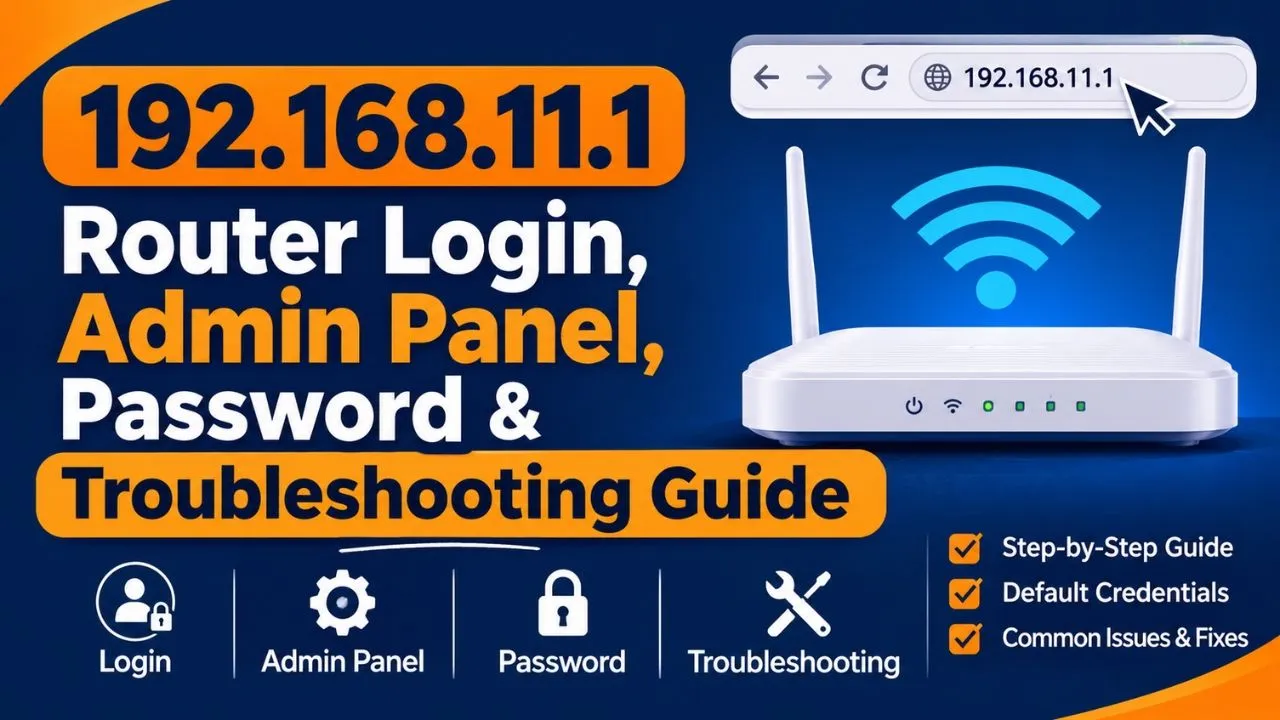
192.168.11.1 is a private IP address that can be used as a router’s default gateway or administrative login address. If your router uses this address, you can enter http://192.168.11.1 in a web browser to access its administration panel, where you may be able to change your Wi-Fi name and password, manage network settings, configure security options and troubleshoot connectivity problems.
However, 192.168.11.1 is not a universal router login address. It works only when the router or network device is configured to use this IP address. You must also be connected to the relevant network to access its local administration page.
This guide explains how to log in to 192.168.11.1, find the default username and password, configure router settings, fix common login errors and understand which devices use this address.
What is 192.168.11.1?
192.168.11.1 is an IPv4 private IP address that belongs to the private address range reserved for local networks under RFC 1918. It is commonly associated with certain Buffalo AirStation routers and can also be configured as the local gateway address on other compatible networking devices.
Unlike a public IP address, it cannot be accessed directly over the internet. It works within the local network to allow connected devices to communicate with the router.
The address consists of four numerical sections separated by periods:
| Component | Value |
| First octet | 192 |
| Second octet | 168 |
| Third octet | 11 |
| Fourth octet | 1 |
| IP version | IPv4 |
| Address type | Private |
| Common purpose | Router gateway and administration |
The address is particularly associated with Buffalo AirStation routers. Some other routers running modified firmware, including certain DD-WRT configurations, may also use it.
What can you do with 192.168.11.1?
Depending on your router model and firmware, its administration panel may let you:
- Change your Wi-Fi network name (SSID).
- Create or update your wireless password.
- Configure network security and encryption.
- Manage connected devices.
- Change LAN and DHCP settings.
- Configure guest Wi-Fi networks.
- Set up port forwarding.
- Update router firmware.
- Restart the router and manage other network settings.
The available features depend on the manufacturer’s software and your router’s configuration.
How to log in to 192.168.11.1
You can access the router administration panel through a web browser without installing additional software. However, your computer or smartphone must be connected to the router’s local network.
Follow these steps:
- Connect to your router: Connect your computer or smartphone to the router’s Wi-Fi network. Alternatively, connect a computer using an Ethernet cable.
- Open a web browser: Launch Google Chrome, Microsoft Edge, Mozilla Firefox or Safari.
- Enter the IP address: Type http://192.168.11.1 into the browser’s address bar.
- Open the login page: Press Enter and wait for the router’s administration page to load.
- Enter your credentials: Provide the router’s administrator username and password.
- Access the dashboard: After successful authentication, you can view and modify the available router settings.
Illustrative router administration interface; the actual login screen varies by model.
Important: Enter the address in the browser’s address bar, not in Google’s search box. Also, use http:// initially rather than assuming the router supports HTTPS.
You do not necessarily need an active internet connection to open the administration panel. A working local connection between your device and router is sufficient.
192.168.11.1 default username and password
The default administrator credentials depend on the router manufacturer, model and firmware version. There is no single username and password that works with every device using 192.168.11.1.
Some commonly listed credential combinations include:
| Username | Password |
| admin | admin |
| admin | password |
| admin | 1234 |
| root | password |
| 1234 | root |
| Leave blank | root |
These are possible factory credentials reported in router-login directories, not verified universal credentials. Buffalo routers may use different defaults depending on the model and firmware.
How to find your correct login credentials:
- Check the sticker on the back or bottom of your router.
- Look for the administrator details in the router’s user manual.
- Check the manufacturer’s official support documentation.
- Contact your internet service provider if it supplied the router.
- Use the administrator password created during the initial setup.
If you have previously changed the administrator password, the original factory credentials might no longer work.
How to change your Wi-Fi name and password using 192.168.11.1
After logging in to your router, you can update your wireless network name and password through the wireless configuration settings.
- Open http://192.168.11.1 and log in.
- Navigate to Wireless Settings, Wi-Fi Settings or a similarly named section.
- Find the SSID or Network Name field.
- Enter your preferred Wi-Fi network name.
- Locate the Wireless Security or Password field.
- Enter a new, strong Wi-Fi password.
- Select WPA2-AES or WPA3 security if supported by your router and devices.
- Click Apply, Save or Submit.
Your router may restart its wireless connection after saving the changes. You will need to reconnect your phone, laptop, smart TV and other devices using the new Wi-Fi password.
Avoid using easily guessed passwords such as your name, mobile number or date of birth.
How to find your router’s IP address if 192.168.11.1 doesn’t work
If entering 192.168.11.1 does not open the administration page, your router may be using a different default gateway. Rather than trying random IP addresses, check the gateway assigned to your device.
On Windows
- Press Windows + R on your keyboard.
- Type cmd and press Enter.
- Enter the command ipconfig.
- Find the active Wi-Fi or Ethernet adapter.
- Look for the Default Gateway entry.
- Copy the displayed IP address into your browser.
For example, if the Default Gateway is 192.168.1.1, that is the address you should use instead of 192.168.11.1.
On macOS
- Open System Settings.
- Select Wi-Fi or Network.
- Choose your connected network.
- Open its Details or TCP/IP settings.
- Find the Router address.
The displayed Router address is generally the local gateway you need to access.
On Android
- Open Settings on your smartphone.
- Select Wi-Fi.
- Tap your connected Wi-Fi network.
- Open Network Details or Advanced Settings.
- Look for Gateway or Router.
The exact menu names vary between Android manufacturers.
On iPhone
- Open Settings.
- Select Wi-Fi.
- Tap the information icon (ⓘ) beside your connected network.
- Find the Router field.
The IP address displayed there identifies your network’s router gateway.
192.168.11.1 not working? How to fix router login problems
Sometimes the 192.168.11.1 login page does not load, even when your router supports this address. The problem may be related to network connectivity, an incorrect gateway, browser settings or router configuration.
Here are some practical solutions.
1. Check your network connection
Make sure your computer or smartphone is connected to the router you want to configure. Connecting to a neighbouring Wi-Fi network or mobile data will not give you access to your router’s local administration page.
2. Verify the IP address
Check the Default Gateway on your device before attempting another login. Your router may use 192.168.1.1, 192.168.0.1 or another address instead.
3. Enter the address correctly
Type the following address directly into your browser:
http://192.168.11.1
Avoid common typing mistakes such as:
- 192.168.11.l (using a lowercase letter L).
- 192.168.1.11 (a different IP address).
- 192.168.11.1.com (an incorrect web address).
- 192.168..11.1 (an extra period).
4. Try another browser
If the login page does not load in Chrome, try Firefox or Microsoft Edge. You can also open an incognito or private browsing window to rule out certain browser-related problems.
5. Temporarily disable VPN or proxy connections
VPNs and proxy configurations can sometimes interfere with access to local network devices. Temporarily disconnect them and try opening the router address again.
6. Restart your router
Turn off your router, wait approximately 30 seconds and switch it on again. Allow it to finish restarting before accessing the administration page.
7. Check for HTTPS or certificate errors
Some router administration interfaces use HTTPS with locally generated or self-signed certificates. Browsers may display security warnings when they cannot verify the device’s certificate.
A useful example appears in the Cambium Networks community discussion you provided. A user reported that Microsoft Edge displayed an unusual encryption or certificate warning when accessing 192.168.11.1. The problem also occurred across different computers and browsers. This demonstrates that a router login problem is not always caused by an incorrect IP address.
If you encounter this warning, verify that you are connected to your own router and that the address is correct. Do not enter administrator credentials on an unfamiliar or suspicious page. If the device offers a documented HTTP or HTTPS management option, follow its manufacturer’s instructions.
8. Perform a factory reset
If you cannot access your router because you have forgotten its administrator password, a factory reset may restore the original login credentials.
Locate the recessed Reset button and follow the manufacturer’s instructions for your particular model.
Important
A factory reset removes customised router settings, including Wi-Fi names, passwords, ISP configurations and port-forwarding rules. Do not reset an ISP-managed router without checking with your provider first.
Which routers use 192.168.11.1?
192.168.11.1 is particularly associated with Buffalo Technology’s AirStation router range.
Some Buffalo AirStation models use this address as their default LAN IP when operating in router mode. For example, the Buffalo AirStation WHR-1166D manual specifies 192.168.11.1 as the default address in router mode, while bridge and wireless bridge modes use 192.168.11.100. Its documented default login is admin with the password password.
Other compatible routers may also use 192.168.11.1, depending on their firmware and network configuration.
What about MyRepublic routers?
One of your supplied references lists a MyRepublic router configuration associated with 192.168.11.1. However, its username and password fields are blank, so it does not establish a universal MyRepublic login combination.
If you use a MyRepublic-supplied router, check the device label or contact the provider for model-specific administrator credentials.
Is 192.168.11.1 a private or public IP address?
192.168.11.1 is a private IPv4 address. It belongs to the 192.168.0.0–192.168.255.255 address range reserved for private networks under RFC 1918.
This means the address can be reused by different households, offices and organisations without requiring a globally unique IP address. It is not directly reachable from the public internet.
| Feature | 192.168.11.1 |
| IP version | IPv4 |
| Address category | Private |
| Address range | 192.168.0.0/16 |
| Internet accessibility | Not directly accessible |
| Common application | Local router administration |
| Typical users | Home and office networks |
| Registration required | No |
It is also important to understand that 192.168.11.1 is not your public IP address. Your public IP is assigned by your internet service provider and is used for communication with external internet services.
Read Also:
- 192.168.1.1: Router Login, Admin Access, Setup and Troubleshooting Guide
- 192.168 l 254.254 Login: How to Access Router Admin Panel and Globe At Home Settings
- 10.0.0.0.1: Router Login, Admin Access, Password, and Troubleshooting Guide
- 192.168.100.1 Login, Admin Password, and Wi-Fi Settings
Frequently asked questions about 192.168.11.1
1. What is 192.168.11.1 used for?
192.168.11.1 is a private IP address used by certain routers as their default gateway. It can provide access to the router’s administration panel, where users can manage Wi-Fi settings, passwords, network security and other configurations.
2. What is the default username and password for 192.168.11.1?
There is no universal login combination. Some routers use admin/password, admin/admin or other factory credentials. Buffalo AirStation WHR-1166D, for example, documents admin as its username and password as its default password.
3. Can I access 192.168.11.1 without an internet connection?
Yes. You only need an active local connection to the router through Wi-Fi or Ethernet. An internet connection is not necessary to access its local administration interface.
4. Why is 192.168.11.1 not opening?
The router may use a different gateway address, your device may not be connected to the correct network, or browser and network settings may be preventing access. Check your device’s Default Gateway to identify the correct address.
5. Is 192.168.11.1 the same as 192.168.1.1?
No. Both are private IPv4 addresses, but they are different addresses. A router configured with 192.168.11.1 will not necessarily respond to requests sent to 192.168.1.1.
6. Can I change my router’s IP address from 192.168.11.1?
Yes, if your router supports LAN IP configuration. You can usually change it through the Network, LAN or Local Network settings in the administration panel. Make sure the new address does not conflict with another device on your network.
7. Is 192.168.11.1 safe?
Yes. It is a legitimate private IP address. However, your router’s security depends on its administrator password, firmware updates, wireless encryption and configuration. Use a strong administrator password and keep your router software updated.
8. Does 192.168.11.1 show my public IP address?
No. It is a local network address, not your public IP address. To find your public IP, use an IP lookup service such as WhatIsMyIP.com.
2 responses to “192.168.11.1: Router Login, Admin Panel, Password & Troubleshooting Guide”
[…] Also: 192.168.11.1 | 192.168.1.1 | 192.168 l 254.254 | 10.0.0.0.1 | […]
[…] Also: 192.168.1.2 | 192.168.11.1 | 192.168.1.1 | 192.168 l 254.254 | 10.0.0.0.1 | […]