
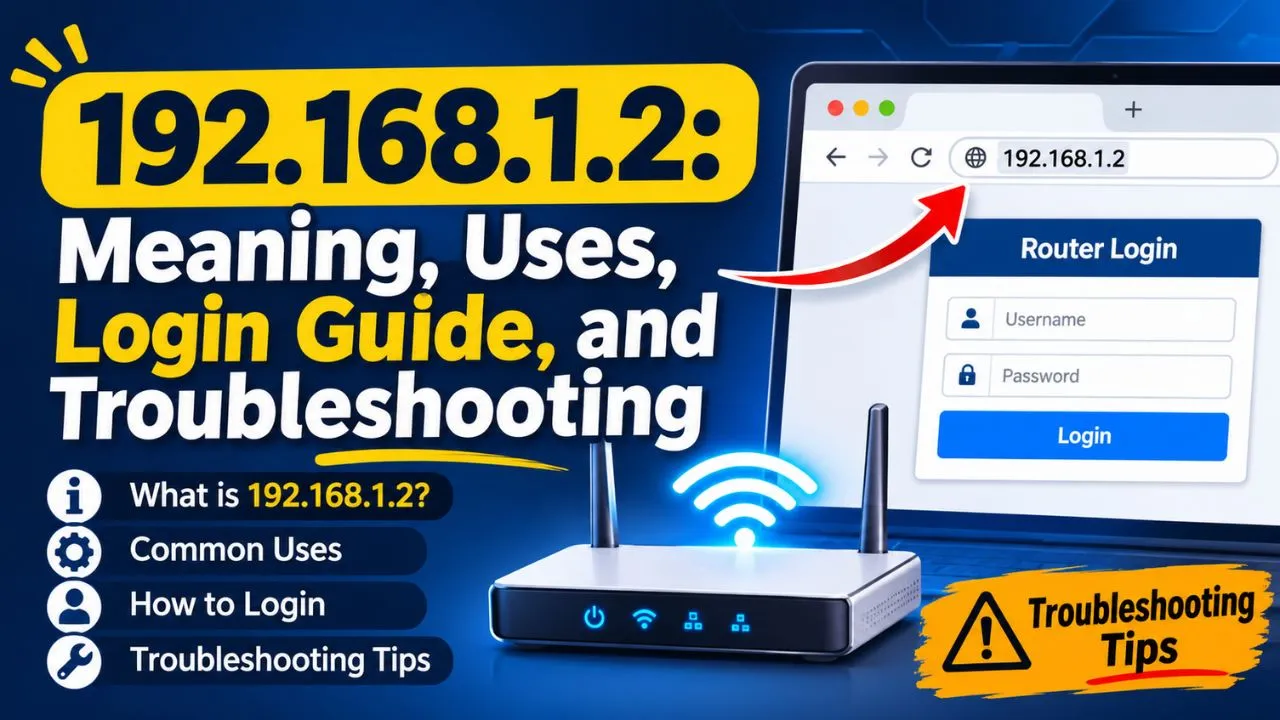
192.168.1.2 is a private IPv4 address commonly used by routers, computers, smartphones, printers, and other devices connected to a local network. It belongs to the 192.168.0.0/16 private IP address range, which is reserved for internal networks rather than direct communication over the public internet.
Depending on the router’s configuration, 192.168.1.2 may be assigned to a connected device through DHCP or configured manually as a static IP address. It can also serve as a router’s local management address, although it is more commonly used for client devices than as the primary gateway.
Understanding this IP address can help users identify connected devices, configure network settings, troubleshoot connectivity problems, and access router administration when the address is configured for that purpose.
What Is 192.168.1.2?
192.168.1.2 is a non-public IPv4 address used for communication between devices within a local area network (LAN). It is part of the private IP block 192.168.0.0/16, which is reserved for private networking under RFC 1918.
In a typical home network using the 192.168.1.0/24 subnet, the addresses have the following roles:
| IP address | Typical purpose |
| 192.168.1.0 | Network address |
| 192.168.1.1 | Router or default gateway |
| 192.168.1.2 | First available client address |
| 192.168.1.3–192.168.1.254 | Other connected devices |
| 192.168.1.255 | Broadcast address |
These assignments are common examples, not fixed rules. A router can use 192.168.1.2 as its own management address, while another network may assign it to a laptop, printer, smartphone, or wireless access point.
Unlike a public IP address, 192.168.1.2 cannot be used to identify a particular person, internet subscriber, or geographical location. Multiple households and organisations can use the same private address independently.
Why Is 192.168.1.2 Used?
The address serves different purposes depending on how a network administrator configures the router and connected devices.
- Device identification: Routers use private IP addresses to identify individual devices on a local network.
- DHCP assignment: A router may automatically assign 192.168.1.2 to the first device requesting an address from its available DHCP pool.
- Static IP configuration: Users can manually assign this address to devices that need a consistent local IP.
- Network administration: Some routers, access points, and other networking equipment use it as their management address.
- Secondary router configuration: It can be assigned to a second router or access point operating in bridge mode.
The address itself does not have a special function. Its actual purpose depends on the device and network configuration.
How to Log In to 192.168.1.2?
If your router or networking device uses 192.168.1.2 as its local management address, you can access its administration page through a web browser.
Follow these steps:
- Connect your computer or smartphone to the router’s Wi-Fi network or LAN using an Ethernet cable.
- Open a web browser such as Chrome, Firefox, Edge, or Safari.
- Type http://192.168.1.2 into the browser’s address bar.
- Press Enter to open the router’s login page.
- Enter the administrator username and password.
- Select Login or Sign In to access the administration dashboard.
If the address belongs to your router, its management interface should appear. You can then access the available network configuration options.
Important: Simply entering 192.168.1.2 does not guarantee that a router login page will open. Your device must be connected to the relevant local network, and the equipment must actually use this address for administration.
192.168.1.2 Login Username and Password
There is no universal username and password for 192.168.1.2. The login credentials depend on the router manufacturer and model.
Some networking devices use factory-default credentials such as the following:
| Username | Password |
| admin | admin |
| admin | 1234 |
| admin | password |
| admin | Leave blank |
| root | root |
These are examples, not guaranteed login details. For instance, some ZyXEL access points use admin/1234, while certain EnGenius devices use admin/admin. Always check the product label or manufacturer’s documentation before trying default credentials.
If you have previously changed your administrator password, you must use the updated credentials.
How to Find Your Router’s IP Address
If 192.168.1.2 does not open your router’s administration page, your router may be using a different local IP address. You can identify the correct address through your device’s network settings.
On Windows:
- Press Windows + R on your keyboard.
- Type cmd and press Enter.
- Enter the command ipconfig.
- Find the active Wi-Fi or Ethernet connection.
- Look for the Default Gateway entry.
- Note the displayed IP address.
If the Default Gateway shows 192.168.1.1, for example, use that address instead of 192.168.1.2.
On macOS:
- Open System Settings.
- Select Network.
- Choose your active Wi-Fi or Ethernet connection.
- Open the connection details.
- Find the Router address.
On Linux:
- Open the Terminal.
- Enter ip route.
- Find the entry marked default via.
- The IP address following this entry is generally your default gateway.
These methods help distinguish the router’s address from the IP address assigned to your individual device.
How to Fix 192.168.1.2 Not Working?
Sometimes, entering 192.168.1.2 into a browser does not open the login page. This usually happens because the device is not using that address, the connection is incorrect, or the router’s administration settings have changed.
Try the following troubleshooting methods:
1. Check the IP Address
Make sure you have entered 192.168.1.2 correctly. Do not confuse the number 1 with the lowercase letter l. Also, avoid adding spaces or unnecessary characters.
2. Connect to the Correct Network
Your computer or smartphone must be connected to the same local network as the router or access point. An IP address in the private range cannot normally be accessed directly from an unrelated external network.
3. Use the Correct Protocol
Try entering http://192.168.1.2 directly into your browser’s address bar. Some networking devices support HTTP but do not have HTTPS enabled by default.
4. Restart Your Router
Disconnect the router or access point from its power supply, wait approximately 30 seconds, and reconnect it. Allow the device to restart completely before trying again.
5. Disable VPN or Proxy Temporarily
A VPN or proxy configuration can sometimes interfere with access to local network devices. Temporarily disable it and try opening the address again.
6. Clear Browser Cache
Old browser data or cached redirects may occasionally interfere with the login process. Clear the browser cache or try accessing the address through another browser.
7. Check for IP Address Conflicts
If two devices use 192.168.1.2 on the same local network, they can interfere with each other’s communication. Check your router’s connected-device list and DHCP settings to identify any duplicate assignments.
8. Reset the Router
If you cannot access the administration panel because you have forgotten the password, a factory reset may restore the original login credentials. However, this should be your last option because it can erase your Wi-Fi name, password, internet configuration, and other custom settings.
Consult the manufacturer’s instructions before resetting the device.
Is 192.168.1.2 a Public or Private IP Address?
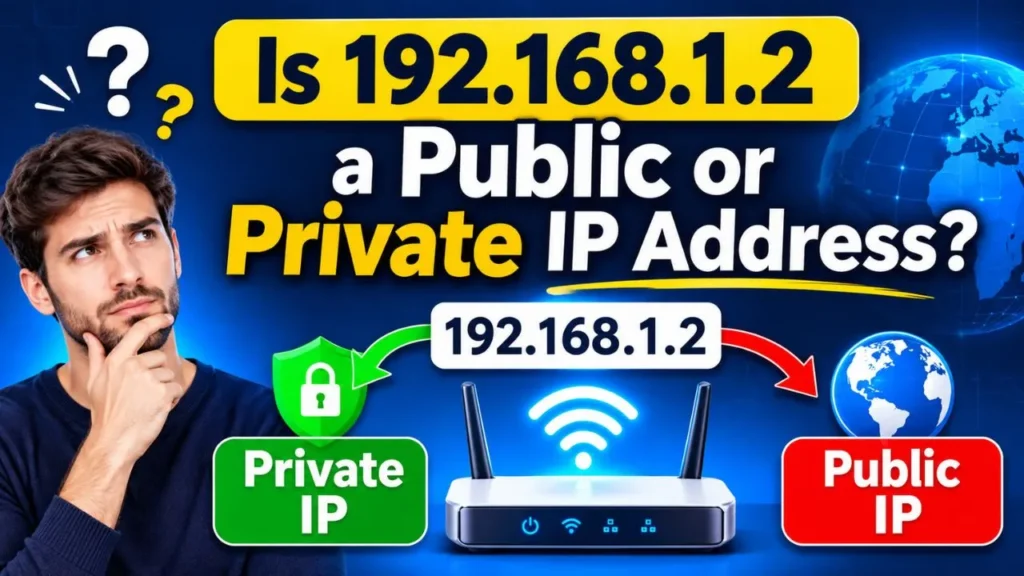
192.168.1.2 is a private IP address, not a public IP address. It belongs to the private IPv4 range reserved for local networks under RFC 1918.
Private addresses allow devices within homes, offices, and other local networks to communicate without requiring each device to have a separate public IP address.
For example, your router may assign 192.168.1.2 to a laptop and 192.168.1.3 to a smartphone. Both devices can access the internet through the router, which uses Network Address Translation (NAT) to handle communication with external networks.
A private IP address is not globally unique. Thousands of unrelated networks can use 192.168.1.2 simultaneously without interfering with one another.
How to Assign 192.168.1.2 as a Static IP Address
You can assign 192.168.1.2 manually to a computer, printer, network storage device, or another device on your local network. A static IP address is useful when you want a device to retain the same local address.
However, before assigning it, make sure the address is not already being used by another device.
A better option for most home networks is a DHCP reservation. This allows the router to assign the same IP address to a particular device automatically using its MAC address.
The basic process is:
- Log in to your router’s administration panel.
- Open the LAN or DHCP settings.
- Find the DHCP reservation or address reservation option.
- Select the device you want to configure.
- Assign 192.168.1.2 if it is available.
- Save the settings and reconnect the device.
A DHCP reservation helps prevent address conflicts while keeping the device’s network configuration automatic.
Conclusion
192.168.1.2 is a private IPv4 address commonly used in home and office networks. It can identify an individual connected device or serve as the management address for certain routers and wireless access points. Users can enter it into a web browser to access a device’s administration panel, provided that the equipment is configured to use this address.
If you cannot open the login page, check your default gateway, network connection, and router configuration before attempting a factory reset. For better network management, use secure administrator credentials and DHCP reservations to avoid IP address conflicts.
Frequently Asked Questions
1. What is 192.168.1.2 used for?
192.168.1.2 is a private IPv4 address used to identify devices within a local network. It can be assigned to computers, printers, smartphones, wireless access points, or networking equipment. Some routers also use it as their administration address.
2. How do I log in to 192.168.1.2?
Connect your device to the relevant Wi-Fi network or router using an Ethernet cable. Open a web browser, enter http://192.168.1.2 in the address bar, and press Enter. If the address belongs to your router or access point, a login page should appear.
3. What is the default username and password for 192.168.1.2?
There is no universal login combination. Common factory defaults include admin/admin and admin/1234, but the correct credentials depend on the manufacturer and model. Check the device label or official manual for accurate information.
4. Why is 192.168.1.2 not opening?
The address may not belong to your router, or your device may not be connected to the correct network. Check the Default Gateway using the ipconfig command on Windows. Also, verify the address, restart the networking device, and try accessing it through HTTP.
5. Can I change my router’s IP address to 192.168.1.2?
Yes, you can configure a compatible router to use 192.168.1.2 as its local management address. However, make sure the address is available and does not conflict with another device or the existing network configuration.
Read Also: 192.168.11.1 | 192.168.1.1 | 192.168 l 254.254 | 10.0.0.0.1 | 192.168.100.1
One response to “192.168.1.2: Meaning, Uses, Login Guide, and Troubleshooting”
[…] Also: 192.168.1.2 | 192.168.11.1 | 192.168.1.1 | 192.168 l 254.254 | 10.0.0.0.1 | […]